Knowledge Graph
The Asset Model tree answers where each piece of equipment is and what the value of each variable is. The Knowledge Graph answers what connects to what: where a machine’s data comes from, what is left without data if a source, an Application or a supplier stops, and what the probable cause of a problem that just showed up is.
It brings together two origins:
- Relationships the CMS already knows — built on their own, with nothing to register: the tree (node that contains node), the variables of each node, the asset type, the telemetry source that reads the variable, the Delivery that writes to it (by the mapping and by the messages that actually arrived in the last 7 days), the Transformer, the Collection and the Application the data comes from, the dashboards that show the variable and the alert rules that watch it.
- Relationships only people who know the plant can tell — registered by you: the Filler feeds the Labeler, the line depends on the compressor, the supplier supplies the line. See Registering relationships.
Everything respects the access of whoever queries: an item the person cannot see (outside their UNS roles, from an Application that is not theirs, from a screen they do not have) does not show up even as a neighbor. The counts say how many items were left out, without saying which.
Where it shows up
| Where | What it shows |
|---|---|
| Relationships, in the Namespace Explorer | The relationships of a node or variable, the diagram, the impact and the probable cause. Button in the node header and icon on each variable |
| Relationships, in the Asset Model | The registration of relationships, relationship types and external partners, and the links declared on each asset type |
| Problem variables, in the UNS Monitor | The icon at the end of each row opens the probable cause of that variable directly |
| Reports › UNS Map | The drawing of a plant, area or line, by layers, with the status now. See the report |
| Synoptic, in the dashboard editor | Place by flow spreads the values in the order of the relationships |
| AI and MCP | The tools cms_uns_relations, cms_uns_impact and cms_uns_probable_cause. See For the AI |
| i3X | The relationship types and the relationships between nodes and variables. See i3X |
Relationships
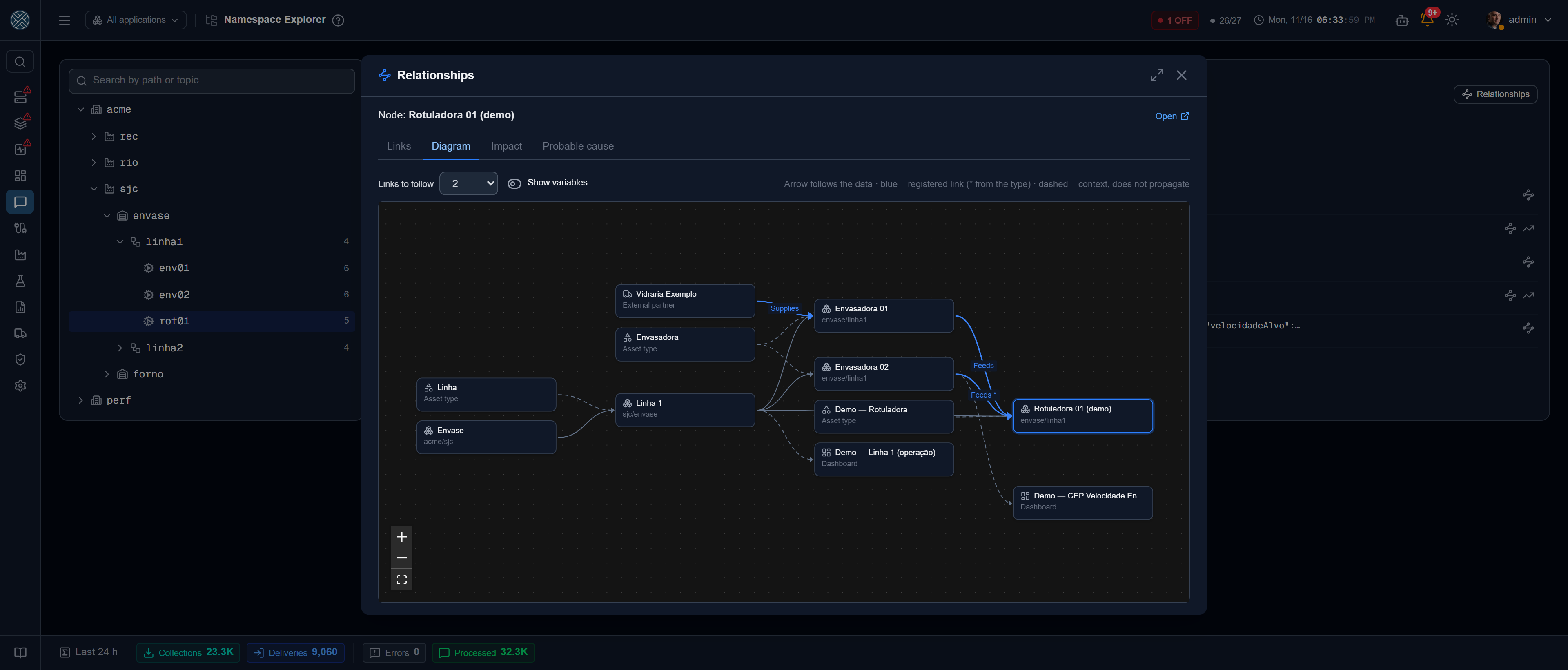
In the Explorer, the node’s Relationships button (or the icon on a variable’s row) opens the popup with four tabs. Clicking an item puts it in focus and Back retraces the path. Open takes you to the item’s screen, when there is one and you have access to it.
Links
Three columns: Comes from (what feeds the item), the item in focus and Goes to (what depends on it). Each group states the relationship read from the side of the focus — “Part of”, “Has the variable”, “Is fed by”, “Shown on the dashboard”. A relationship that comes from an asset type rule carries the note from type Line under the item.
Diagram
The neighborhood drawn as boxes and arrows, from left to right in the direction of the data:
- Links to follow: 1, 2 or 3 steps from the focus;
- Show variables: off by default — on equipment with dozens of variables, the drawing would end up with nothing but them;
- blue arrow with a name = registered relationship (with * when it comes from the type rule); dashed = context relationship, which does not carry the impact forward (the asset type, the dashboard built on the node);
- a node’s box shows the end of the path (
sjc/envase) to tell apart two “Line 1” from different plants; - asset type and broker show up as neighbors, but the drawing does not continue through them — otherwise the line would bring along every other line of the same type.
Above 150 items the drawing stops and warns: lower the links to follow or hide the variables.
Impact
- What this affects — what is left without data if the item stops: the variables, the equipment, the dashboards and the rules after it;
- What this depends on — what needs to be up for the item to have data: the source, the Delivery, the Collection, the Application.
It goes up to 6 links by default (adjustable from 1 to 10). The list groups by type, and says the distance and through which relationship each item was reached. It is the question to ask before a scheduled stop: what stops along with it?
Probable cause
It walks back from the item, through what it depends on, and shows what also has a problem right now:
| Problem | Where it comes from |
|---|---|
| Stale variable, with BAD or uncertain quality, or out of schema | The same reading as the UNS Monitor |
| Application OFF, deactivated or in maintenance | Keep Alive and the Application’s settings |
| Telemetry source or UNS broker disconnected | The live state of the UNS process |
| Item turned off in its settings | Inactive node, source, Collection, Delivery, Router or partner |
Where the problem starts is the candidate that does not depend on any other candidate found — it is where it pays to begin. The others show up in Also with a problem along the path. Each item carries the path to the focus, so you can check. It is a suggestion: the graph shows what is broken along the path, it does not prove that was it.
Registering relationships
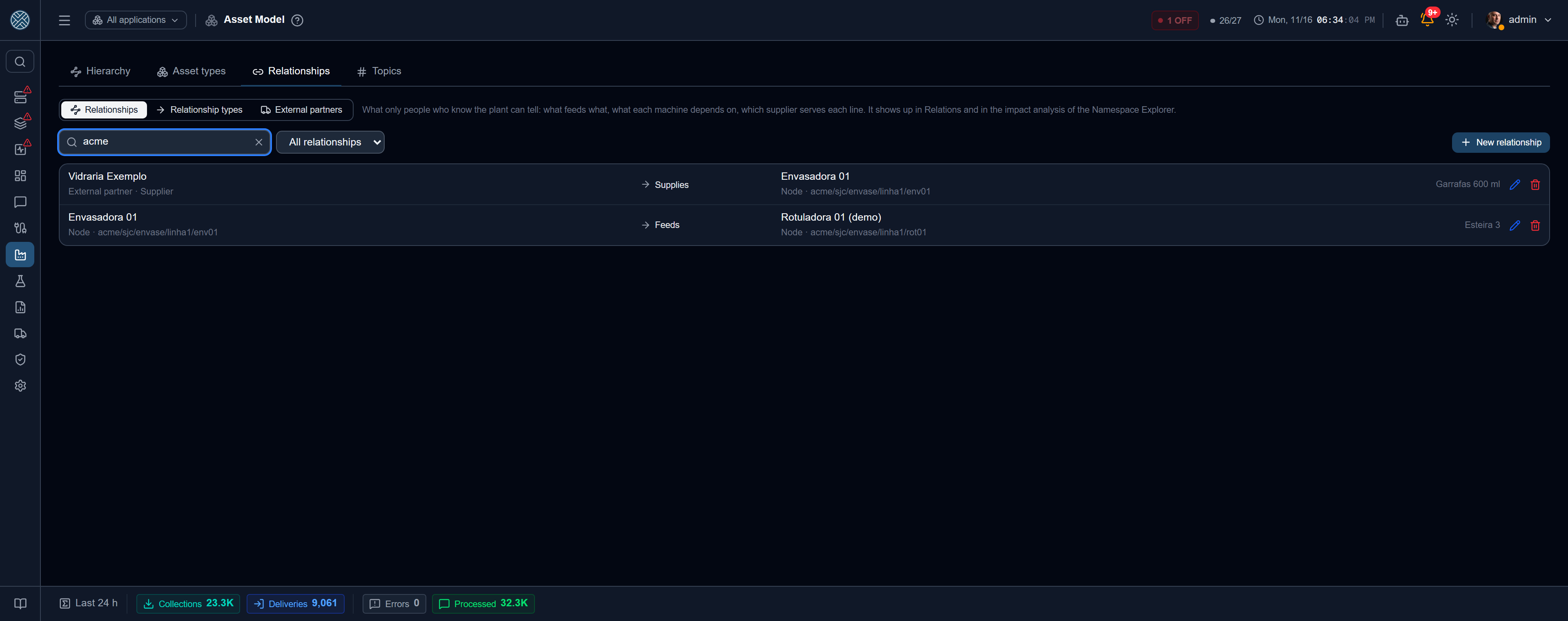
In the Asset Model, the Relationships tab has three parts. Whoever can edit the Asset Model can register them.
Relationships
New relationship asks for the origin, the relationship and the destination. Origin and destination can be Node, Variable, Application or External partner — at least one of the two has to be a node or a variable. The relationship already comes with its direction: choosing “Is fed by” stores “the destination feeds the origin”. Below the fields, the ready-made sentence and the effect on the impact (“if the Filler stops, the Labeler is left without data”).
The Note is free text (“via conveyor 3”, “contract 4500123”). Each node in the Hierarchy has a button with its relationships.
Relationship types
Six come built in and cannot be deleted:
| Relationship | Inverse | The impact flows… |
|---|---|---|
| Feeds | Is fed by | from the origin to the destination |
| Depends on | Is required by | from the destination to the origin (if the compressor stops, the line stops) |
| Supplies | Is supplied by | from the origin to the destination |
| Produces | Is produced by | from the origin to the destination |
| Monitors | Is monitored by | from the origin to the destination |
| Is backup of | Has as backup | does not flow — context only |
New relationship type creates your own, with the name, the inverse name and the direction of the impact. A type in use cannot be deleted.
External partners
Supplier, customer, service provider or carrier — whoever is not a plant node nor a CMS Application, but affects production. A partner with relationships cannot be deleted; deactivate it instead.
Link on the asset type
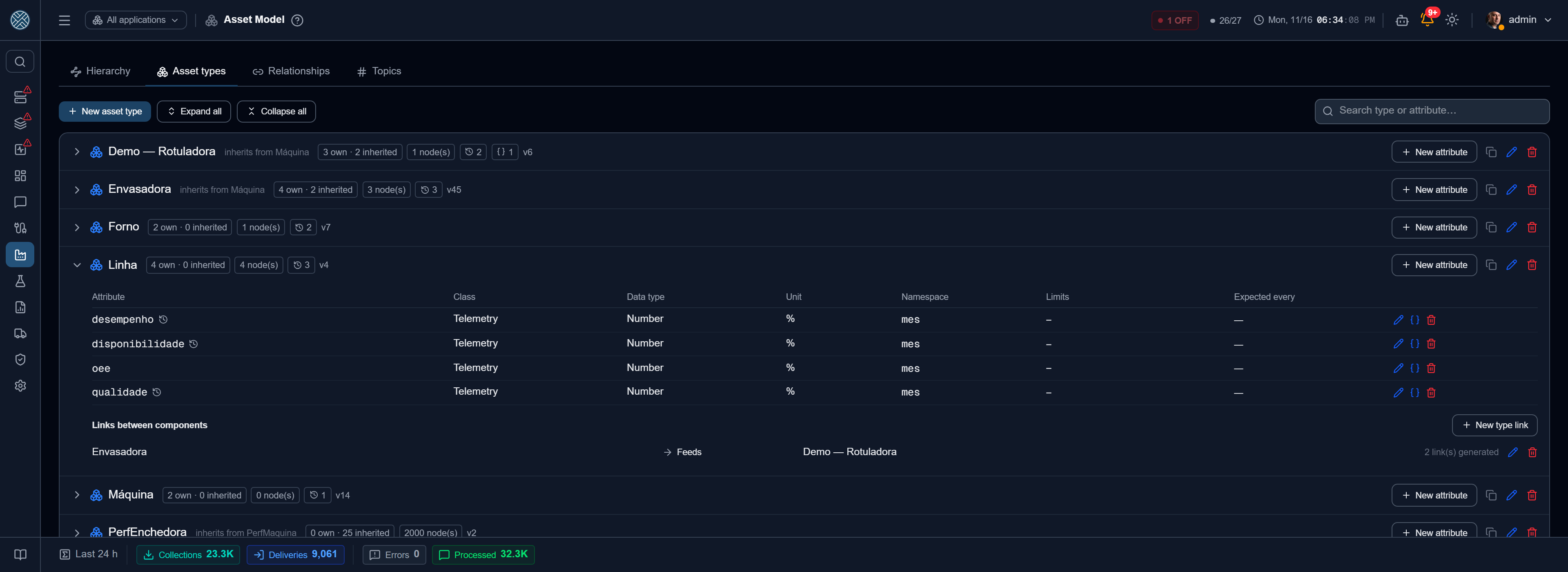
Instead of linking machine by machine, declare it on the type: in Asset types, open the type (for example Line) and use New type link in Links between components:
- From and To are asset types, or the node of the type itself (“the Line depends on each Machine”);
- the rule applies to every node of the type and of the types that inherit from it, and the component can be at any level below the node;
- the search does not go into a sub-node of the same type — two nested lines do not get mixed;
- the list shows how many links each rule generates today and, faded, the rules inherited from the parent type;
- if the same relationship was registered by hand for a pair, the registered one wins (with its note).
A new machine in a node of the type joins the links with nothing to register.
Export, import and transport
The Asset Model export carries the relationships, the customer’s relationship types, the partners and the type links, by name and path; the import creates what is missing and never deletes. In Transport, the relationships go along with the part of the tree and the types the package carries.
UNS Map report
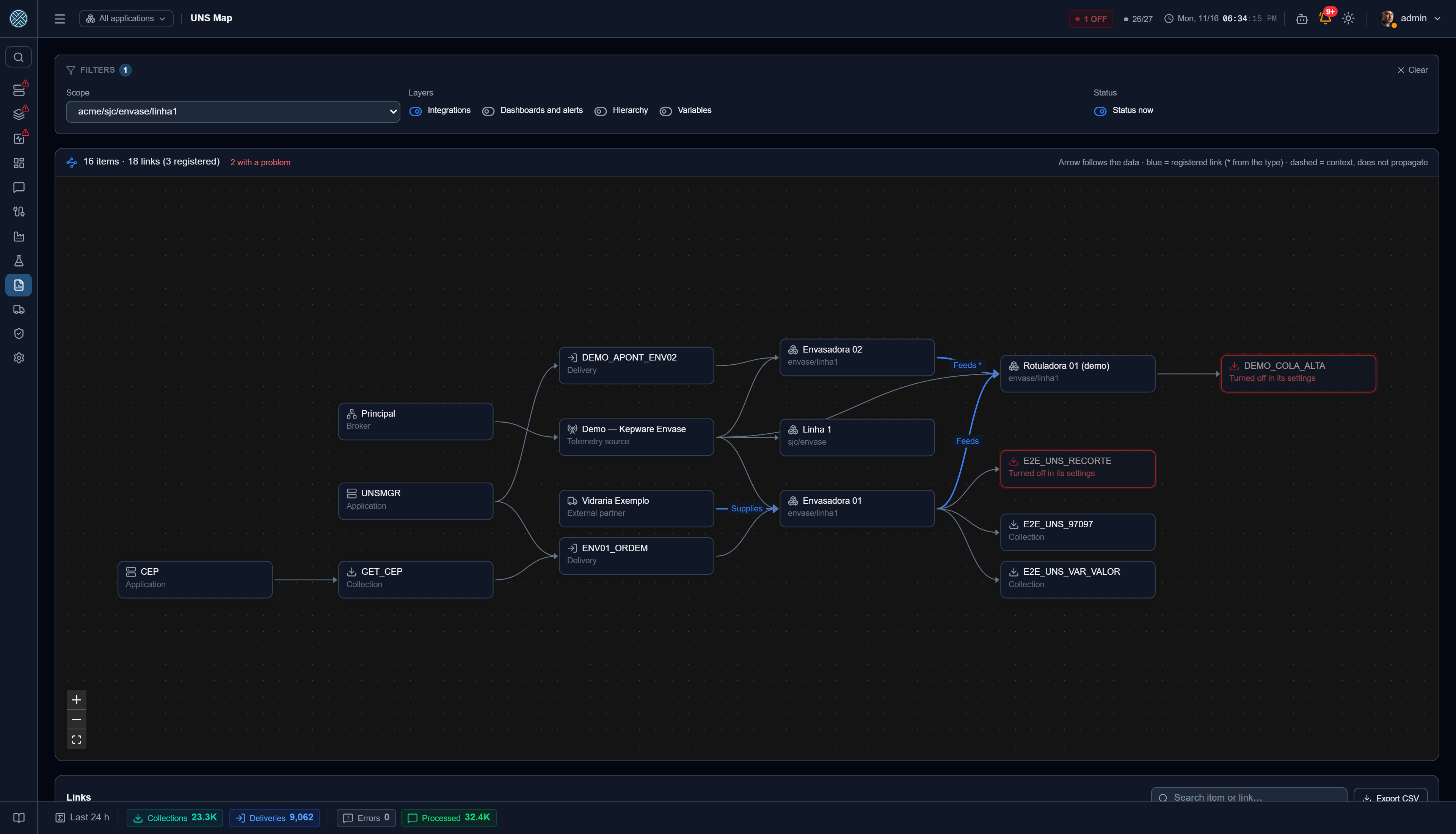
In Reports › UNS Map (/reports/uns-graph), the graph of a whole plant, area or line.
It uses the same permission as the Explorer and only shows up with the UNS module in the license.
| Filter | What it does |
|---|---|
| Scope | The whole UNS, or a tree node and everything below it |
| Integrations (on) | Applications, Collections, Deliveries, Routers, Transformers, sources and broker — where each piece of equipment’s data comes from |
| Dashboards and alerts | The dashboards and the alert rules that use the data |
| Hierarchy | The tree nodes and the “contains” arrows. Without it, only the equipment with relationships or with data comes in |
| Variables | The variables themselves. Without them, what goes into or out of a variable links straight to its equipment |
| Status now (on) | Red = has a problem now (the same reading as the probable cause); amber = without data because of a problem. Reloads every 30 seconds |
Clicking an item opens the Relationships popup. Below the drawing, the table of links with search and Export CSV. Above 400 items the drawing shows the most important ones — equipment and relationships first, variables last — and warns; choose a smaller scope or turn layers off.
For the AI (MCP)
The MCP Server, the UNS MCP and the Integration Agent answer questions such as “what supplies line 2?” or “why did the filler stop?”:
| Tool | Answers |
|---|---|
cms_uns_relations | The direct relationships of an item |
cms_uns_impact | What is left without data if the item stops (AFETA) or what it depends on (DEPENDE) |
cms_uns_probable_cause | What else has a problem right now along the path, with the root and the path |
The item goes by id or by its readable reference: node path, variable topic, or the code of the Application, Collection or Delivery. They follow the Explorer permission and require the UNS module in the license.
i3X
The i3X API publishes the relationship types in GET /relationshiptypes,
with both directions of each one (Feeds/FedBy, DependsOn/RequiredBy, Supplies/SuppliedBy,
Produces/ProducedBy, Monitors/MonitoredBy, BackupOf/HasBackup; a customer type uses
<key>Inverse). POST /objects/related returns the relationships between nodes and variables,
registered or from the asset type; a relationship with an Application or a partner is left out,
because they are not i3X objects.
The built graph is kept for up to 30 seconds and the next build runs in the background, so screens do not wait on large plants. That is why a newly registered relationship can take up to 30 seconds to show up on every screen.