Configuration
These four screens are the backbone of the setup. Creation order matters: Application → Interface → Definition/Collector.
Applications — /applications
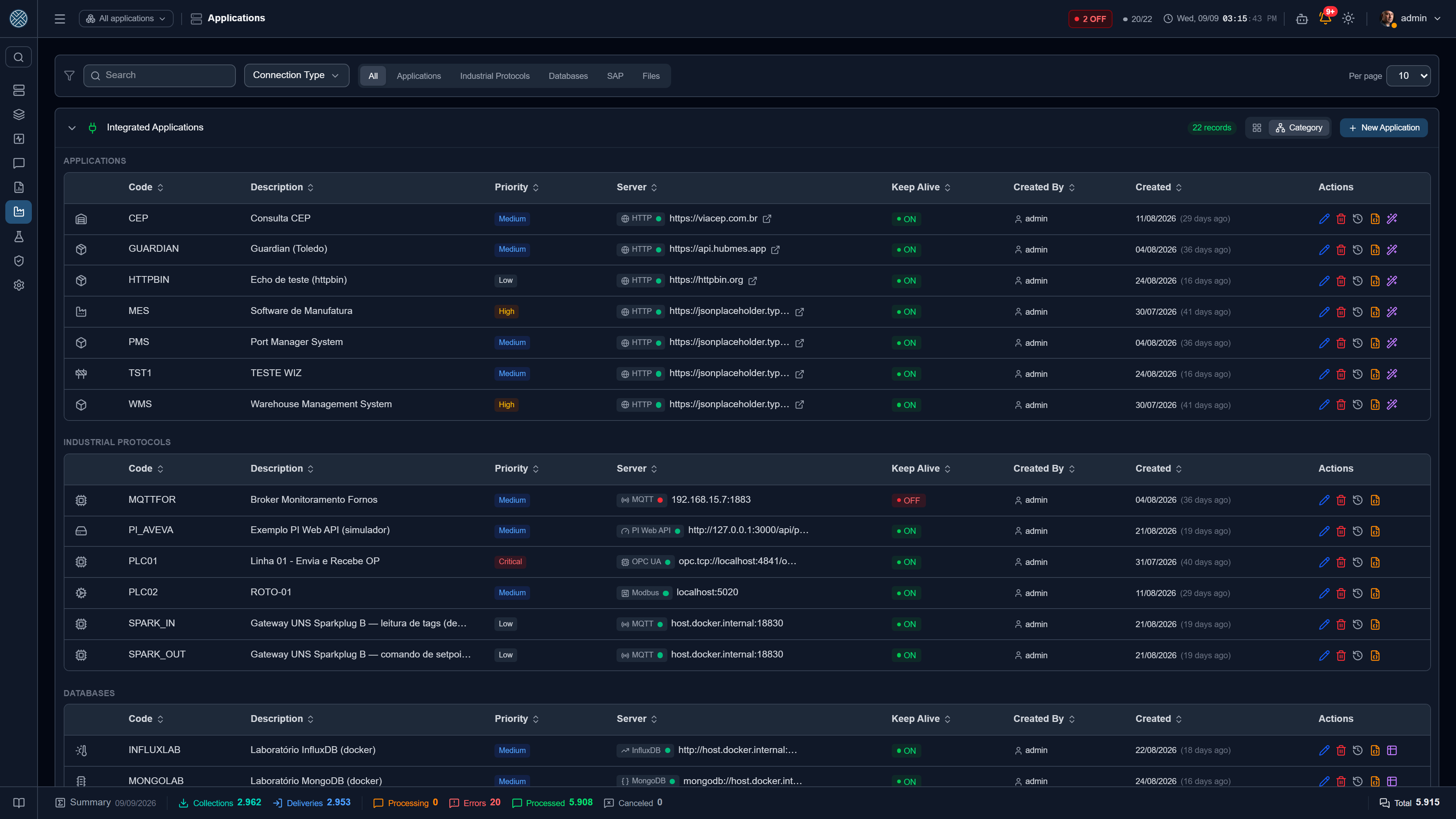
Registry of integrated systems. Besides name and code, the Application controls:
- Availability monitoring — the keep-alive type (HTTP, database, MQTT, OPC UA, Modbus, SAP, PI…) and the External Connection used; it feeds the Applications Panel and the uptime report
- Priority, icon and logo — what orders and identifies the application on the panels
- Notes — free text shown on the Cockpit and in the body of the application-offline alert; in practice, the phone number of whoever supports that system
- Grouping — practically every screen filters by application
The code goes into receiving URLs and historical reports. Changing it later breaks integrations already published in client systems — which is why the field opens locked when editing. See The code, once it is in use.
The row buttons
| Icon | What it does |
|---|---|
| Pencil / bin | Edit and delete |
| Clock | Change history |
| Orange JSON | Exports a Postman v2.1 collection with one folder per Interface of the Application. The token never goes into the file |
| Purple (wand, table or boxes) | Opens the assistant applicable to this Application’s type |
An Application just created and still without an Interface shows an invitation at the top of the screen, offering the matching assistant. It is the fastest way out of a blank slate.
Own URL or External Connection
An HTTP Application has two ways of saying where its system is, chosen in the Address field:
- Own URL — the URL, the Keep Alive URL and the certificate live in the Application itself. It is the default, and it is how every HTTP Application worked before.
- External Connection — the three values come from an HTTP connection and show locked, with a padlock. Changing the address on the connection changes it for every Application linked to it, and for their HTTP deliveries.
Use the External Connection when more than one Application talks to the same server. The Credential stays in the Application in both modes. In the list, a linked Application shows a plug icon next to its URL, with the connection name.
Turn into External Connection. When editing an HTTP Application with its own URL, the link below the URL creates an HTTP connection from its data and links the Application to it. The window suggests the other Applications that use the same address, none of them checked, and warns when the Keep Alive or the certificate of one of them is different: once linked, it uses the connection ones. Only what is checked goes along. You need permission to create External Connections.
The Connection Type, once there is a collector or delivery
An Application’s Connection Type decides how all its collectors and deliveries run. That is why, when editing an Application that already has any collector or delivery, the field opens locked, with a padlock and the number of collectors and deliveries that depend on it. There is no unlocking: switching HTTP to SQL, for example, would leave the HTTP deliveries without an address and the SQL collectors without a database. The server refuses the change through the API, MCP and import too.
Still allowed:
- switching the External Connection to another one of the same type;
- editing the URL, and moving an HTTP Application from own URL to External Connection and back;
- changing the type of an Application that only has Interfaces, with no collector or delivery.
On InfluxDB Applications with an InfluxDB collector or delivery, InfluxDB connections of another version show disabled in the selector: each version (1.8, 2.x, 3.x) speaks a different query language and writes through a different endpoint.
Interfaces — /interfaces
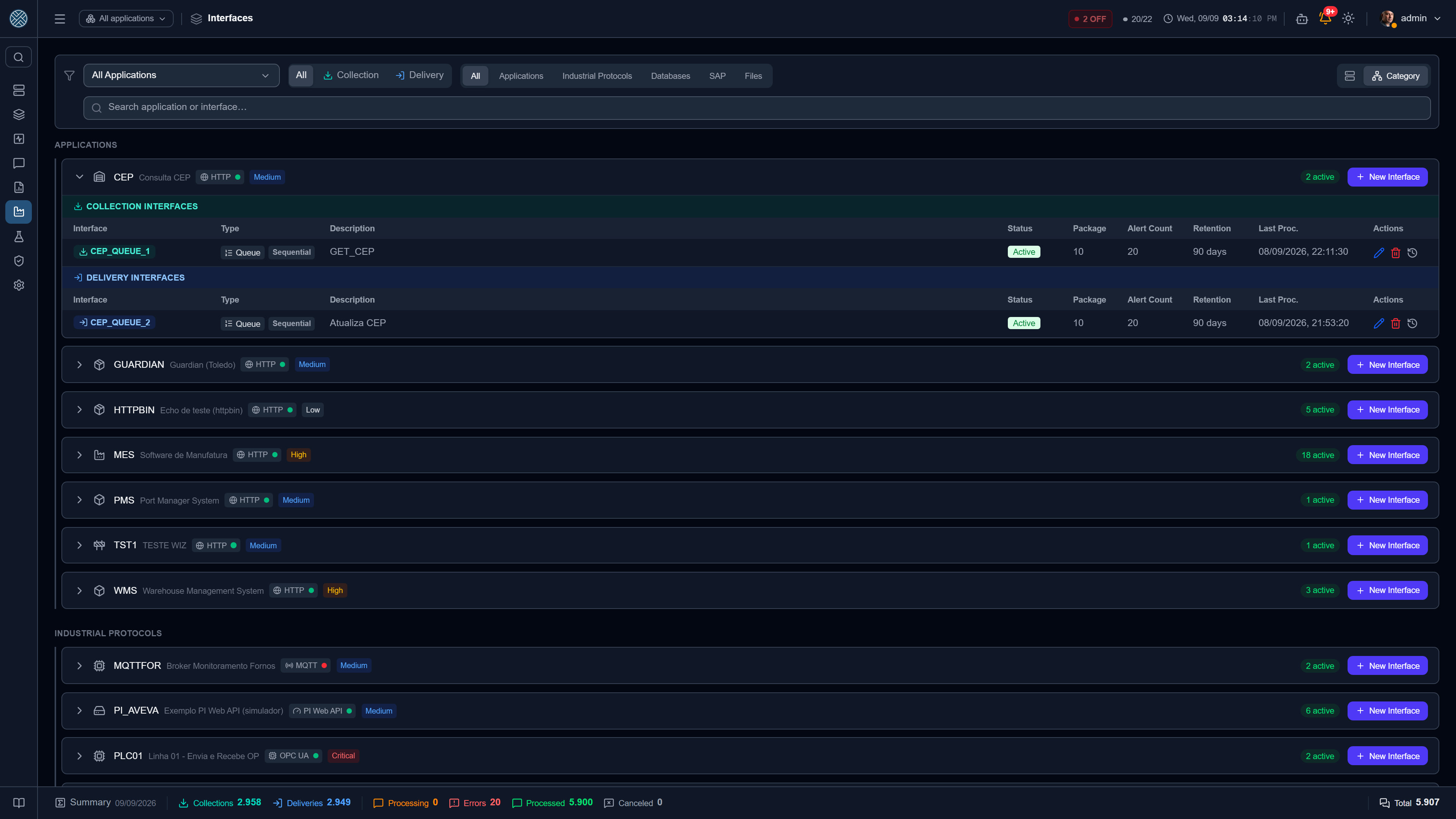
CRUD of processing interfaces, with:
- Type:
ENTREGA(delivery) orCOLETA(collection) - Processing order:
SEQUENCIAL(order preserved) orPARALELO(throughput) - Scheduling: cron or fixed interval — this is what becomes the job in Schedulers
- Message retention days: how long this interface’s messages are kept before the nightly automatic purge
- Queued-messages alert: the ceiling from which the alert fires
- Block / release: holds delivery without losing messages
The Type decides what may live inside the Interface: an ENTREGA Interface only accepts
Delivery Definitions, and a COLETA one only accepts Collections. The screen never offered the
wrong combination, and since August 2026 the API refuses it too — a Delivery stored in a Collection
Interface would make the scheduler process it down the wrong path, in a cycle that never ends on
its own.
The check only runs when the Interface is changing, so it does not block editing a description or a timeout on a Definition that was already born in the wrong place — blocking whoever is trying to fix it would be the opposite of what the rule is for.
Retention is per Interface, not global. A high-frequency interface can keep 7 days while a tax document one keeps 365 — which avoids choosing between losing traceability and filling the database. Each one’s usage shows in the Storage report.
Inside each Application card, the Interfaces come split into two blocks — Collection and Delivery — with the same title bands and the same colours as Message Definition. In an application with ten interfaces, the coloured code badge did not let you see at a glance how many belonged to each side.
Every block and release is recorded — manual or automatic from a business error, with author and duration — and shows up in the Interface Blocking report.
Ticket tools activated under Help Desk show up here in a category of their own, Help Desk, after Files — with the Interface the tickets go out through. That is where you block, release or follow the ticket queue. They do not show up under Applications: they are created and deactivated from the Help Desk tab.
Definitions — /definitions
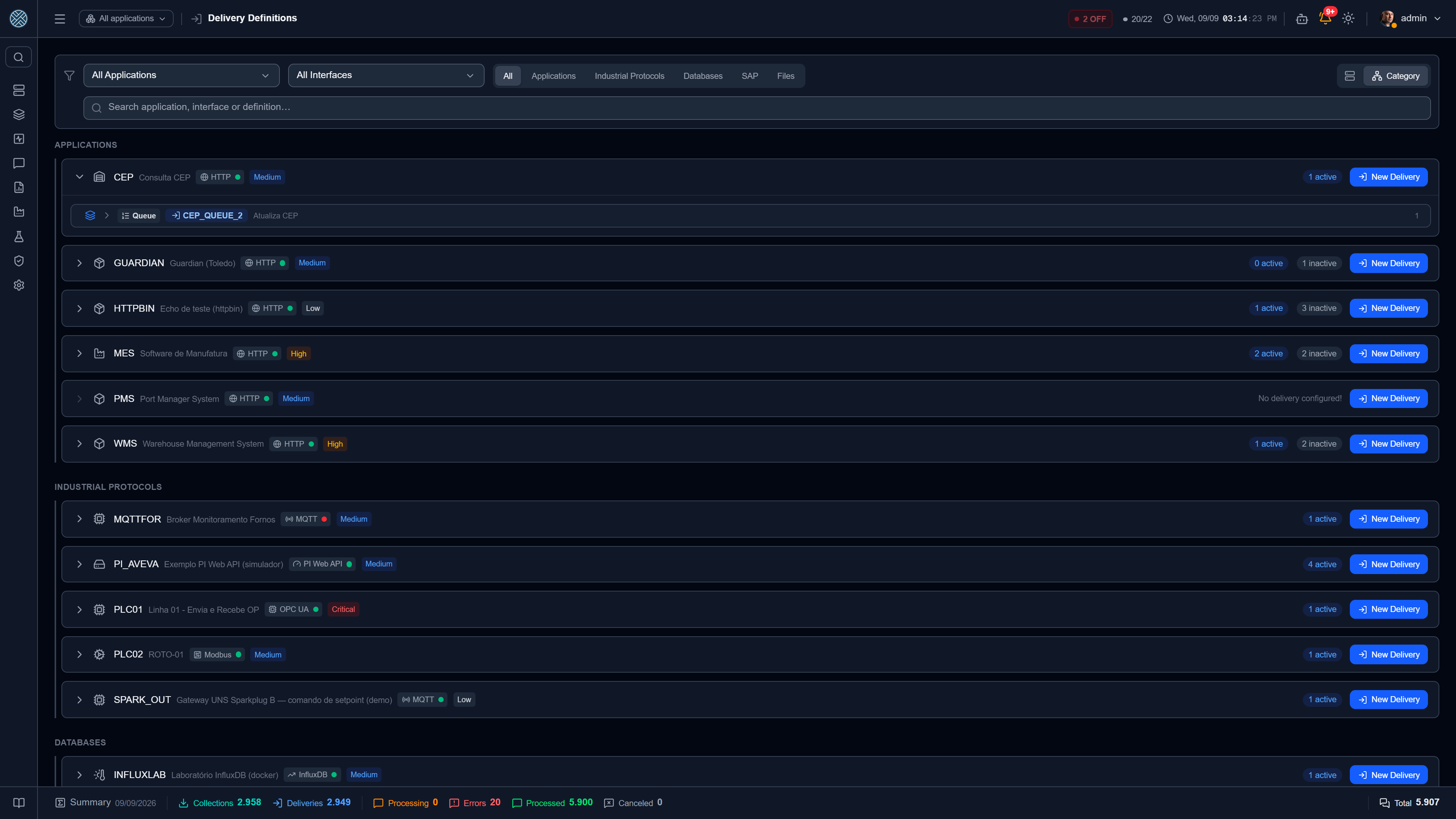
The delivery contract. The fields that raise the most questions:
| Field | What it changes |
|---|---|
| Delivery type | Destination protocol: HTTP (POST/PUT/PATCH/DELETE), SOAP, MQTT, SQL, Oracle, PostgreSQL, SQLite, SAP RFC, OPC UA, Modbus |
| Message type | ASSINCRONA replies immediately and delivers later; SINCRONA only replies after the destination does |
| Order × Synchronous | A Synchronous Delivery does not go through the queue — it delivers inside the receiving request. That is why the CMS refuses the Synchronous Delivery + Sequential Interface combination, from both sides: when creating the Delivery, and when trying to make the Interface Sequential. A synchronous one in an ordered queue would jump the order the Interface promises |
| Decoding | Converts the received body before processing: Base64, XML unescaped, URL encoded, HEX, Latin-1, HTML entities |
| Retries / backoff | How many times to retry a technical failure. It applies to both modes: 10s apart in Asynchronous (in the queue job), 1s apart in Synchronous (inside the request). See Message lifecycle |
| Timeout | How long to wait for the destination before calling it a failure |
| Transformer | Script applied to the payload before delivery. On an Interface with two or more producer Applications, each one can also have its own — see Transformer by producer Application |
| Enable WebService (WSDL) | Enables the SOAP endpoint with a dynamic WSDL for this definition |
| Expose as MCP tool | Lets an AI agent call this Delivery. See MCP integration server |
| Allow resend | Switch in the form header, next to Test. Allows resending an already processed message of this Delivery — see Resending a processed message |
| Credential | How to authenticate at the destination |
| Forward Response | Where the destination’s response goes next — other Deliveries. Each row accepts a condition (the Rules button): it only forwards when the response meets it, e.g. RETURN.TYPE = S |
Allow resend
The Allow resend switch sits in the form header, next to Test, in both the Delivery and the Collector — it applies to the whole Definition, and already shows in New and Duplicate. It comes off: if the destination does not handle duplicates, resending may post the same data twice, and whoever configures the integration is who knows whether it copes. How to resend is in Messages.
Receive Validations
This section gathers what applies to the message when it arrives at the CMS: the Content-Type and its validation, the maximum payload size, Enable WebService (WSDL) — with the WS-Security header option — and the Expose as MCP tool switch.
Right below sits this Delivery’s Dynamic API URL, POST /api/{interface}/{code}, with a copy
button — the same look as on the Collector. While Interface and code are not filled in, an amber
notice asks for both; with the WebService on, the WSDL URL shows right underneath. This is the URL
you hand to the producing system’s team, without having to open How to Send.
The Input Payload editor — the parameters and the Input Payload Template, in HTTP, SQL, MQTT and file Deliveries — also lives here, next to the address the producer sends to. It only moved: the aliases are still resolved when sending to the destination, not on reception.
Transformer by producer Application
A Delivery often receives from more than one system — the WMS and the SVAI sending to the same destination — and not always in the same format. Instead of one Transformer that tries to recognise every dialect, each producer Application can have its own: it converts what that producer sends into the format the Delivery expects (the Input Payload Template) and runs before the Delivery Transformer, which still applies to every message.
When the Interface has two or more producer Applications allowed — through the API Keys and Inbound Credentials valid for it —, the form’s Transformer field becomes the Configure button, with a summary beside it (1/3 producers · Delivery: name). It opens the Transformer by producer Application popup:
| Part of the popup | What it is |
|---|---|
| Format this Delivery expects to receive | This Delivery’s Input Payload Template: what each producer’s Transformer has to produce |
| Producer Application · Credentials | One row per producer, with the API Keys and Inbound Credentials it sends with. A token without a using Application counts as the Interface’s own Application |
| Transformer | The producer’s. None — already sends the Delivery format keeps the producer on the usual path |
| Received Content-Type | What this producer sends, when it differs from the Delivery’s — XML to a JSON Delivery, for instance. Reception checks the producer’s instead of the Delivery’s. It unlocks only after a Transformer is chosen |
| Delivery transformer | The former field, moved inside the popup. It runs on every message, after the producer’s |
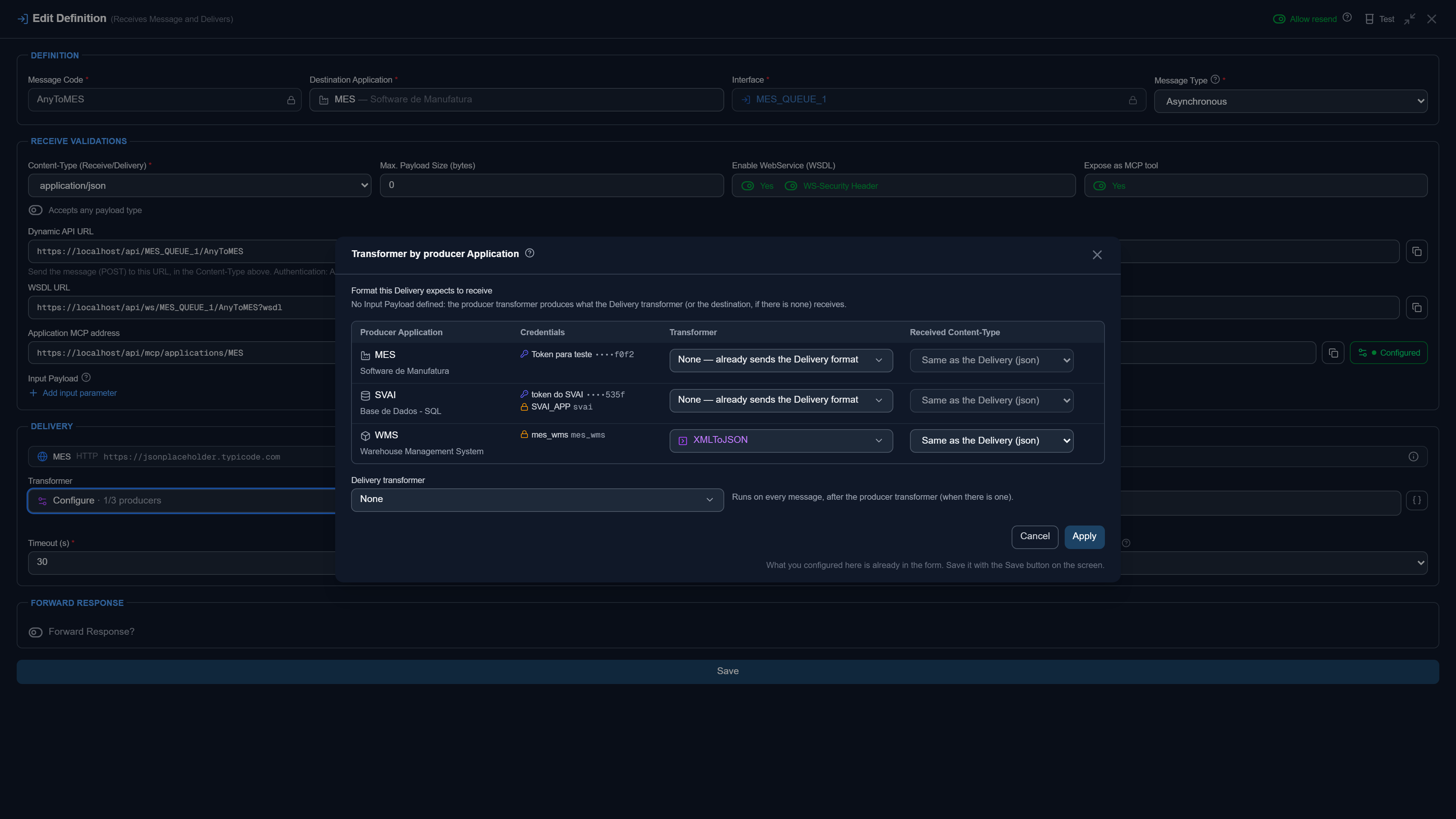
Apply only carries the choice back to the form; the Delivery’s Save is what stores it, and Cancel discards whatever was changed in the popup. Removing the Transformer of a producer that had one shows, in the popup and under the field, who will lose it on save — that producer’s messages will then be handled as if they already came in the Delivery format. Duplicating the Delivery carries the list along, and every change to it goes into the Delivery’s change history.
Who the producer of a message is comes from who authenticated: the using Application of the API Key
or of the Inbound Credential. After the producer’s Transformer, everything that reads the payload
sees the Delivery’s format, not the producer’s dialect — the input contract, the {{alias}}
placeholders, the :alias in SQL and SAP, and the OPC UA, Modbus and PI tags. A producer without a
Transformer of its own follows exactly the same path as before.
| Situation | What happens |
|---|---|
| Producer Transformer disabled | Its messages are refused on arrival, with the Transformer’s name in the response. Going on without it would pass the dialect along as if it were the Delivery format. The popup marks the row and warns |
| The producer’s script fails | The message is refused, with an error that says which of the two Transformers failed |
| The producer lost its credential on the Interface | The row stays in the popup, with the notice No credential allowed on this Interface: it applies to no message, but it does not vanish silently either. The trash icon marks it to Remove on save |
The field stays as Configure while there is a saved row, even if only one producer remains — hiding the popup would hide a configuration that still applies. In the Delivery grid, the External Applications (via HTTP) panel gains the Own transformer column when some producer has one.
Only a message that comes from outside, by API Key or Inbound Credential, goes through the producer’s Transformer. The MCP tool, Triggers, ticket opening and the Test Bench without Send as do not: their payload is already in the Delivery format.
The path, and the host that comes from the Application
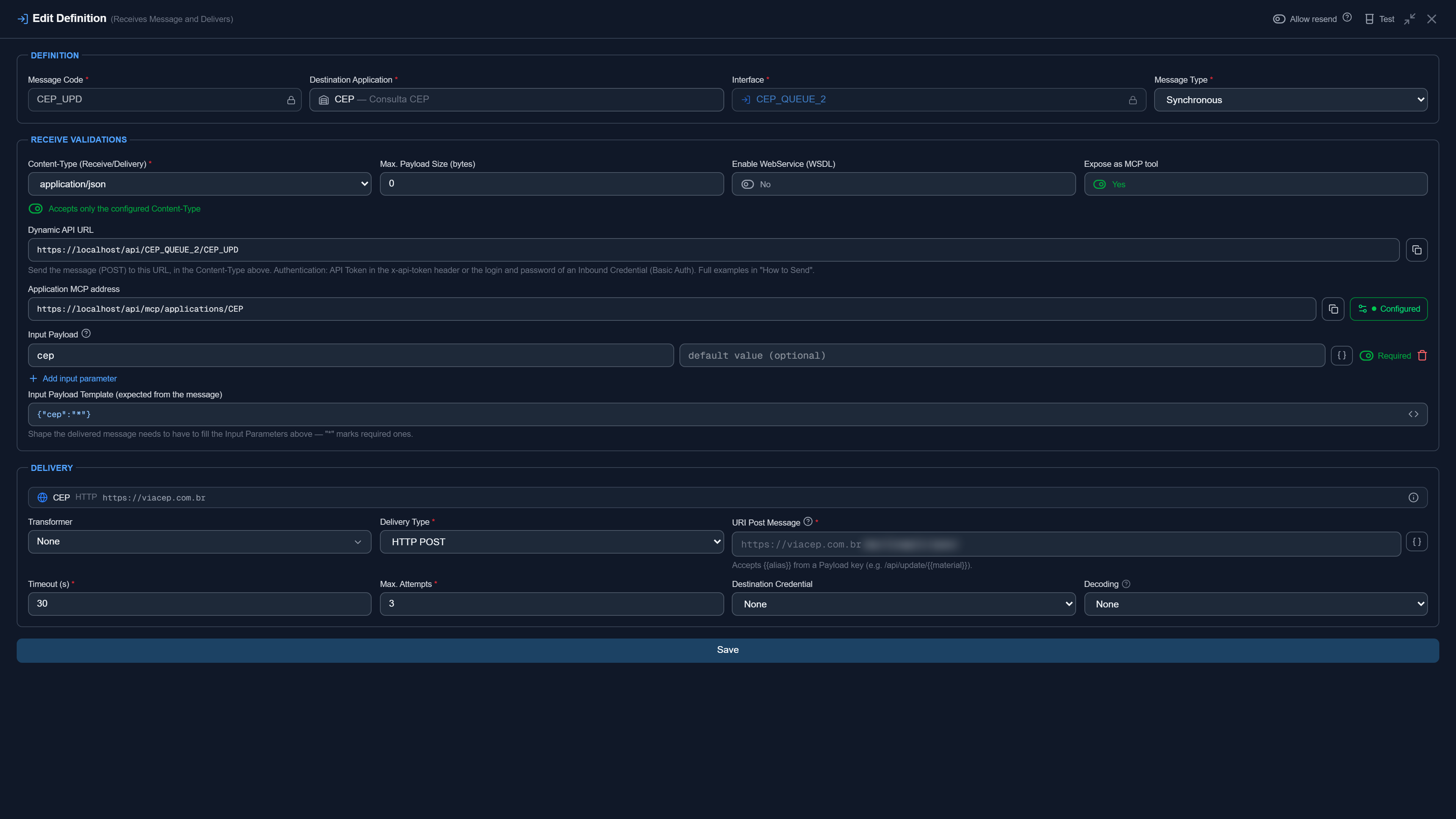
In HTTP and SOAP deliveries, the URI Post Message field holds only the path: the host comes
from the Application URL, registered under Applications. The same goes for the Collection Path
(URL) of an HTTP Collector. At run time the CMS concatenates the two pieces — which is why
pasting the whole URL into the field produced https://host.comhttps://host.com/api/...: the save
went through, and the error only showed on the first execution, looking like a network failure.
Now the Application URL appears inside the same box, locked and dimmer, glued to the left of what you type — because at run time the two parts really are a single URL. And if an absolute value gets in anyway (pasting does not look at the prefix), a warning states the problem with the fix one click away: Use the path only cuts the host and keeps the rest.
| The pasted URL | What the warning says |
|---|---|
| Repeats the Application address | Both go into the call, and it fails |
| Points at another host | The host used is always the Application’s. To call another host, use an Application with that URL |
On an Application with no URL registered the prefix does not appear and the warning does not exist: there an absolute path is legitimate, because it is the only address the call will ever have. It is the same principle as the Base Directory in file deliveries and the value inherited from the External Connection — the part that comes from above stays visible, and dimmer than the stretch you control.
Collectors — /collectors
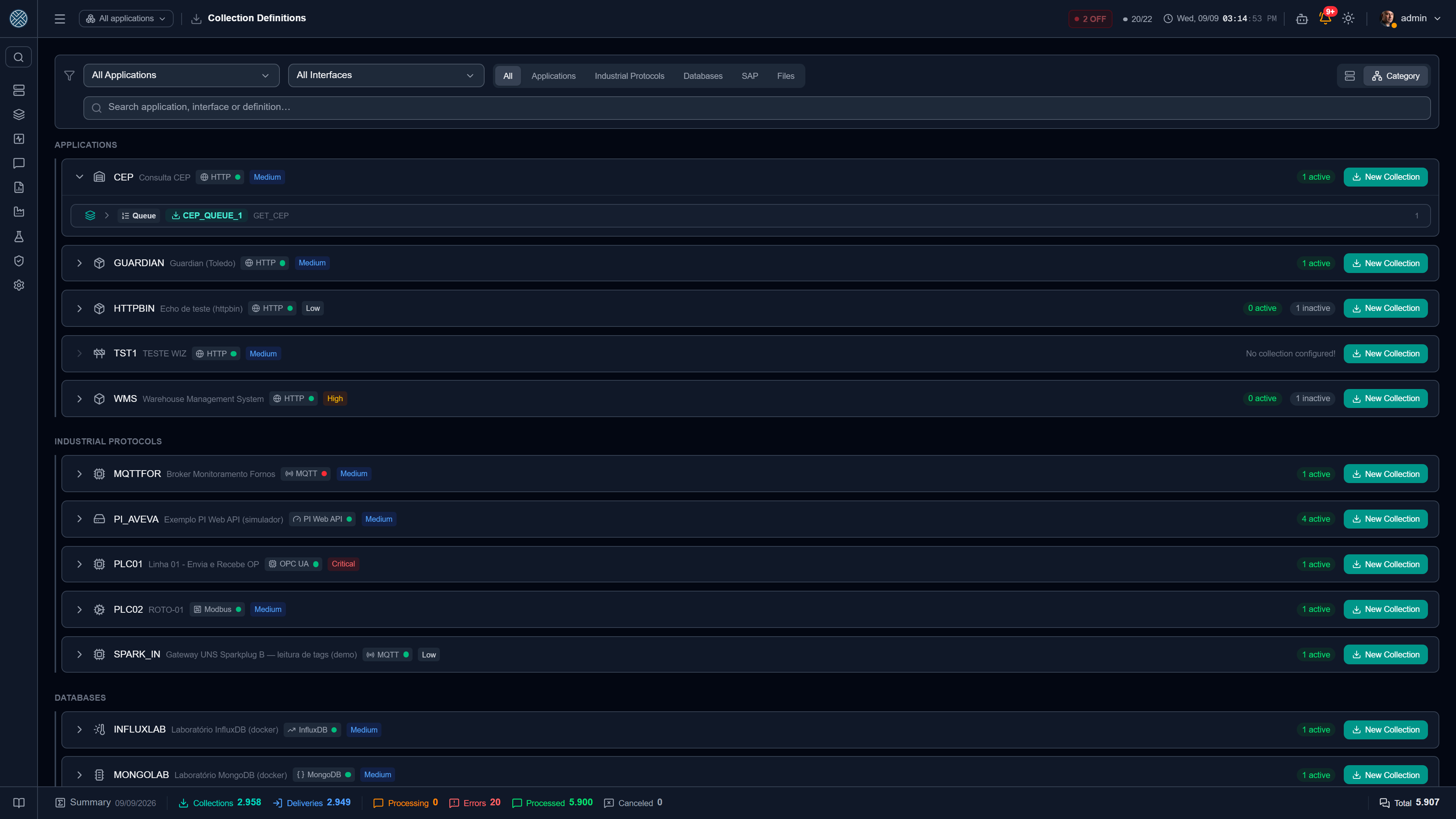
The opposite direction: CMS fetches the data. Each Collector has a source (with its External Connection) and one or more forwardings — the interfaces/definitions that receive the result. The exception is the query-only Collector, whose destination is its caller.
Per-protocol details live under Integrations.
Common to every collector:
- Scheduling — pull collectors (HTTP, SQL, SAP RFC, Modbus poll) run by cron or interval, managed under Schedulers
- Event collectors — MQTT, SAP IDoc and OPC UA trigger react to the event, without polling
- Transformer — applicable to the collected payload, before forwarding
- Condition per forwarding — the Rules button on each Forward Collection row: that destination only receives the reading that meets the rule. See Conditions on the data
- Last execution result — success/error is visible in the listing
A Collector that fails to read the source produces ERRO_COLETA; if it read fine but failed
to forward, it produces ERRO_ENTREGA. The two cases show up on different screens.
Connection details
The source section (on a Collection) and the target section (on a Delivery) used to say only “uses the External Connection configured in Applications: X”. The name does not tell you which server the integration reads from or writes to, and finding out meant opening External Connections — a screen most operators cannot even see.
Now a bar shows name, type and address right there, and one click opens a popup with that connection’s fields. It applies to the Collection and Delivery forms and to the detail panel of both grids.
The popup also carries an ON/OFF badge, which is the status as this Application sees the connection, not the aggregate shown on the External Connections screen: if its Keep Alive is OFF, its Collection and Delivery do not run, even if another Application reaches the same server. The value comes from the last cycle already recorded, so opening the popup does not trigger an SAP logon or an Oracle pool.
Below the fields comes daily availability: one bar for each of the last 30 days, green on a day the connection stayed up from end to end and colored on a day it went down, by the same thresholds as the Availability report — a 99% target, attention below 95%. The badge answers “is it up right now?”; the strip answers “does this keep falling over?”, which is the question that decides whether it is worth investigating. Hovering a day shows the percentage, how long it was down and how many outages there were.
A gray bar is a day without monitoring: before the Application existed, and the part of today that has not happened yet. It never shows up green — a day without measurement is not a day without an outage — and the period percentage leaves those days out as well, otherwise an Application created three days ago would read 80% just for not existing before.
The popup shows the fields through an allow list per connection type, never a block list: a secret column created in the future is born outside the popup, instead of showing up in it until someone notices. And it does not require the Applications Tool: whoever configures Collectors and Deliveries usually does not have it, and without that the bar showed up empty for exactly the people who need it most.
When saving a Collector or a Delivery
The result notice
Saving a Collector or a Delivery — under Collectors, under Deliveries or in Message Definition — opens a notice with the result, instead of closing the form silently:
| Result | How it shows | The buttons |
|---|---|---|
| Saved | Green box, with the confirmation | OK keeps the form open, to keep editing the same Definition; Close goes back to the list |
| Error | Red box, with the server message | OK goes back to the form, with everything that was typed, to fix it |
Before, the form simply vanished on success, and the error was a strip at the foot of the form, easy to miss in a long modal.
Closing without saving
The Collector and Delivery form opens in full screen, and the close control in its header is a
Close button, with text — the X sat right below the X of the browser tab and window.
With unsaved changes, closing asks first: Keep editing or Close without saving. This applies to the button, to a click outside the form and to the Close of the error notice. Closing the browser tab or window also makes the browser itself ask.
The code is unique across the whole system
The code of a Collector, and that of a Delivery, is not repeated anywhere in the CMS — not just within the same Interface. Trying to save a code another Definition already uses produces an error that says exactly that and asks for a different code. Before, the same situation showed up as “Internal server error”, because only the database stopped it.
The same applies, with a generic message, to the other records with a field that cannot repeat: the CMS answers that another record already has that value, without exposing a column or database constraint name.
No list accepts a repeated name
In the lists where each row has a name, two items with the same name are not accepted. The second
would vanish without warning — the name becomes a JSON key, an :alias in SQL or an {{alias}} in
a template —, and the defect would only show up at run time.
| Where | Lists checked |
|---|---|
| Collector | Input Parameters, SAP Input Variables, HTTP Fixed Parameters, OPC UA, PI and Modbus read tags |
| Delivery | Input Payload, OPC UA, PI and Modbus write tags, Sparkplug metrics, InfluxDB columns (mapped mode) |
The repeated row gets a red border and the hint Name used more than once, and Save stays blocked
until it is resolved. The comparison ignores leading and trailing spaces and is case-sensitive —
Lote and lote are different keys in a JSON. The server checks by the same rule, so a save through
the API is refused too — except for the Fixed Parameters, which already leave the screen converted
into a JSON object, and so only the screen checks them.
Only the list the chosen type uses is checked. A list from another type left behind in the record — from when the Definition was OPC UA and became HTTP, for example — does not block Save for a reason not visible on the screen.
Message Definition — /message-management
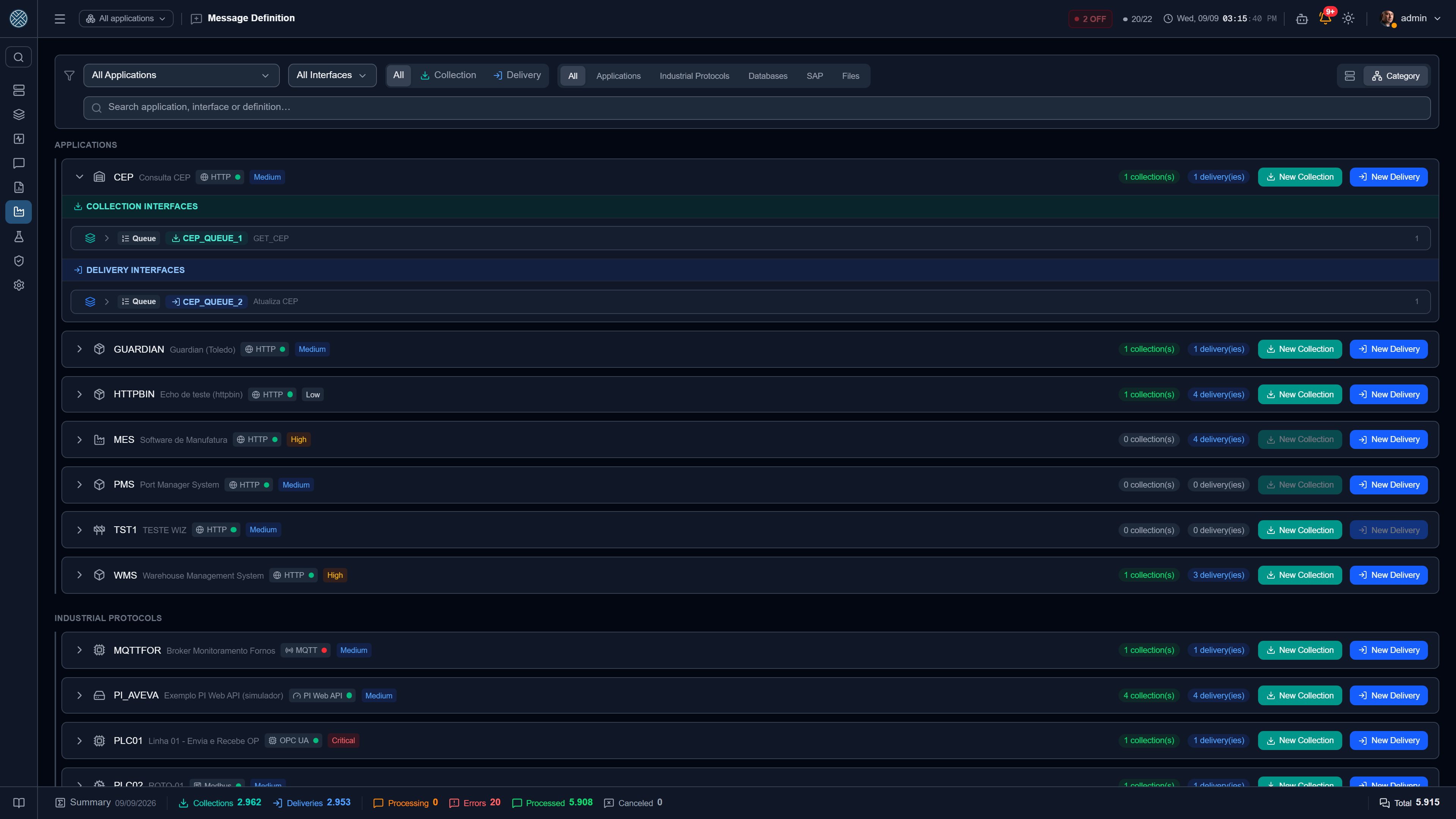
The unified view: every Collection and Delivery of an Application on one screen, grouped by Interface. This is where you answer “what does this application exchange with the CMS?” without switching between two screens.
An Interface that was created and never configured shows at the end of the list, dimmed and with a zero count — before, it simply did not exist on this screen, precisely for whoever needed to finish configuring it. It disappears when a filter or a search is active, which is when you are looking for something specific. Inside each Interface, rows are sorted by code.
The Help Desk category shows up here too, with the Delivery of each ticket tool — and the Application, Interface and Definition filters include it.
Each row carries the Settings button, which opens everything orbiting that Definition in a popup, in tabs: Business Errors, Alerts, Transformer, Contract, Encryption Rules, Scheduler, Credential, API Keys and Users with access. And the Report button, which produces that Definition’s consolidated view — exportable as PDF, useful as project handover documentation. In the popup, the PDF download is the icon to the right of the tabs, on the same line as them.
On a Definition exposed as an MCP tool, the API Keys tab also carries the line Exposed as MCP tool, with the tool name and the address where an AI agent calls it — it is the other way in to the same Definition, besides the keys listed there.
Observed Contract
The Contract tab shows the real format of that Definition’s payloads, inferred from the messages that have gone through it. It is not declared by hand: it is what actually flowed.
| Side | On a Delivery | On a Collection |
|---|---|---|
| Input | What the producer sends to the CMS | — |
| Output | What the destination answered (successful deliveries only) | What the source lookup returned |
For every field, the contract records the type and in how many of the observed messages it
appeared. That second piece is what makes the difference: knowing that itens arrives sometimes as
a number, sometimes as text, and is missing in one out of five messages, is what separates a
Transformer that works from one that breaks on the third message.
The contract’s origin is recorded: observed from traffic, coming from the assistant, or edited manually. Editing by hand resets the sample counter — it describes an observation, and a typed schema stopped being one.
A Definition with an encryption rule has no traffic-observed contract: the payload is never decrypted to build a schema. In those cases, provide an example manually — that is what allows using the Between Applications assistant even with an encrypted payload.
The code, once it is in use
The code of an Application, an Interface, a Collector or a Delivery is not a label: it is an address. The Interface code and the Collector/Delivery code form the public URL through which external systems call the CMS, and the Application code identifies the app in packs, Postman collections and automation. Changing one by mistake breaks an integration that is live, and the damage shows up on the outside — in the client’s system, not on a screen here.
That is why, when editing, the field opens locked, with a padlock beside it. Not when creating or duplicating: at that point nothing points at it yet.
Clicking the padlock opens a warning that states what that change takes with it, and the text depends on what is being changed:
| Code of | What the change takes with it |
|---|---|
| Application | It does not rename what already went out with the old code — exported packs, Postman collections and issued reports keep the previous value. And it breaks whatever identifies this Application by its code: pack import, MCP tools and external scripts |
| Interface | It changes the public URL of every Collector and Delivery under it — the code is the first stretch of the path, and anyone calling the old URL starts getting an error. And it rebuilds the schedule: the current job leaves and another takes its place, with the same enabled/disabled state |
| Delivery | It changes its receiving URL — whoever posts to today’s URL stops working until they are updated. Messages already processed stay recorded with the old code |
| Collector | It changes its trigger URL — whoever fires today’s URL stops working until they are updated. Messages already collected stay recorded with the old code |
Once the warning is confirmed, the field unlocks and shows an amber reminder until you save. The padlock can be closed again at any time, discarding the change and restoring the current value.
On a Collector or a Delivery, the Interface field locks together with the code: changing the Interface moves the URL just as much as changing the code, because it is the first stretch of the path. It opens locked, with the padlock in place of the arrow and a hint pointing to the code, and only unlocks through the code’s padlock — whose warning gains a line saying the Interface comes along. Locking again restores both to their stored values. The Interface change goes into the Definition’s change history.
The padlock is not a permission, and it is not a server-side lock: anyone with access to the
screen can still change it. It is a request for confirmation. What the server does is record the
change under an event of its own in the Audit Log —
ALTERAR_SIGLA_APLICACAO, ALTERAR_SIGLA_INTERFACE, ALTERAR_SIGLA_COLETA and
ALTERAR_SIGLA_ENTREGA —, with user, date, previous value and new one.
The same padlock protects the Transformer name, which forms no URL but is the natural key for
import and export: renaming makes an older pack create a new Transformer instead of updating the
existing one. The audit action is ALTERAR_NOME_TRANSFORMADOR — see
Transformers.
Dynamic Collector API
A Collector with Input Parameters can be triggered from outside, right away, by whoever supplies those parameters:
POST /api/collect/{interface-code}/{collector-code}This is the collector equivalent of the delivery receiving endpoint: a public endpoint (no user
login) that receives the Input Parameters as JSON, fetches from the source with them on the spot and
queues the result — forwarding to the destinations runs on the queue’s next cycle. Authentication
uses the same scheme as message reception: the x-api-token header, Authorization: Bearer <token>, or Authorization: Basic — with the token in the password position, or with the login and
password of an Inbound Credential.
A Collector like this no longer runs from the scheduler: what fires it is the outside system, a Trigger or an AI agent.
In the form
The Dynamic API URL shows up in the form as soon as the Collector gets its first Input Parameter row — in every type that uses that editor (HTTP, SQL Server, Oracle, PostgreSQL, SQLite, MongoDB, InfluxDB) and in SAP, through the Input Variables. While the row has no name, the URL’s spot asks for one: the URL only exists with at least one alias, which is the same rule the server applies. Before, the block only appeared after the alias was typed, and the screen seemed not to react to the click on Add parameter.
On the same line as the URL sit Enable WebService (WSDL) and Expose as MCP tool. Right below, Return the collected result in the API response — see the next section.
How to Send
In the Collector list, the Details expansion of the Collector column has the How to Send button on every Collector with a dynamic API — the same one Deliveries already had. The popup shows:
- the URL and which Input Parameters are required;
- the
curlwith API Token and with Basic Auth, with the body already built from the parameters (each alias with its default value); - what the response brings — just the receipt, or
collected_payloadtoo; - with the WebService on, the WSDL and a ready
ExecutarColetaRequestenvelope.
Download PDF, in the header, takes the same content to hand to the team of the calling system.
The body is the same as in the Postman collection. A
Delivery’s How to Send follows the same rule: with an Input Payload, the example body carries its
aliases instead of a generic {"campo": "valor"}.
The result in the response
By default, the API response is just a receipt: the fetch ran and the result goes on to the
destinations. Turning on Return the collected result in the API response, the response also
carries what the fetch returned, in collected_payload — and forwarding to the destinations
continues as before.
{
  "id_message": "17d50724-94e3-4bc1-a7bd-3a6385cfe9dc",
  "message_type": "SYNC",
  "return_message": "Data collected successfully",
  "hasError": false,
  "collected_payload": [ { "vazao": [ { "timestamp": "2026-09-23T12:00:00Z", "valor": 128.4 } ] } ]
}
message_type is SYNC because the fetch runs inside the call; without Return the result,
return_message becomes Data collected; forwarding to destinations queued.
- One item per message, in the same order as
id_message: an SQL Collector that brought back three rows returns three items. - JSON content comes back as JSON; XML and text come back as text.
- Content stored encrypted does not leave. If the Collector encrypts what it stores (Encryption
Rules), the position comes as
nulland the response carries"collected_payload_omitted": "encrypted". - With the source Application down, the fetch waits until it is back, and the response carries no result.
The Collector authorizes it, not the caller — that is why it is a switch in the record, and not a request parameter. It only shows when there is an Input Parameter, because without the API there is no response to return it in.
Any system holding a token for this Interface starts receiving the collected data. Check who has access before turning it on.
Query-only Collector
With Return the collected result on, the Collector may have no destination at all: the API caller is the destination. It saves and activates normally without forwarding — instead of the “saved inactive” notice, the screen explains query mode —, and each message is still recorded in the history, already as Processed, without waiting for forwarding and without depending on the Interface scheduler.
It is the way to offer an on-demand query — “read these PI tags for this period and give them back to me” — without inventing a destination just for form’s sake. Without the switch, the old rule holds: a Collector with no destination is saved inactive.
Default value with a Variable
The default value of an Input Parameter may contain Variables — {{TURNO_INICIO}}, for example —,
and they are resolved at run time. Only the default value is resolved: what the outside system
sends arrives as it came. Otherwise, the caller could send {{SOME_VARIABLE_NAME}} and read its
value back in the source response.
The same API in SOAP
Turning on Enable WebService (WSDL) makes the same API also answer as a SOAP Web Service — for the system on the other side that only knows how to import a WSDL:
GET  /api/ws/collect/{interface-code}/{collector-code}?wsdl
POST /api/ws/collect/{interface-code}/{collector-code}
The operation is ExecutarColeta, and each Input Parameter becomes an element inside
<parametros>, in any order. The WSDL only requires a mandatory parameter with no default
value — one that has a default value, the CMS fills in itself. An alias that cannot be an XML
element name (starts with a digit, has a space) is left out of the contract, and the WSDL says which
ones were.
| Authentication | Where it goes |
|---|---|
| Without WS-Security | The API Token in the apiToken element, in the body |
| WS-Security Header | wsse:UsernameToken in the header: the API Token in Password — or the login and password of an Inbound Credential in Username and Password |
The response follows the REST contract: one id_message per message generated — an SQL Collector
that brought back five rows returns five —, plus return_message and hasError. With
Return the collected result on, there is also one
<collected_payload> per message, with the content as text (the serialized JSON). Values arrive as
text: 000123 stays 000123, and does not become the number 123.
Without an Input Parameter there is no URL, and the SOAP address answers 404, like the REST one. The WSDL URL shows in the form, in the grid’s detail panel, in the PDF and in the Definition report, and the Postman collection now carries the Collector’s WSDL and a sample envelope.