SAP Packs (PP, QM, PM)
A pack is a set of ready-made interfaces for a business scenario. Instead of working out which BAPI to call, which fields it requires and how to read the return, you pick “Time ticket confirmation” and the CMS creates the Interface, the Delivery and the Business Errors already configured.
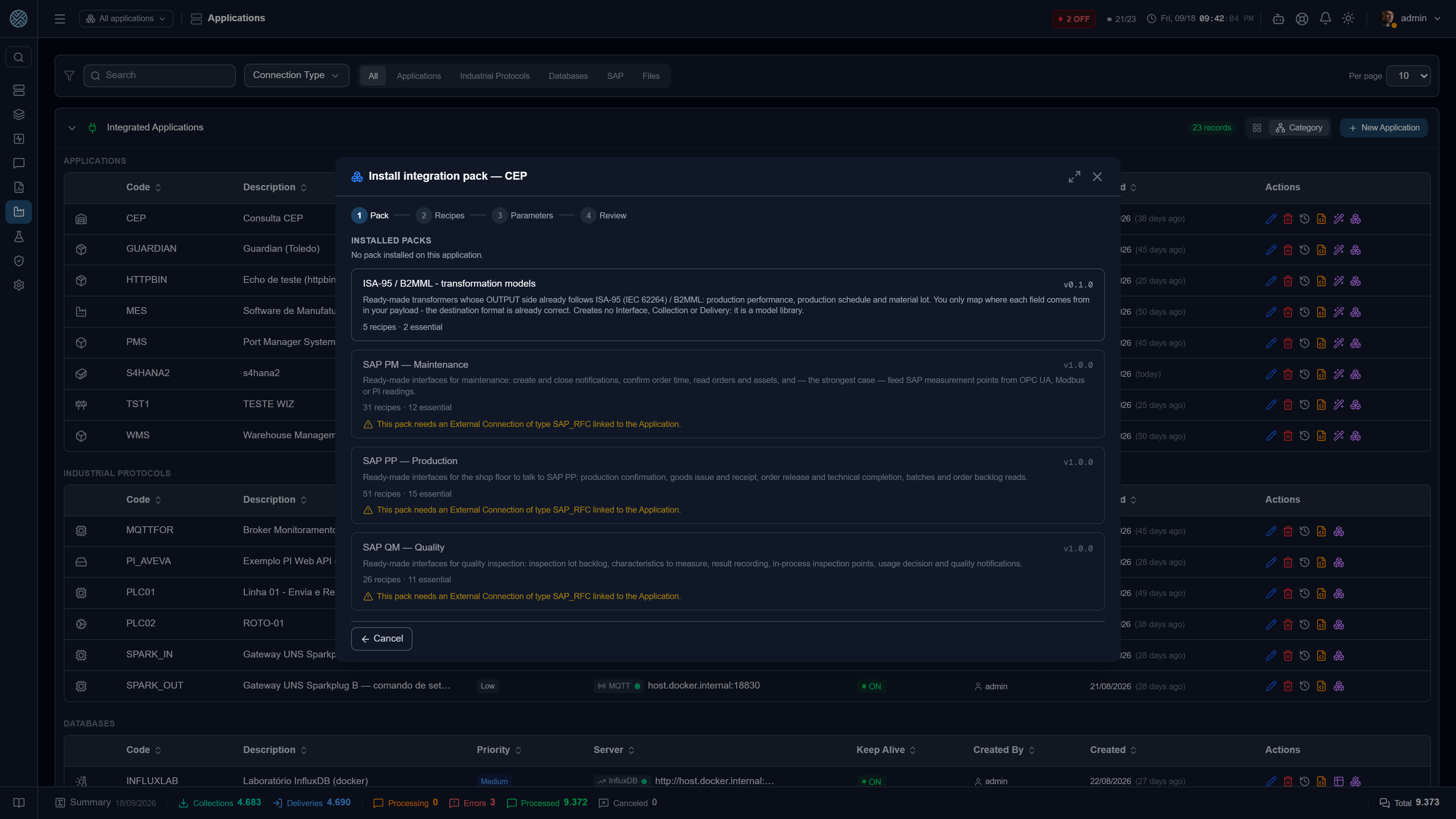
There are three packs, all included in the CMS — there is no extra module to license:
| Pack | Covers |
|---|---|
| SAP PP | Production confirmation, goods issue and receipt, order release and technical completion, batches, order backlog and master data |
| SAP QM | Inspection lot backlog, characteristics to measure, result recording, inspection points, usage decision and quality notifications |
| SAP PM | Maintenance orders and notifications, equipment and functional locations, measurement point recording and time confirmation |
The same assistant offers the ISA-95 / B2MML Transformer library. The ticket packs do not show up in it: they are installed by activating the tool in Help Desk.
Prerequisite
A pack is installed onto an Application that already has a SAP RFC External Connection linked. Without one, the install button does not even appear.
So, before you start:
- Create the SAP RFC External Connection and test it (see SAP RFC / BAPI).
- Create the Application that represents the system talking to SAP (your MES, for example), with a SAP RFC Keep Alive pointing at that connection.
The Application represents who talks to SAP through the CMS. Every interface the pack creates lives under it.
Installing
On the Applications screen, on the Application’s row, click the boxes icon. The wizard has four steps.
1. Pack
Pick PP, QM or PM. The top of the screen lists what is already installed on that Application — handy to avoid reinstalling by mistake.
2. Recipes
Each recipe is one business scenario: a Collection or a Delivery, with everything it needs. They are grouped by category and tagged with a direction:
- Collection — SAP feeds your system (read an order, read inspection characteristics).
- Delivery — your system writes into SAP (confirm production, record a result, open a notification).
Three presets at the top:
| Preset | What it selects |
|---|---|
| Essential (default) | The classic shop-floor flow, without crowding your screens |
| All | The pack’s whole catalog |
| None | Clears the selection, to pick recipe by recipe |
Essential is the default on purpose. Interfaces nobody uses clutter the monitoring screens, and the wizard can be run again later to add more recipes.
3. Parameters
Your plant’s values, entered once and applied to every selected recipe. They vary by pack, but the most common are:
| Parameter | What it does |
|---|---|
| Sigla prefix | Prefixes every Interface and Definition created. Defaults to the Application’s sigla. Maximum of 8 characters |
| Plant | The plant (Werk) used in the calls |
| Default storage location | Storage location used in movements when the message does not carry one |
| Movement types | Goods issue (261) and receipt (101) — adjust if your plant uses others |
An Interface sigla is unique across the whole CMS and limited to 20 characters. That is why the prefix is capped at 8: installing the same pack onto two Applications requires different prefixes.
4. Review
Nothing is written before this step. You see:
- How many objects will be created, updated, or are customized.
- The compatibility check against your SAP: for every selected recipe, the CMS asks SAP whether the function exists and whether the fields used exist in that release.
- The object-by-object list, with the exact name of each Interface, Collection, Delivery and Business Error.
The Install button only becomes available after that.
The compatibility check
This is the step that prevents the worst failure mode: interfaces that look right and only fail on the first message.
| Result | Meaning |
|---|---|
| OK | Function and fields exist in your system |
| Warning | The function exists, but a field the recipe uses does not exist in this release |
| Incompatible | The function does not exist. Installation is blocked until you unselect the recipe |
| Not verified | SAP did not answer. Installation is still allowed |
An unreachable SAP never blocks installation. Industrial plants cannot depend on the SAP network being up in order to configure the CMS — the check can be run again later.
As a side effect, the check fills the metadata cache: the “SAP Function Parameters” popup on the Collection and Delivery screens opens instantly afterwards, even with SAP unreachable.
After installing
The interfaces show up normally under Interfaces, Collections and Deliveries — there is nothing special about them. They can be edited, deactivated or deleted like any other.
A pack Interface always has one direction only. Read ones carry the _C suffix; when the same
subject has both sides, the write one gets _E — as in ..._PM_ATIVO_C and ..._PM_ATIVO_E. The
rest are Deliveries.
This is not cosmetic tidiness: a Delivery inside a Collection Interface would make the scheduler process it down the wrong path (see Configuration), which is why the pack catalogue has an automated test that rejects the combination.
Every Collection and Delivery the pack creates starts inactive. That is deliberate: collections are scheduled, and installing dozens of active ones would start querying your SAP before you check plant, storage location and parameters. Review each one and activate it when it matches your plant.
What your system has to do
Every Delivery created has a receiving URL shaped /{{Interface}}/{{Definition}}, and a field
contract using business names. Example for the time ticket confirmation:
{
  "ordem": "000060003285",
  "operacao": "0010",
  "quantidadeBoa": 480,
  "quantidadeRefugo": 12,
  "unidade": "ST",
  "apontamentoFinal": "X"
}
The pack translates those names into SAP fields (AUFNR, VORNR, YIELD, SCRAP…). Required
fields are validated before the message reaches SAP: with ordem missing, the message is
rejected right away with a clear error instead of turning into an RFC failure.
Collections work the other way around: those with input parameters expose a URL your system calls passing, say, the order number, and gets the detail back ready to use.
Business errors already mapped
Every Delivery ships with the most common errors for that scenario translated into a sentence an operator understands, instead of a SAP code:
| Situation in SAP | What the CMS shows |
|---|---|
| Order not released | “The order has not been released yet (CO02 → release)” |
| Posting period closed | “The plant’s posting period is closed for this date” |
| No number range | “No number range for the posting year (transaction OMBT)” |
| Reading below the counter | “The reading is lower than the last one — counters only go up” |
SAP messages arrive in the language configured on the External Connection. If you change the connection’s language after installing the pack, review the Business Errors: matching is by text.
Reinstalling and updating
The wizard can be run as many times as needed on the same Application. The review step classifies each object:
- To create — does not exist yet.
- To update — exists, was created by this pack, and still matches what the pack wrote.
- Customized — exists, was created by this pack, and has been changed since.
Installing again overwrites customized objects. If you hand-tuned a Delivery’s parameter mapping, it goes back to the original. The review step warns you first.
When a new CMS version brings a new pack version, the installed packs list shows “update available”.
Uninstalling
The uninstall button sits next to each installed pack, in the wizard’s first step. It is not a blind undo: it removes what the pack created and that is still exactly as it left it, and preserves the rest, telling you why.
| Result | When |
|---|---|
| Removed | It is as the pack left it and no message ever went through it |
| Preserved: changed after installation | You adjusted the object — implementation work is not thrown away |
| Preserved: already has messages in history | Message history is operational data, not configuration |
| Preserved: holds a preserved object | An interface is not removed while something preserved lives inside it |
The last rule exists because deleting an interface takes its collections and deliveries with it. Without it, preserving a customized delivery would be pointless: it would vanish when the interface was removed right afterwards.
If anything was preserved, the pack stays listed as installed — so you can uninstall again after dealing with what was left behind.
Permission
The wizard is controlled by the /applications/packs Tool, separate from /applications:
- Create — install a pack.
- Delete — uninstall.
Every installation is written to the audit log with the pack, version, Application, selected recipes and the parameters entered.
What the pack does not do
- It does not create the Application or the Connection. Those are yours; the pack only references them.
- It does not cover Z fields or custom BAPIs. The pack delivers the baseline; adapting it to what your company has built is project work.
- It does not guess your plant’s rules. Which plant, which movement type, which notification type — that is what you enter in step 3.