Asset Model — /uns/asset-model
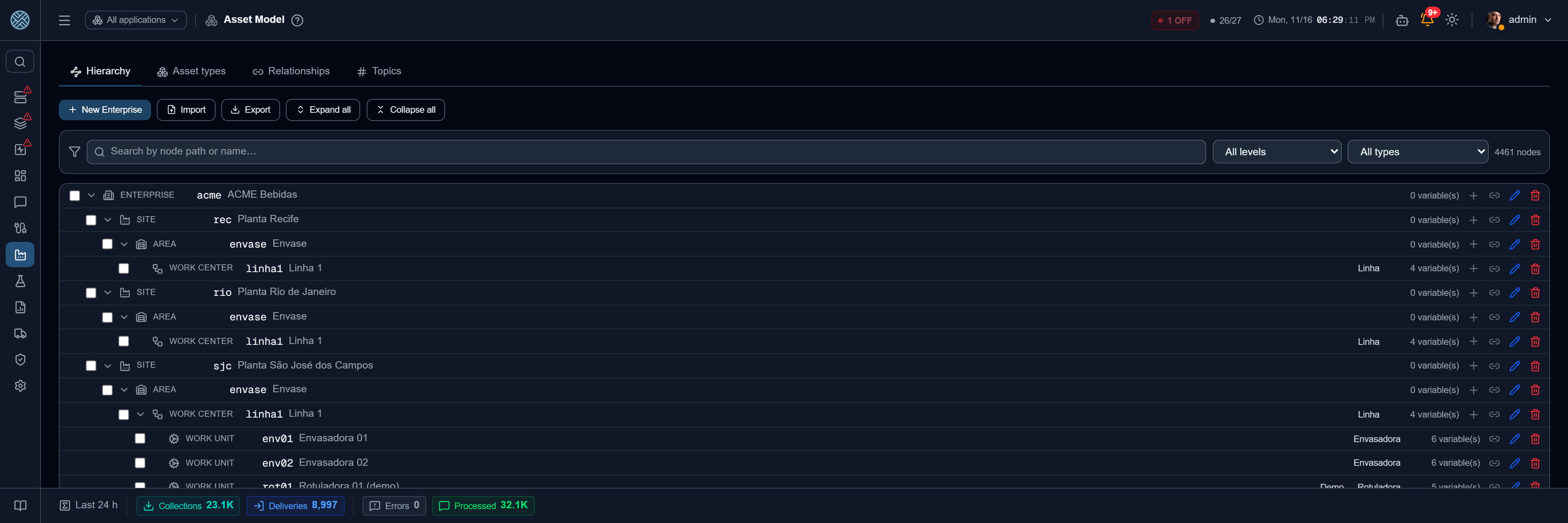
The Asset Model says what exists in the plant and where each piece of data lives in the namespace. It brings together three things, one per tab:
- Hierarchy — the plant nodes, at the ISA-95 levels.
- Asset types — what a machine of that type reports (temperature, state, counter), with the attributes of each one.
- Topics — the template that builds the MQTT topic of each variable.
When you give a type to a node, the CMS creates a UNS variable for each attribute of the type, including inherited ones. That variable is what receives a value (through Telemetry or a Delivery), shows up in the Namespace Explorer and is published to the broker. The module overview is in UNS Manager.
The screen requires the Asset Model Tool in the profile and the UNS module in the license. The help icon next to the title (About the Asset Model) sums up the rules on this page.
Every save on the three tabs recalculates the variables of the whole model. The result shows at the top of the screen: UNS variables: N in total (X created, Y with updated topic, Z removed). If the recalculation finds a problem (two identical topics, a topic that is too long), nothing is saved and the message says what to adjust.
Hierarchy
The tree follows the five ISA-95 levels, always in this order. A node’s level comes from its position: the child is always the level after its parent’s.
| Level | Token in the template | Example |
|---|---|---|
| Enterprise | {enterprise} | the company |
| Site | {site} | the plant |
| Area | {area} | filling, presses, utilities |
| Work Center | {workcenter} | the line or cell |
| Work Unit | {workunit} | the machine or equipment |
Each line shows the level, the segment (the piece of the topic), the name when it differs from the segment, the applied asset type and how many variables the node has. Expand all and Collapse all open and close the whole tree.
Creating and editing nodes
New Enterprise creates a root node. The + on a line creates a node under it (Work Unit does not have the button: it is the last level and takes no children). The pencil edits. At the top of the form, the full path the node will have shows up.
| Field | What it holds |
|---|---|
| Segment (topic level) | Required. Letters, digits, _, - or ., starting with a letter or digit, up to 64 characters. No spaces, /, + or #, which would break the MQTT topic. Cannot repeat among siblings (two nodes with the same parent) |
| Name | Readable name of the node, up to 200 characters. Empty, it takes the segment |
| Asset type | Chosen from the list on the Asset types tab. No type leaves the node with no variables of its own |
| Icon | Use the level default or an icon picked from the list. Shows on the tree of the Namespace Explorer and the Asset Model |
| Latitude and Longitude | Optional, in decimal degrees (e.g. -23.1791 and -45.8872). They place the node on the geographic Map widget |
| Description | Free text |
Editing does not change the node’s parent or level. Renaming the segment recalculates the topic of the variables of the node and of everything below it, without losing the variables. Removing the type from a node removes its variables.
Filtering and applying a type in bulk
The filter bar searches by node path or name, by ISA-95 level and by Asset type (including No type). With any filter on, the tree becomes a flat list with the full path of each node, paginated, and the counter shows how many nodes matched.
Ticking the box of one or more nodes (in the tree or in the filtered list) brings up, on the right, the type picker and the Apply type button: every ticked node gets the chosen type at once. No type removes their type. In the filtered list, the header box selects every node in the result.
Deleting a node
The trash can asks for confirmation. A node with no children goes away along with its variables. If the node has children, the first attempt is refused with the count of nodes and variables in the subtree, and the button becomes Delete whole subtree: confirming deletes the node, every node below it and the variables of all of them.
Import and export
Export downloads the whole model as JSON (uns-asset-model-<data>.json): topic configuration,
types with attributes and schemas, and nodes.
Import opens the Import model popup, which accepts two formats:
- CSV — nodes only, one line per node, with the columns
caminho;nome;tipo;descricao. The separator can be;,,or tab. CSV example fills in a template. The path has up to five segments separated by/; an ancestor that is not in the file is created with its name equal to the segment. The type is looked up by name, case-insensitive, and must already exist in the model. - JSON — the file from Export, with configuration, types, attributes and nodes.
Pick the file or paste the content, and click Preview: it says how many nodes will be created and updated, how many types and attributes come in and how many variables the model will end up with. Apply is only enabled after a preview with no errors.
The import only creates or updates, it never deletes. An error on any line cancels the whole file: the preview lists each error with its line number and nothing is saved. The ceiling is 50 thousand nodes and 2 thousand types per file.
Relationships
The Relationships tab registers what only people who know the plant can tell — the Filler feeds the Labeler, the line depends on the compressor, the supplier serves the line —, the relationship types and the external partners. Each node in the Hierarchy has a button with its relationships, and each asset type can declare Links between components, which apply to every node of the type. All of this is in Knowledge Graph.
Asset types
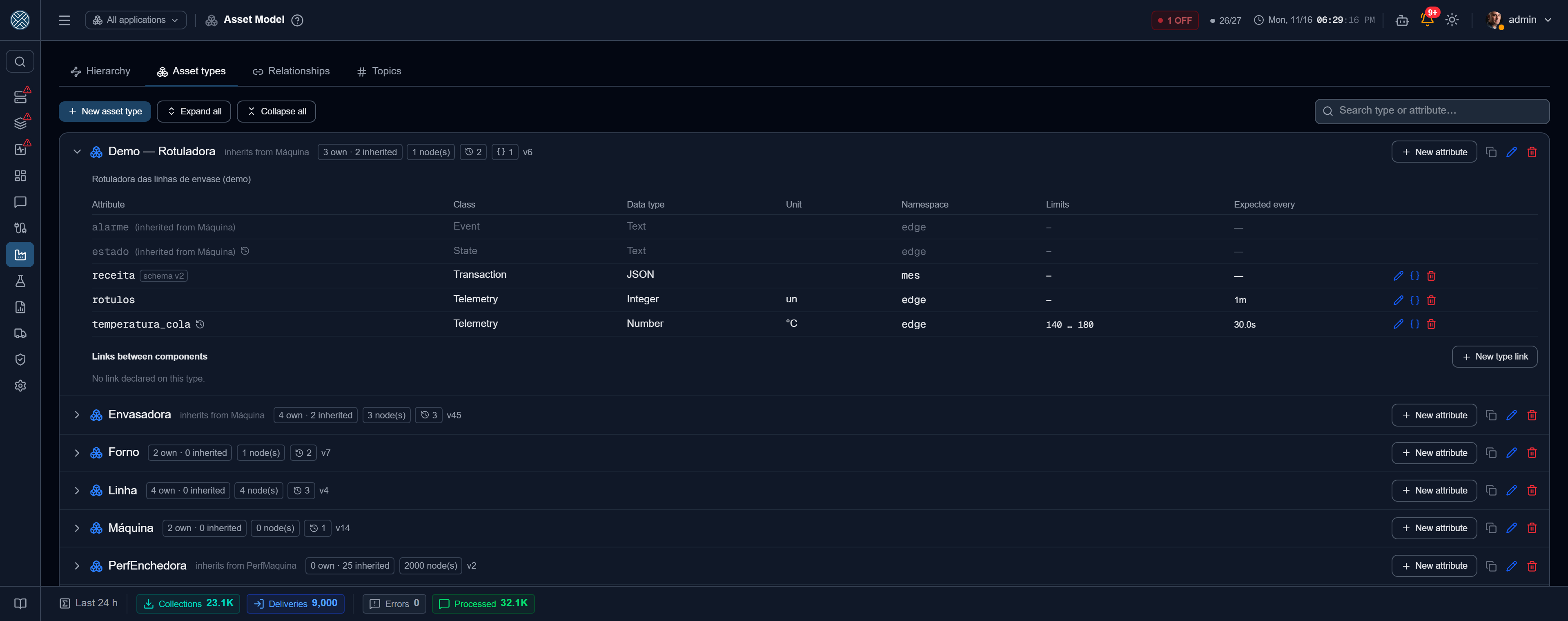
An asset type describes what a family of equipment reports — for example, “Filler” with temperature, speed, state and counter. Types start collapsed; click the name to open one. The search looks up the name of the type or of any of its attributes (own or inherited) and opens the ones that matched.
The line of each type shows:
- Inherits from and the parent type, when there is one;
- how many attributes are own and how many are inherited, and how many nodes the type is applied to;
- how many attributes are historized (clock icon) and how many have a schema (braces icon);
- the type version (
v1,v2…).
Open, the type shows its description, the types that inherit from it and the attribute table, with Class, Data type, Unit, Namespace, Limits and Expected every. Inherited attributes come first, in grey, marked “inherited from” — they can only be edited in the type where they were born.
Creating, inheriting and duplicating
New asset type asks for Name (required, unique, up to 100 characters), Inherits from and Description.
Inherits from makes the type receive all the attributes of the parent, and of the parent’s parent. An attribute cannot have the same name as another in the same inheritance chain, and inheritance cannot loop back (a type inheriting from itself, directly or indirectly). Changing a type changes every type that inherits from it.
The copy icon (Duplicate type) creates a new type with the same description, the same inheritance and its own attributes, each with the current schema. The suggested name is the original with “(copy)”. The copy is not applied to any node.
Deleting a type is refused while there is a node with it or a type inheriting from it. Deleting an attribute deletes its variables on every node of the type and of the inheriting types, along with the current value.
Attribute
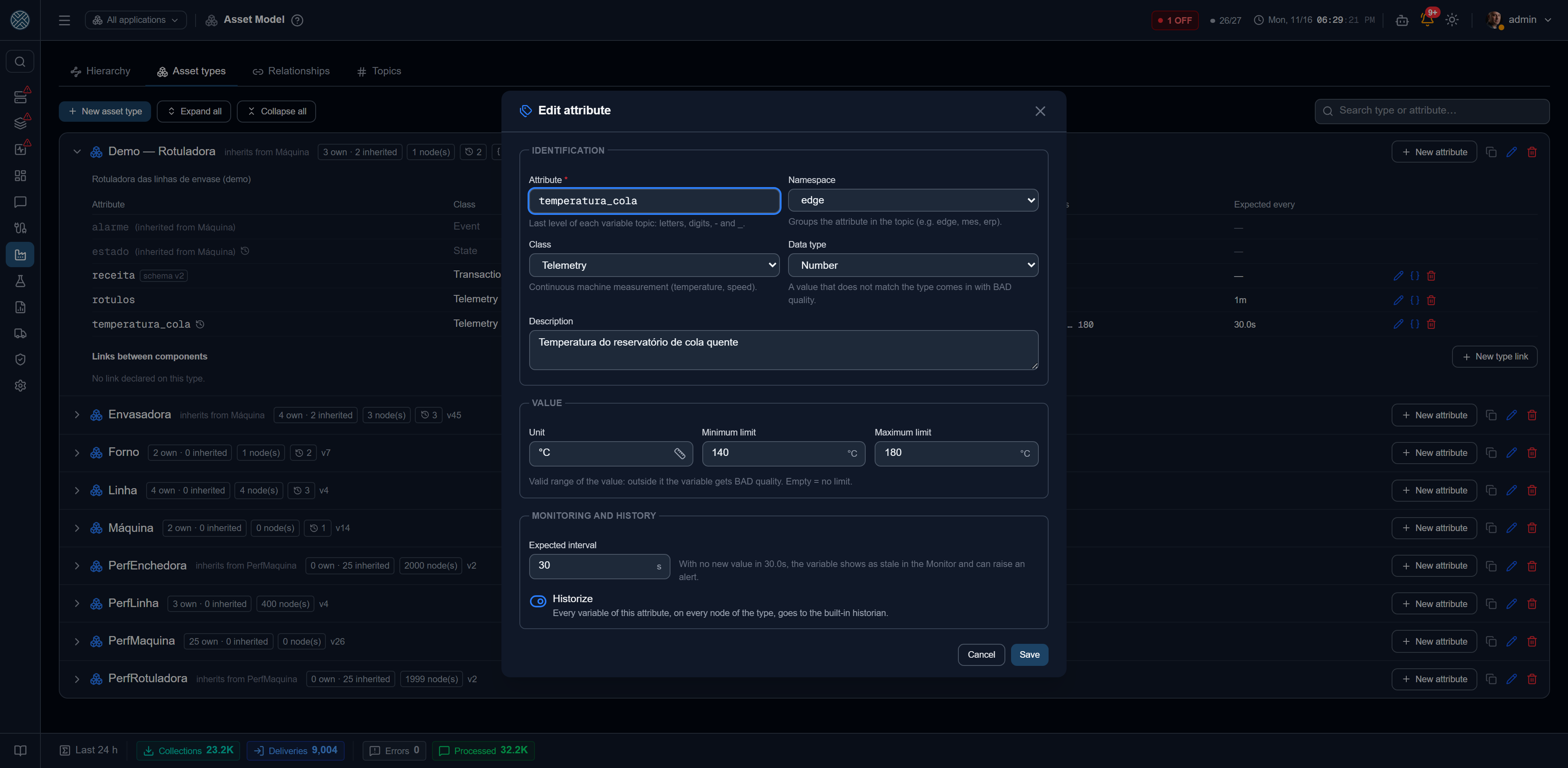
New attribute, on the type’s line, opens the form in three blocks.
Identification
| Field | What it holds |
|---|---|
| Attribute | Required, up to 64 characters. It is the last level of the topic of each variable, so it follows the segment rule: no spaces, /, + or #. Renaming recalculates the topic of every variable of the attribute; the history carries on |
| Namespace | Where the data comes from. The list is the one on the Topics tab |
| Class | Telemetry (continuous measurement from the machine), State (a condition that changes now and then: running, stopped, setup), Event (something that happened at an instant: alarm, lot change) or Transaction (business data coming from a message: order, reported quantity) |
| Data type | Number, Integer, Boolean, Text or JSON. A value that does not match the type comes in with BAD quality |
| Description | What the attribute measures and where it comes from. Shows when hovering over the name in the table |
Value
| Field | What it holds |
|---|---|
| Unit | Free text, up to 32 characters (°C, bar, un/min). The ruler icon opens the unit list |
| Minimum limit and Maximum limit | Valid range of the value: outside it the variable comes in with BAD quality. Empty = no limit on that side. The unit shows inside the field. The minimum must be lower than the maximum; with the two swapped the field turns red and Save is disabled |
Limits only exist for Number and Integer. On the other types the fields are locked and the block says why.
Monitoring and history
| Field | What it holds |
|---|---|
| Expected interval | In seconds, from 1. With no new value within that time, the variable shows as stale in the UNS Monitor and can fire an alert. Empty = the Monitor does not flag stale variables for this attribute. Fill it with the period in which a new value always arrives. In the table, it shows under Expected every |
| Historize | Every variable of this attribute, on every node of the type, goes to the built-in historian. This is what enables the trend in the Explorer. The historian configuration is in Settings |
Unit picker
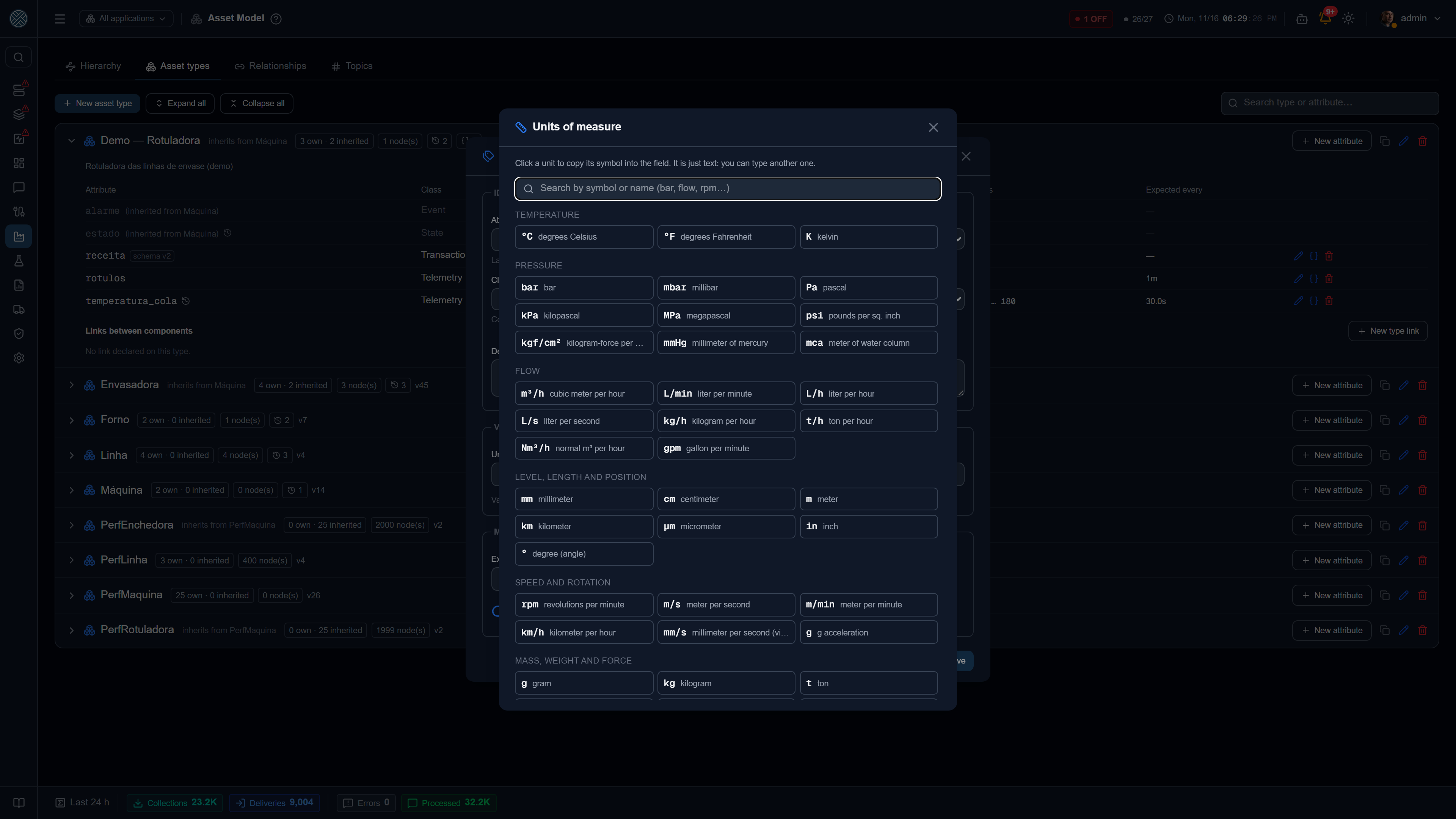
The ruler icon in the corner of the Unit field opens the Units of measure popup, with the most common units in industry grouped by quantity: temperature, pressure, flow, level and length, speed and rotation, mass and force, volume, electrical, power and energy, time, production and counting, ratio and quality, environment and sound. The search looks up the symbol, the name or the group (bar, flow, rpm).
Clicking a unit copies the symbol into the field and closes the popup. It is just text: there is no unit registry and no link to the list, and the field still accepts any other unit typed in.
Schema (value validation)
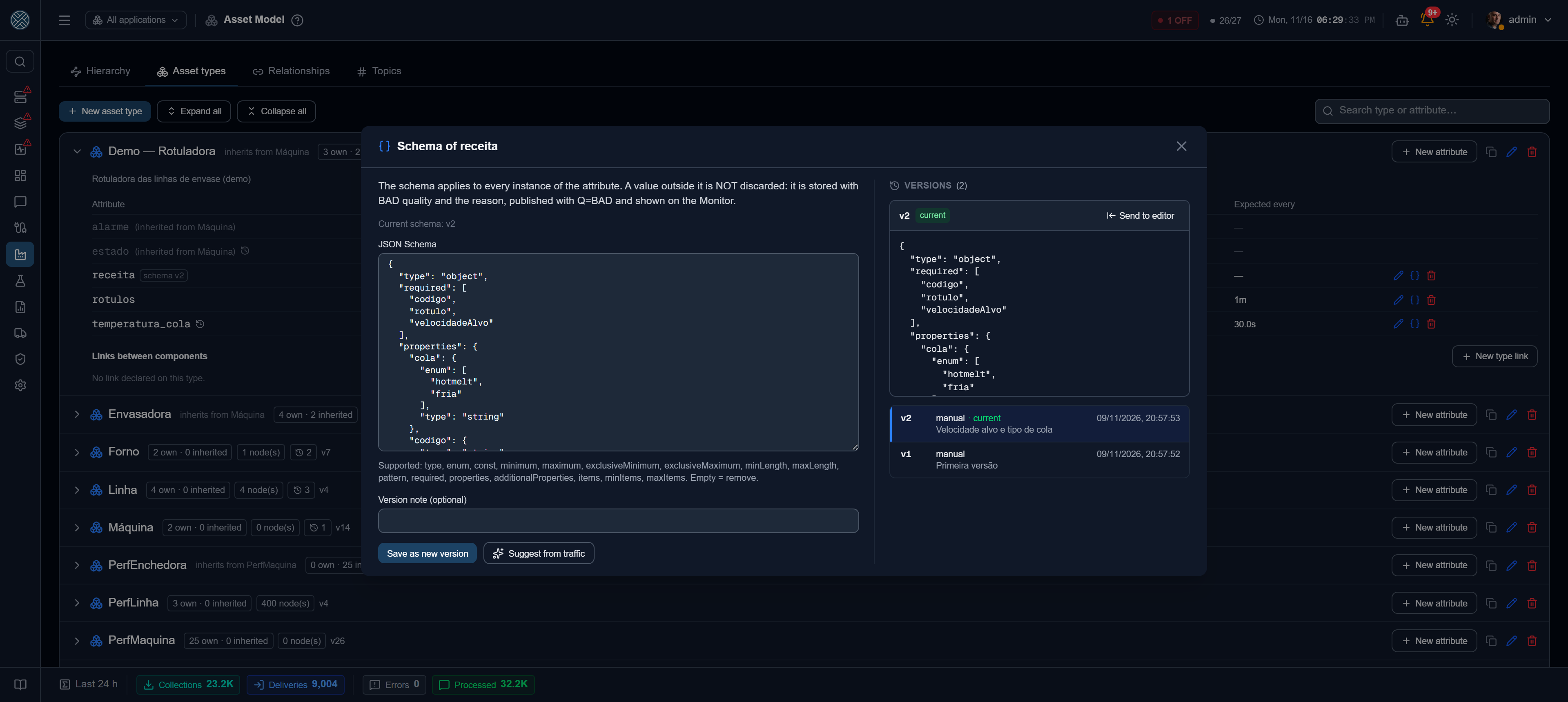
The braces icon on the line of an own attribute opens its Schema: a JSON Schema that applies to every instance of the attribute and checks each value beyond the data type. With no schema, only the data type is checked.
| Item | What it does |
|---|---|
| JSON Schema | The schema, in JSON. Accepted keywords: type, enum, const, minimum, maximum, exclusiveMinimum, exclusiveMaximum, minLength, maxLength, pattern, required, properties, additionalProperties, items, minItems, maxItems. Empty = remove |
| Version note (optional) | Up to 300 characters, kept with the version |
| Save as new version | Each save creates a version. With the editor empty, the button becomes Remove schema (new version) |
| Suggest from traffic | Builds a schema from GOOD values already received (current state and, if there is a historian, the last 7 days). Nothing is saved: review before saving |
| Versions | History with the origin of each one (manual, suggested from traffic, restored, imported), the note and the date. Send to editor copies a version to adjust; Restore brings an old version back as the current one |
The header shows the current version and, in red, how many variables are now out of schema. In the
attribute table, an attribute with a schema gets the schema vN badge.
A value outside the schema is not discarded: it is stored with BAD quality and the reason, goes out to the broker with BAD quality and shows up in the UNS Monitor.
Topics
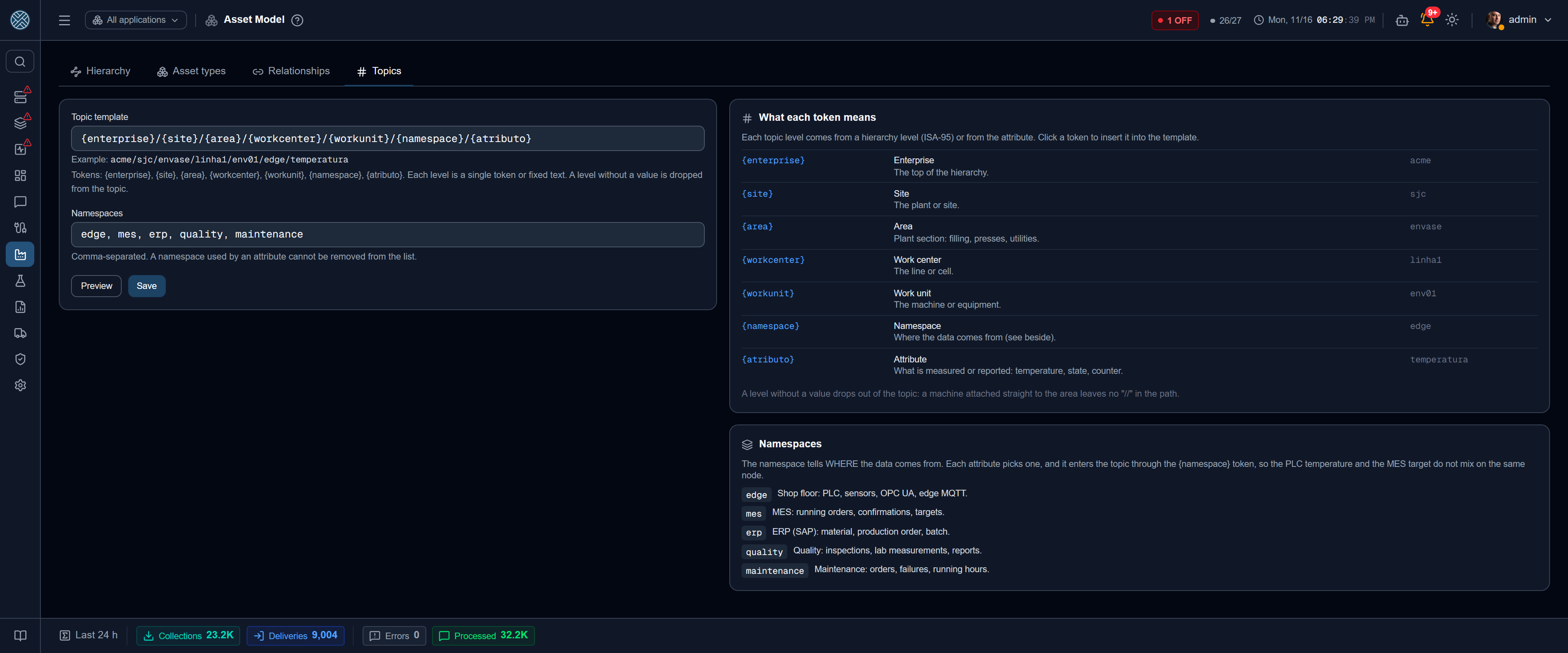
This is where you define how the path of each variable becomes an MQTT topic. The tab has the form on the left and, on a wide screen, two reference cards on the right.
Topic template
The default is:
{enterprise}/{site}/{area}/{workcenter}/{workunit}/{namespace}/{atributo}Right below the field, a live Example shows up, with sample values in place of each token, which changes as you type. Back to the default template shows up when the template has been changed.
Template rules:
- Each level (between slashes) is a token on its own or a fixed text with no spaces, such as
v1. A token mixed with text in the same level (linha-{workcenter}) is not accepted. {atributo}is required: without it, every variable of a node would land on the same topic.- Each token shows up only once.
+,#and spaces are not accepted. - A level with no value drops out of the topic: a machine linked straight to the area leaves no
//in the path.
The What each token means card lists the seven tokens, what each one is and the example value.
Clicking a token inserts it into the template, where the cursor is. At the end of a template that
does not end in /, the slash is added first, and the token becomes a new level.
| Token | Means |
|---|---|
{enterprise} | Enterprise: the top of the hierarchy |
{site} | Site: the plant or site |
{area} | Area: plant section, such as filling, presses, utilities |
{workcenter} | Work center: the line or cell |
{workunit} | Work unit: the machine or equipment |
{namespace} | Where the data comes from (see below) |
{atributo} | What is measured or reported: temperature, state, counter |
Namespaces
The namespace says where the data comes from. Each attribute picks one, and it goes into the topic
through the {namespace} token — so the PLC temperature and the target coming from the MES do not get
mixed up on the same node.
The Namespaces field takes the comma-separated list (up to 50). The default list and what each namespace means, on the card beside it:
| Namespace | Means |
|---|---|
edge | Shop floor: PLC, sensors, OPC UA, edge MQTT |
mes | MES: running orders, confirmations, targets |
erp | ERP (SAP): material, production order, batch |
quality | Quality: inspections, lab measurements, reports |
maintenance | Maintenance: orders, failures, running hours |
Any other name comes in as “defined by you”, for another data source. Each namespace follows the segment rule and cannot repeat. A namespace used by some attribute cannot be removed from the list: change the namespace of those attributes first.
Preview and conflicts
Preview computes the template without saving: how many variables the model will have, the length of the longest topic and a sample of up to 20 topics. If two or more variables land on the same topic, the preview lists each conflict in red, with the topic and how many variables hit it.
Save stores the template and the namespaces and recalculates every variable. With a topic conflict or a topic over 512 characters, nothing is saved: adjust the template, the attribute name or the node segment.
When it goes wrong
| Message | What to do |
|---|---|
| ”… cannot be used in a topic” | The segment, attribute or namespace has a character outside the rule. Use letters, digits, _, - or . |
| “There is already a node … at this level” | Two siblings with the same segment. Change one of them |
| “Work Unit is the last level…” | There is no level below Work Unit. Create the node in a Work Center |
| “N variables would land on the same topic” | Run Preview on the Topics tab to see the conflicts. Usually the template lost a token that told the nodes apart (for example, without {workunit}, two machines on the same line produce the same topic) |
| “This inheritance would create a cycle” | The type chosen in Inherits from already inherits from the type being edited |
| “This type is used by N node(s)…” | Remove the type from the nodes (Apply type → No type) and the inheritance from the child types before deleting |
| “The UNS Manager database is unavailable” | The UNS’s own database did not answer. Check the installation panel in Settings |