Connections and credentials
External Connections — /external-connections
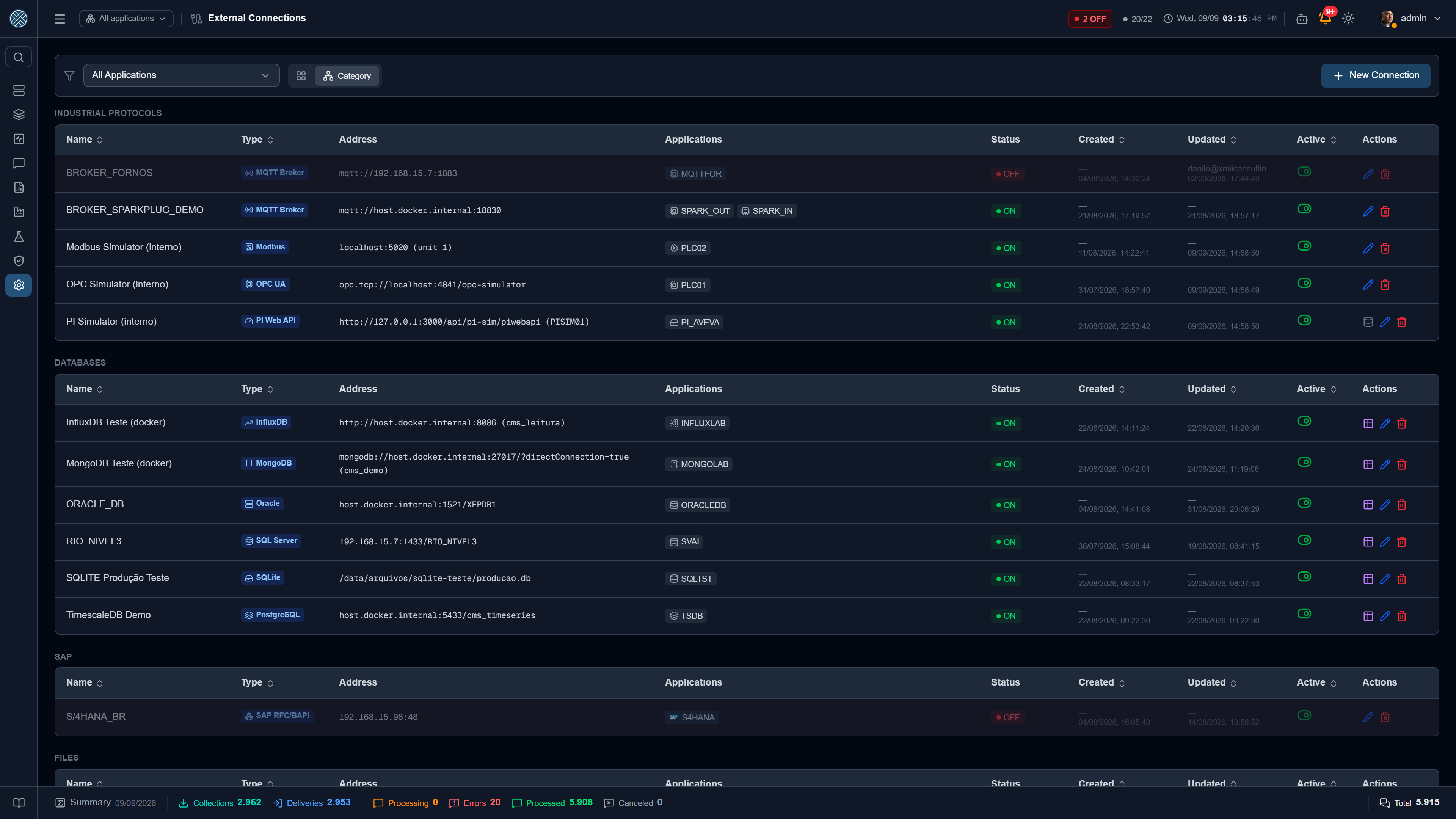
Reusable connection settings, registered once and referenced by several Collectors and Deliveries:
| Type | Used by |
|---|---|
| MQTT Broker | Collector MQTT_TOPIC_SUBSCRIBER, delivery MQTT_PUBLISH |
| SQL Server / Oracle | Collector SQL_SERVER / ORACLE, delivery SQL_SERVER_EXEC / ORACLE_EXEC |
| PostgreSQL | Collector POSTGRES, delivery POSTGRES_EXEC |
| SQLite | Collector SQLITE, delivery SQLITE_EXEC — no host or user: the connection is the path to the .db file |
| InfluxDB | Collection INFLUXDB, delivery INFLUXDB_WRITE — time series database; one connection serves versions 1.8, 2.x and 3.x |
| SAP RFC | Collector SAP_RFC, delivery SAP_RFC_CALL |
| SAP IDoc | Collector SAP_IDOC |
| SAP Gateway (OData) | SAP Gateway Applications: collectors HTTP_GET/HTTP_POST and deliveries HTTP_POST/PUT/PATCH/DELETE — see SAP Gateway |
| SAP CPI (Cloud Integration) | SAP CPI Applications: collectors HTTP_GET/HTTP_POST and deliveries HTTP_POST/PUT/PATCH/DELETE/SOAP — see SAP CPI |
| MongoDB | Collector MONGODB, delivery MONGODB_WRITE — includes Atlas, Cosmos DB and DocumentDB |
| OPC UA | Collector OPC_UA_TRIGGER, delivery OPC_UA_WRITE |
| Modbus TCP | Collector MODBUS_TRIGGER / MODBUS_POLL, delivery MODBUS_WRITE |
| PI Web API | Collector PI_WEB_API, delivery PI_WEB_API_WRITE |
| File (directory) | Collector FILE_WATCH, delivery FILE_WRITE |
| HTTP | HTTP Applications that talk to the same server — see HTTP connection |
Every connection has a test connection button on its own screen — use it before creating the collector, to separate network/credential problems from configuration problems.
Saving a connection restarts the sessions that depend on it. Collectors and Deliveries with a persistent session — MQTT, Sparkplug, OPC UA, Modbus, SAP IDoc, watched folder and the equipment-write gates — reconnect with the new data right away. Before, the open session kept the old address, and a fixed connection could stay “off” until the API restarted.
A connection’s type can’t change after it is created: for another type, create a new connection. The screen has always locked the field, and since the HTTP connection the server also refuses the change made through the API, MCP or import. On an InfluxDB connection, the version (1.8, 2.x, 3.x) is locked too while any InfluxDB collector or delivery depends on it: each version speaks a different query language and writes through a different endpoint, and the change would break those integrations on their next run. The field shows how many there are.
HTTP connection
When several Applications talk to the same HTTP server, register the server once here and link the Applications to it. Changing the address, the Keep Alive URL or the certificate then happens in a single place.
| Field | What it is for |
|---|---|
| Base URL | Server address. Each integration keeps its own path in the collector or delivery |
| Keep Alive URL | Tested every cycle, once for all linked Applications. Only HTTP 200 counts as up |
| CA certificate (PEM) | Only for a server with a private CA or a self-signed certificate |
- User and password are not stored here. The Credential stays in each Application, because Applications on the same server may log in with different accounts.
- Linked Applications go ON and OFF together. Keep Alive belongs to the server, not to each one.
- Saving a connection in use asks for confirmation. When the URL, Keep Alive or certificate change, the screen lists the linked Applications before saving: the address of all of them, and of their HTTP deliveries, changes together.
- Deactivating the connection holds the deliveries of the linked Applications and turns them OFF, as with the other types.
- An HTTP connection in use can’t be deleted. Switch the Applications to their own URL or to another connection first.
To link an Application, choose External Connection in the Address field of its form. To create the connection from an existing Application, use Turn into External Connection — see Own URL or External Connection.
The listing also says where each connection came from: two columns show who created it and who last changed it. The author is always whoever was authenticated at the time — never a field sent in the form — and it is stored as an e-mail address, so the record survives that user being deleted.
Authorship does not travel in the import/export file: whoever imports signs the record at the destination. Otherwise a connection restored from a backup would show with no author at all, or with the e-mail of someone who does not even have an account in this environment. “Created by” is only written on creation — re-importing over an existing record does not rewrite who created it here.
A connection’s fields can also be inspected from inside the Collection and the Delivery that use it, without going through this screen — see Connection details.
View catalog
Database and file connections get a second button: View catalog. It browses the real structure — schemas, tables, columns and key; or folders and files — generating nothing.
It is worth it on its own: after registering a database, the first thing you want to know is whether that credential sees what it should. And it is from there that you open the assistant which generates the Collection and the Delivery ready to go — see Database catalog and Folder catalog.
The Simulators connections appear here automatically when the matching simulator is enabled — “OPC Simulator (internal)”, “Modbus Simulator (internal)” and “PI Simulator (internal)”. There is no address to type.
Credentials — /credentials
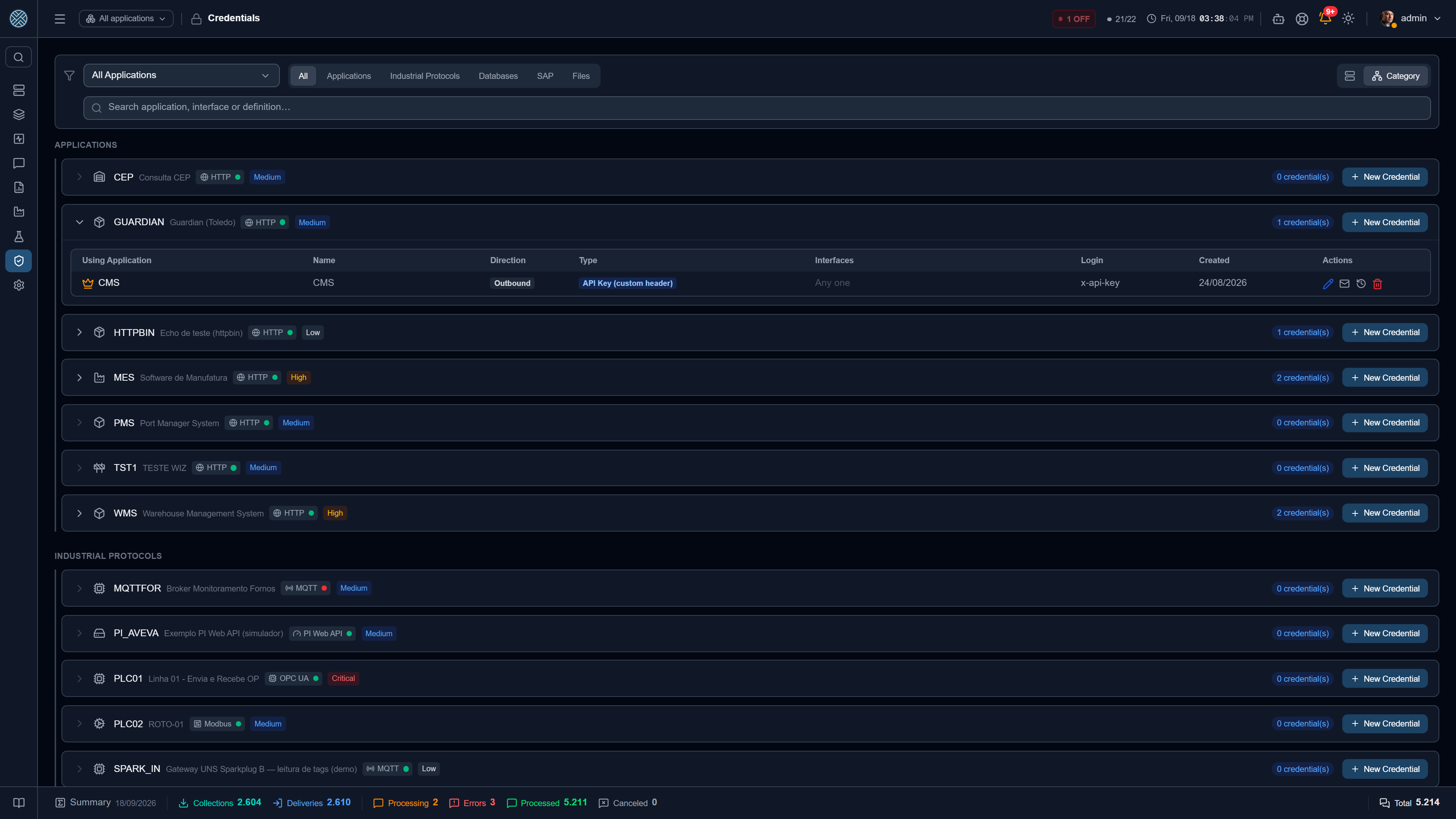
Authentication for HTTP/SOAP calls. Stored encrypted at rest and never returned by the API.
| Type | How it works |
|---|---|
| Basic Auth | User and password in the Authorization: Basic header |
| API Key | A fixed value, in a header or in the query, under whatever name the destination requires |
| Login → Token | The CMS performs a login POST, extracts the token from the response and uses it in subsequent calls |
| OAuth2 client credentials | The standard machine-to-machine flow, with automatic renewal |
Login → Token covers the corporate APIs that invented their own login: the token may come
nested in the response (data.session.token), the login body accepts extra parameters besides
user and password, and the password can be hashed before sending, when that is what the API
expects.
OAuth2 supports scope, extra parameters and both ways of sending client_id / client_secret:
in the Basic header (the RFC’s preference, and Keycloak’s and Auth0’s default) or in the form body,
required by some providers. Only client_credentials exists — the CMS is machine-to-machine, with no
browser for the redirect and no user to consent.
Inbound and outbound
A Credential has a direction:
- Outbound — used by the CMS when calling the Application. That is the case of the four above.
- Inbound — a login and password an external application uses to send messages to the CMS, as an alternative to the API Token. It has a responsible user and allowed Interfaces.
Inbound Credentials also have the Connect via MCP button: the same login and password authenticate an AI agent on the Application’s MCP integration server, and the popup shows the address and the client configuration snippet, in Basic Auth.
For an ordinary REST integration, HTTP_GET/HTTP_POST + Credential + Transformer covers the
case. Native adapters exist only for protocols that are not HTTP.
API Tokens — /api-tokens
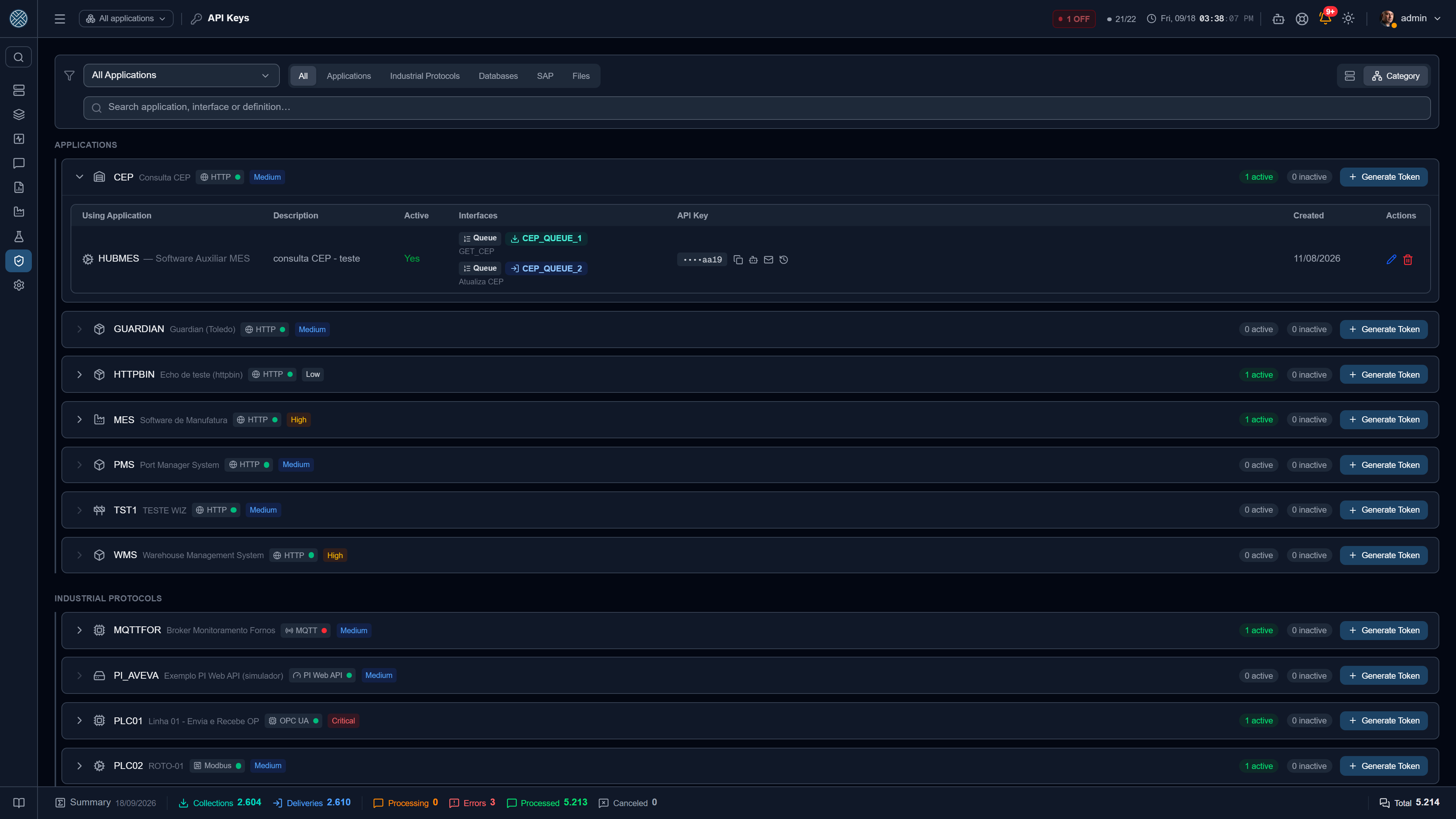
Tokens that authenticate whoever sends messages to CMS, issued per application. Accepted as:
- header
x-api-token: <token> - header
Authorization: Bearer <token> - header
Authorization: Basicwith the token in the password position
Every copy of the token is recorded in a copy history — who copied it and when.
The Connect via MCP button, on each key’s row, shows how to use the same API Key in an AI agent: the address of the Application’s MCP integration server and a sample client configuration. The key’s value does not appear there — the sample carries a placeholder, and the real value still comes out only through Copy, with a record.
The full value comes out only through the Copy button. The listing shows the key masked
(••••1a2b), and creating a new key also returns only the masked form — the value never appears
on the creation screen. That is what keeps every disclosure going through the copy history: a key
handed back with the creation response would leave no record at all.
Getting the credential to whoever will use it
Credentials, API Keys and MCP tokens share the same practical problem: somebody has to receive the secret in order to configure the other side, and the easy path — copying from the screen and pasting into the team chat — is the worst one available. That is why all three screens have a Send by e-mail button.
What it does, and why:
| Decision | Reason |
|---|---|
| The e-mail body is assembled on the server | The decrypted value never passes through the browser of whoever pressed the button |
| The recipient is picked from a list of CMS users, not typed | A free address field would turn the button into a relay able to send the password anywhere |
| The list only offers who is eligible for that Application | Same convention as alerts: administrators always, and a user with no restricted Interface is eligible for everything |
| Success and failure go to the audit log | “Tried to send and SMTP refused” matters as much as the send itself |
| The secret never enters the log detail | The Audit Log is read by many people |
The e-mail arrives with the context alongside the value — Application, consuming Application, direction, allowed Interfaces and this installation’s endpoint — so whoever receives it can configure without having to come back and ask.
It depends on the SMTP configured under Settings › E-mail. Without it the button fails explicitly, and the failure is recorded too.
For the MCP token there is one difference: the recipient is not chosen. It is always the service user that owns the token, because it is their access the AI will be using.
Variables — /global-variables and /application-variables
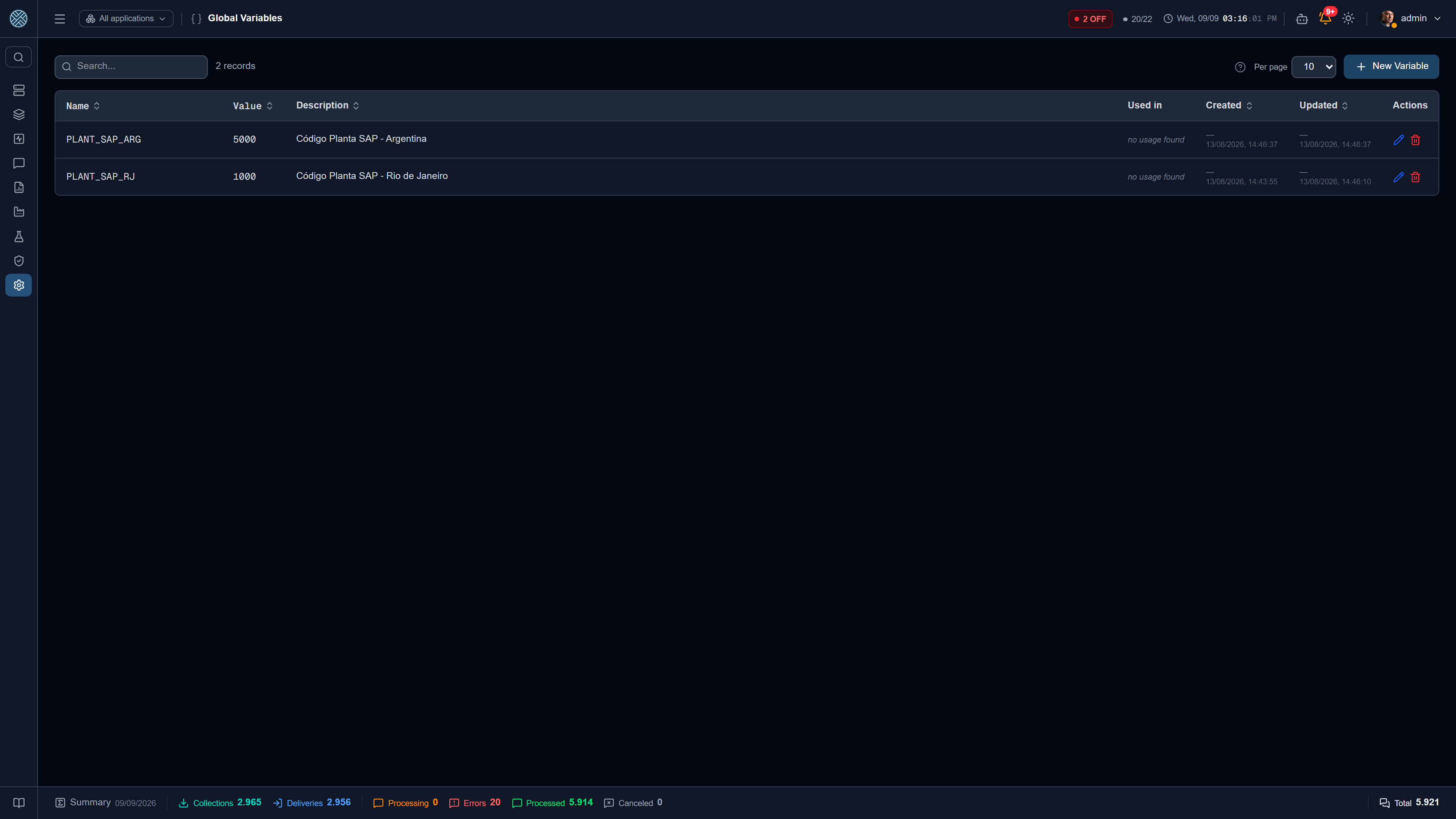
Name/value pairs with an optional description, reusable across configurations. They keep environment-specific values — base URLs, plant codes, prefixes — from being repeated and scattered.
There are two screens, one per scope — with separate Tools, so permission on one does not grant access to the other:
| Screen | Route | Menu | Reach |
|---|---|---|---|
| Global Variables | /global-variables | Settings | Valid across the whole system |
| Application Variables | /application-variables | Integration Config | Valid only in the Collections, Deliveries and Transformers of the Application they belong to |
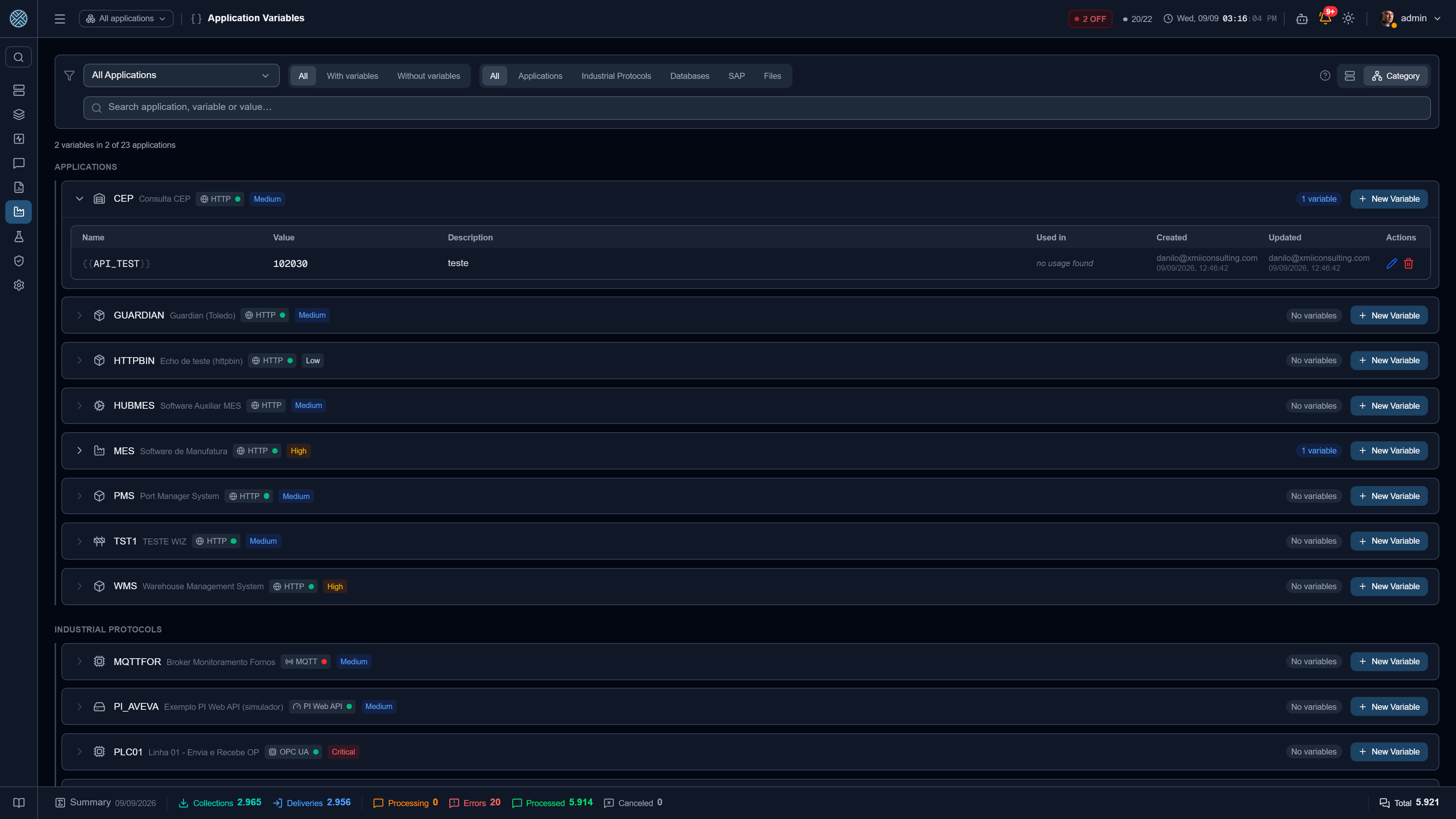
Wherever a variable can be used, both show up together — in the {} picker of Collection and
Delivery fields, in the placeholder panel of the SQL Command and the Content Template, and as
global.NAME in the Transformer script. The Application variable wins: if a Global one has the
same name, the Application value is the one used at resolution time.
An Application variable is only resolved when the configuration belongs to that Application. In a Transformer scoped to more than one Application, the Context selector on the screen decides which one supplies the variables during the test.
Where a variable is used
Each row carries a Where it is used column, with the reference count and a popup listing each one:
the Collection, Delivery or Transformer that mentions it, with the Application, the field and the
snippet where it appears. The scan covers three forms of use: Template ({{VAR}}), SQL bind
(:VAR) and Script (global.VAR).
This is what you check before renaming or deleting. Deleting a referenced variable raises no error: the references start resolving to empty, silently — and the screen warns about that in the confirmation.
A Transformer can build the variable name at run time (global['PLANT_' + state]). Uses like that
do not show up in the list, because they only exist while the script runs. The count is a floor,
not a guarantee.
On the Global tab there is also Overridden in: the Applications that have an Application Variable with that same name. Inside them, the global value does not apply.
Both scopes travel together in the Danger Zone import/export, under the same Variables (Global and Application) item — Application ones are referenced by the Application code, so import Applications along with them.
Both screens also show who created and who last changed each variable, with a date, under the same rule as Connections: the author is whoever was signed in at the time, stored as an e-mail address. A variable created by an import or by a Pack, with nobody driving it, shows a dash.
Finding one record among many
These screens, like the other Application-grouped ones, have a search field that filters by Application, Interface and Definition at once — and also by whatever identifies the record itself. On Credentials and API Keys that includes both Applications involved: the owner and the consumer.
The same field exists on Business Errors (by error code), on Encryption Rules (by wildcard text), on Alerts (by the recipient’s login) and on Encryption Keys.