AI Assistant
The CMS is in no language model’s training data. An assistant answering about it “off the top of its head” would be inventing something that looks like documentation — which is why nothing here answers without reading first: the embedded manual when the question is about the product, your installation when the question is about your installation.
Where it lives
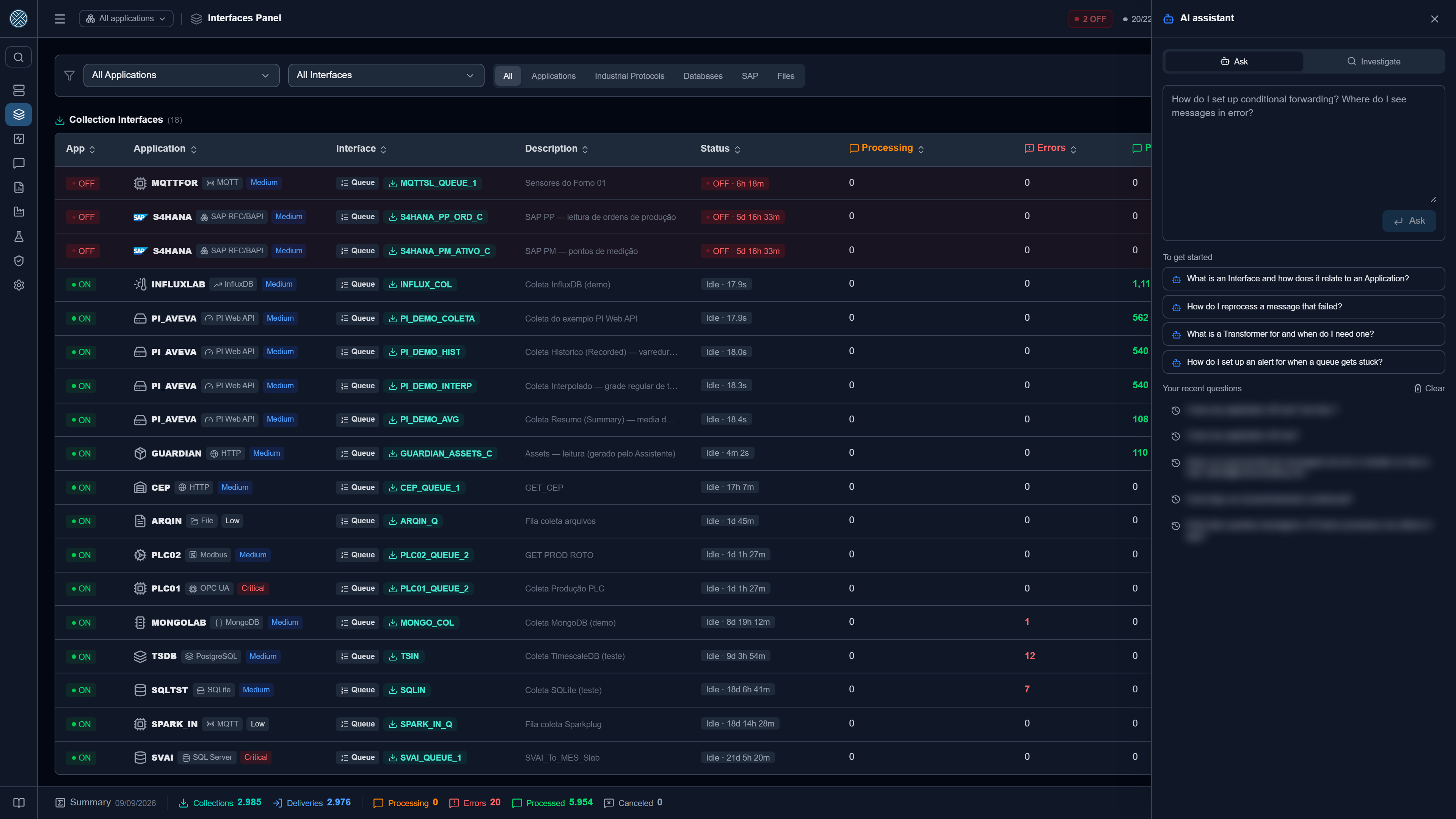
The robot icon in the header, to the left of the bell, on every screen. It opens a side panel, not a modal: the question is almost always about the screen behind it, and a panel lets you read the answer with your hand on the setting it explains. The panel also survives navigation — opening it on Applications and walking over to Transformers before typing means asking about Transformers.
When the icon turns amber with a red counter, Standby investigated something on its own and nobody has closed the case — the click lands straight on the Investigate tab. With nothing pending, it is the same “Ask the CMS” as always.
The icon only appears when at least one AI feature is enabled in Settings → AI. A button that opens an empty panel is worse than no button.
The three tabs
| Tab | Answers about | Writes? | Licence |
|---|---|---|---|
| Ask | The product, by reading the embedded manual | No | Free |
| Investigate | Your installation, with evidence for every step | No — read only | Agent module |
| Configure | Builds the integration and proposes it for approval | Only after a person approves | Agent module |
A tab you have no access to stays on screen — it shows the reason, and the reason changes where it sends you:
| Reason | What to do |
|---|---|
| This installation did not license the Agent module | Talk to your vendor |
| The Agent is disabled in this installation | An administrator re-enables it in Settings → Tools |
| Your Profile does not grant access to the Agent | Ask whoever administers Profiles |
Hiding the tabs would erase all three cases at once. The person who runs into the tab at the moment they need it is the one who best understands what it is for.
A switched-off feature is a different matter, and there the tab really does disappear. Each of the three has its own switch under Settings → AI: switched off, the tab is never even drawn — there is nobody to ask, and the decision has already been made in this installation. That is why the panel may show up with two tabs, or with just one.
Ask — help from the manual
The Ask tab answers about the product by reading this manual, which travels embedded inside the API. It works without internet and without the paid module.
The answer always comes with Sources in the manual — the list of pages the assistant actually opened. That list does not come from the answer text (that would be the model’s own claim), it comes from the session steps: a record of what was read, not of what the model says it read. With no source, the answer is treated as “not found”.
The footer shows the cost — steps and tokens — and the date of the embedded manual.
How it uses your screen. The route you are on travels with the question, so the assistant starts
at the right manual page instead of searching for it. Asking “and this field here?” while on
/messages/delivery-errors works.
Suggestions and history. Before the first question the panel offers four starting questions. After that it keeps your recent questions, with a clear button.
Reused answers
In a plant, “how do I do X” gets asked by several people. When an answer came only from the manual, it is stored and reused — the session shows zero steps, zero tokens and a reused answer mark, and the sources are still listed.
The rule for what gets cached is about security, not performance: a single lookup against the installation takes the answer out of the cache. From that point on it depends on the state of this plant and on the slice that user can see — storing it would hand one person’s answer to another.
The cache invalidates itself when the documentation changes: the manual version is part of the key.
The embedded manual is refreshed in a single pass at the end of each round of changes — it may be one version behind the system. That is exactly why the answer cites the page and the date: the source in plain sight lets you judge.
Investigate — a report backed by evidence
Paid feature. You describe what you want to understand in plain language, and the agent runs real read tools against the installation, observes the result, corrects course and delivers a report.
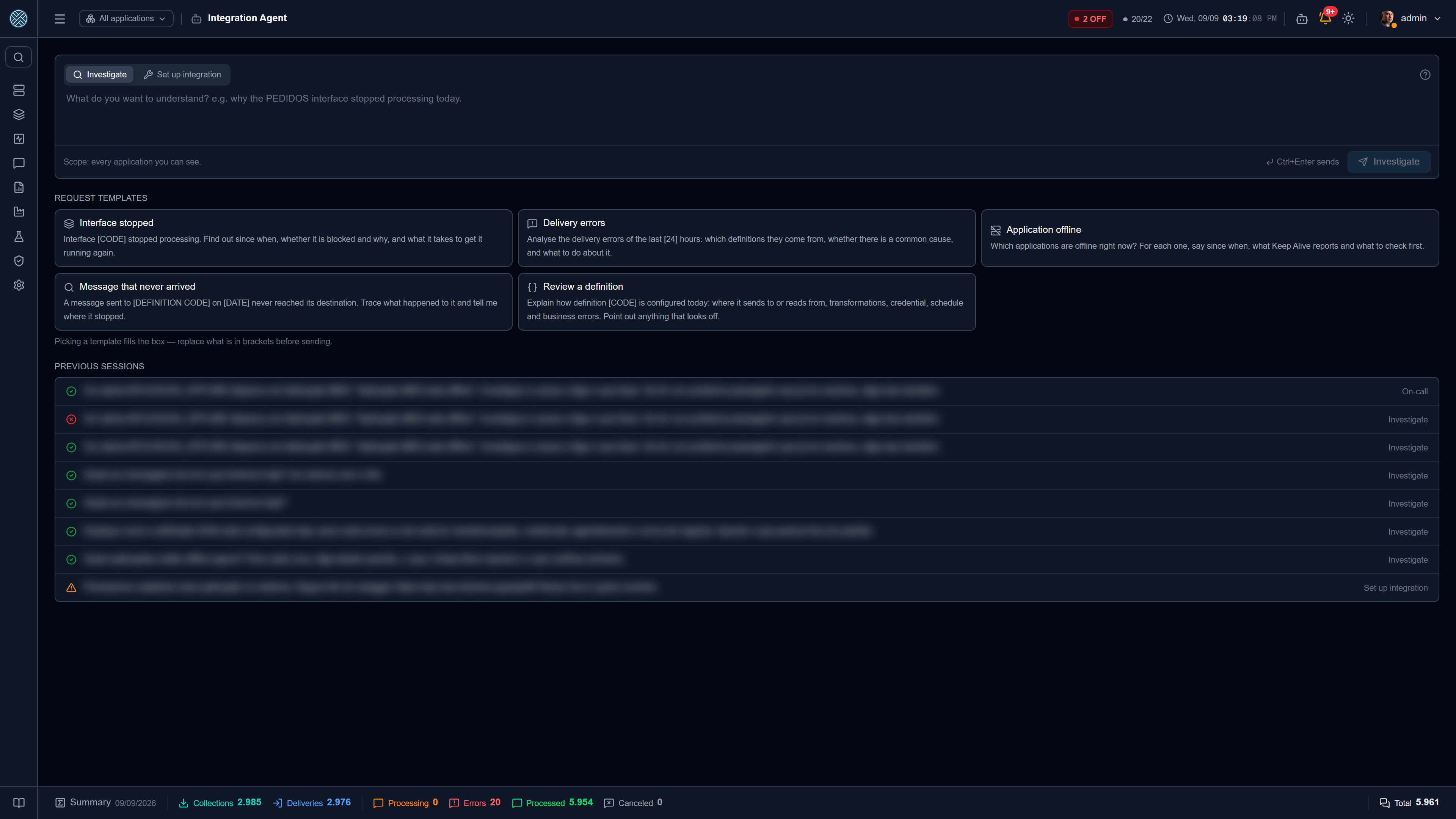
Ready-made examples offered by the screen:
- Interface
[CODE]stopped processing. Find out since when, whether it is blocked and why. - Analyse the delivery errors of the last
[24]hours: which definitions they come from, whether there is a common cause. - Which applications are offline right now? For each one, what to check first.
- A message sent to
[CODE]on[DATE]never arrived. Trace where it stopped.
The timeline shows every step: the tool called, the arguments, the result and the duration, each one expandable. The marker is green when the tool ran, red when it failed and neutral for a plain comment — in a ten-step investigation, the colour is what lets you find where it stalled without opening them one by one.
The report
The report comes out in three blocks, not as a single ten-line paragraph: Cause, Evidence and What to do. What the person opened the panel to read is the reason, and it used to be buried in the middle of the text.
Your latest investigations
Below the goal box, the tab lists what this person has already investigated. Reopening a report from there spends no step and no token: the text is already stored. Without that list, closing the panel wiped the investigation from sight, and redoing it cost the whole session again.
Investigate is read only. There is no write tool within its reach — that is not a promise made by the prompt text, it is the tool set handed to the model.
Configure — a proposal that needs approval
Also paid. Here the goal is to build the integration: “in application [CODE], receive production
orders from the ERP and deliver them to the MES”. The agent reads the installation, discovers the
real format (probes the URL, browses the database catalogue, reads the SAP function parameters,
tests the transformation against traffic that already went through) and assembles a plan.
The agent never writes to the database. It proposes; the write is a person clicking apply, through the same installer used by Packs — with idempotency, a trail and auditing.
Evidence
Every test that succeeded becomes evidence attached to the proposal, listed above the apply button. When there is none, the screen says in plain words that nothing was tested in this proposal — approving a plan that was never tested has to look different from approving one that ran against real data.
The traffic test declares its source, each with its own colour:
| Source | Means |
|---|---|
| TRAFFIC | Ran against messages that actually went through this Definition |
| SAMPLE | Ran against an example from the contract, not against customer data |
Approving
A proposed plan opens the full agent screen, at /agent — approval does not happen inside the
400 px side panel, because approving means writing to the database and that is not a width for
reading before deciding. The screen shows the plan item by item (what will be created, what already
exists), the evidence, and the apply button.
Applying requires the permission to install configuration, not the one to use the agent.
Without that separation, the /agent Tool would become a shortcut for creating an Interface
without having permission to create an Interface.
When the session ends without a plan
The state is honest about what happened:
| State | Means |
|---|---|
| Completed | The model decided to stop because it was done |
| Awaiting approval | There is a plan ready, waiting for a person |
| Partial | It ran out of step, token or time budget — the investigation was interrupted, however complete the text looks |
| Cancelled / Error | Stopped by you, or a technical failure with the reason |
Ending a build session without a plan is Partial, never success.
Screen shortcuts
Asking “find the message containing invoice NF-12345” does not return a message written by the AI. It returns a button, below the answer, that opens Content Search already filtered by that term. The CMS is what searches, with your permission, exactly as if you had filled in the filter by hand.
The AI picks the filter; the system runs it. What shows up on the screen never went through the model.
This is not navigation convenience — it is what separates an answer you can check from one you have to believe:
- Message content never reaches the AI provider. What the model assembles is the address, not the result.
- The count is exact and costs no context. A filter yielding 7,000 rows costs the same as one yielding 7 — the agent says “I found 12” without having read a single message.
- The result is live. It opens the usual screen, with current numbers, and you adjust the filter you were handed instead of asking again.
- Permission still belongs to the backend. The screen checks everything again when you click. A badly built shortcut leaks nothing: at worst, it opens empty.
A period that follows the clock
For requests relative to now — “the messages that failed in the last hour”, “what came in today” — the button carries the period shortcut, not two dates. Clicked tomorrow, it opens tomorrow’s last hour, not the one from when you asked. For a fixed window (“September 15”), it uses dates.
Exporting
“Export today’s messages from SAP” returns a button that opens the filtered screen and fires
its Export to Excel. It is the screen’s own button, on the same slice: the spreadsheet is built in
your browser, and no file holding production data is ever written to the server.
Where it can take you
| Destination | Filters by |
|---|---|
| The five Messages screens | Application, Interface, Definition, id, period — plus status or content, depending on the screen |
| Alerts | Definition |
| Applications, Interfaces, Definitions and Collectors | Opens the screen, no filter |
| The Reports for deliveries, collections, business errors and storage | Opens the screen, no filter |
The list is closed, and each screen declares what it actually honours. A filter the screen ignores is refused on the spot, with the list of what it accepts — accepting it silently would open the page without the slice, and the button would have promised a result you are not looking at.
When it refuses
| Situation | What happens |
|---|---|
| The screen ignores that filter | Refused, and the agent rebuilds the shortcut with what fits |
| A status that screen’s selector does not offer | Refused — it would be an active, invisible filter |
| Period and dates together | Refused — the shortcut already sets both ends |
| You lack the Tool for the destination screen | Neither the button nor the count comes out |
| The export would exceed 50,000 rows | Refused: the spreadsheet would come out truncated without saying so |
| The filter yields no rows | No button; the agent says so and offers to widen it |
Why the button never comes from the answer text
The agent reads messages, and the content of a message is text that came from outside. If the screen turned whatever the model wrote in its report into a link, a crafted payload could induce a phishing address rendered with the credibility of the CMS interface.
So the button is not found in the text: it comes from a field of its own on the session, written when the tool ran, and the destination comes from a closed list of screens — checked on the server and again in the browser. That is also why the answer mentions the button instead of repeating the address.
Shortcuts depend on the Agent module. They do not appear on the Ask tab of an installation without it: the count reads your installation, and that is precisely the boundary the module draws.
Standby
When an alert fires, the agent can investigate on its own and leave the report ready for whoever received the alert. Enabled in Settings → AI, and off by default: it is the only part of the product that spends your AI key without anyone clicking.
It sweeps fired alerts every 5 minutes and investigates the ones worth investigating: blocked queue, piled-up messages, delivery or collection errors, offline application, lost connection.
Three locks, all explicit:
- the Agent module in the licence;
- the switch in Settings → AI;
- an alert recipient with access to the agent — the investigation runs with their permission, and the session shows up on their screen.
Plus: a one-hour silence window per target (a queue that stays blocked fires an alert every cycle), a ceiling of 3 sessions per sweep, and a failure on one alert does not stop the others.
The silence window is stored on the investigated session itself, not in memory. On an installation with an expired licence, which restarts every half hour, an in-memory cooldown vanished at every restart and became half an hour in practice: the same blocked queue paid for a fresh report saying what the previous one already said.
The report reaches you
Before, the agent investigated on its own and stored the result without telling anyone — whoever did
not know to open /agent and scroll to the previous sessions never found out an investigation had
happened. Now a Standby session is born unread and shows up in three places:
| Where | What it shows |
|---|---|
| AI icon in the header | The count of what has not been closed yet |
| Investigate tab | The count of what nobody has opened yet, plus the Standby list at the top |
| The list itself | The state of each investigation, with the resolved check on the left |
On the full /agent screen, a session opened by Standby is labelled Standby instead of by mode —
it is the only row in the list the person does not recognise from having typed it.
Reading the report does not clear the header counter: opening marks it as seen, but the one who closes the case is you, by ticking resolved — the problem may well still be standing after it is read. One resolved by mistake can be reopened, and there is a mark all as resolved for the day the sweep caught a run of alerts from the same source.
What it can never do
These are not recommendations — they are properties of the design.
- The agent can never do more than whoever called it. The tools handed to the model are filtered by the session user’s permission: the same Applications and Interfaces you see on the screens, not one more.
- It never sees the message body. It sees metadata and structure; the payload is out of reach.
- Secrets are redacted before they leave. Passwords, tokens and keys are stripped from any tool result before reaching the model and before being written to the timeline.
- A session is private to whoever created it. The report carries the slice that person could see; showing it to another profile would leak exactly what the filter prevents.
- No open internet. Only the controlled URL probe the Integration Assistant already uses — GET only, with timeout, size ceiling and cloud metadata addresses blocked.
- The question is recorded, redacted and never leaves. It goes to the history the way the agent’s goal does — auditable — and the only external destination is the AI provider you configured.
Cost and limits
Every session has a budget of steps, tokens and time, and the panel shows the consumption in the
footer. Running out of budget ends the session as Partial with the reason, never as Completed.
| Ask | Investigate / Configure | |
|---|---|---|
| Steps | 6 | 12 |
| Reach | Embedded manual | Manual + the installation |
The model is the one you configured in Settings → AI — including an Ollama on your own network, for those who cannot send anything outside.
Turning it on and off
Each piece has its own switch in Settings → AI, and all of them depend on the provider master switch: Ask the CMS, Investigate, Configure and Standby. Turning one off does not affect the others; turning the master switch off turns everything off.