Wallboard — /settings/cockpit
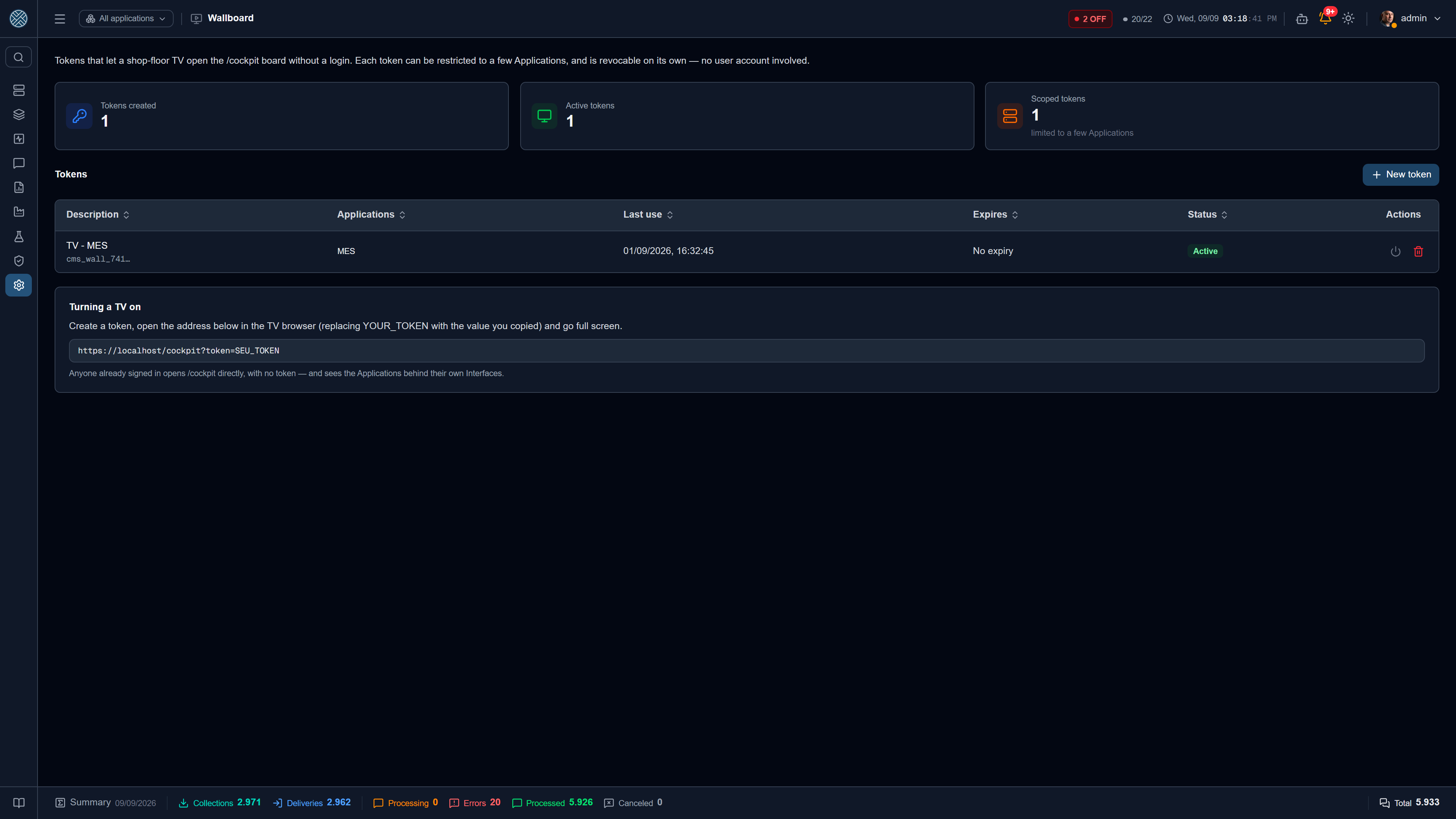
A TV hanging on the shop floor has nobody signed in to it. This screen creates the tokens that let that TV open the Cockpit — and only the Cockpit — with no user credential.
Until August 2026 the Cockpit was simply anonymous: anyone who reached the address saw the code of every integrated Application, the status of each one, today’s message volume and the last activity. The product decision has not changed — the TV still opens without a login. What changed is that “no login” now means “with a token”, not “with no credential at all”.
Two ways into the board
| Path | Who uses it | What shows up |
|---|---|---|
| User session | Whoever is working in the CMS | Opens /cockpit directly, with no token, and sees the Applications they already see everywhere else — the ones behind their own Interfaces |
| Wallboard token | The TV, the wall panel, the kiosk | Opens with no login, and shows the Applications on that token. With no scope set, all of them |
Neither one, and the screen does not open.
Scoping by session fixed, in passing, an asymmetry nobody had noticed: the Cockpit showed every Application even to a user restricted to a single Interface. It was the only screen in the product with no scoping.
Creating a token
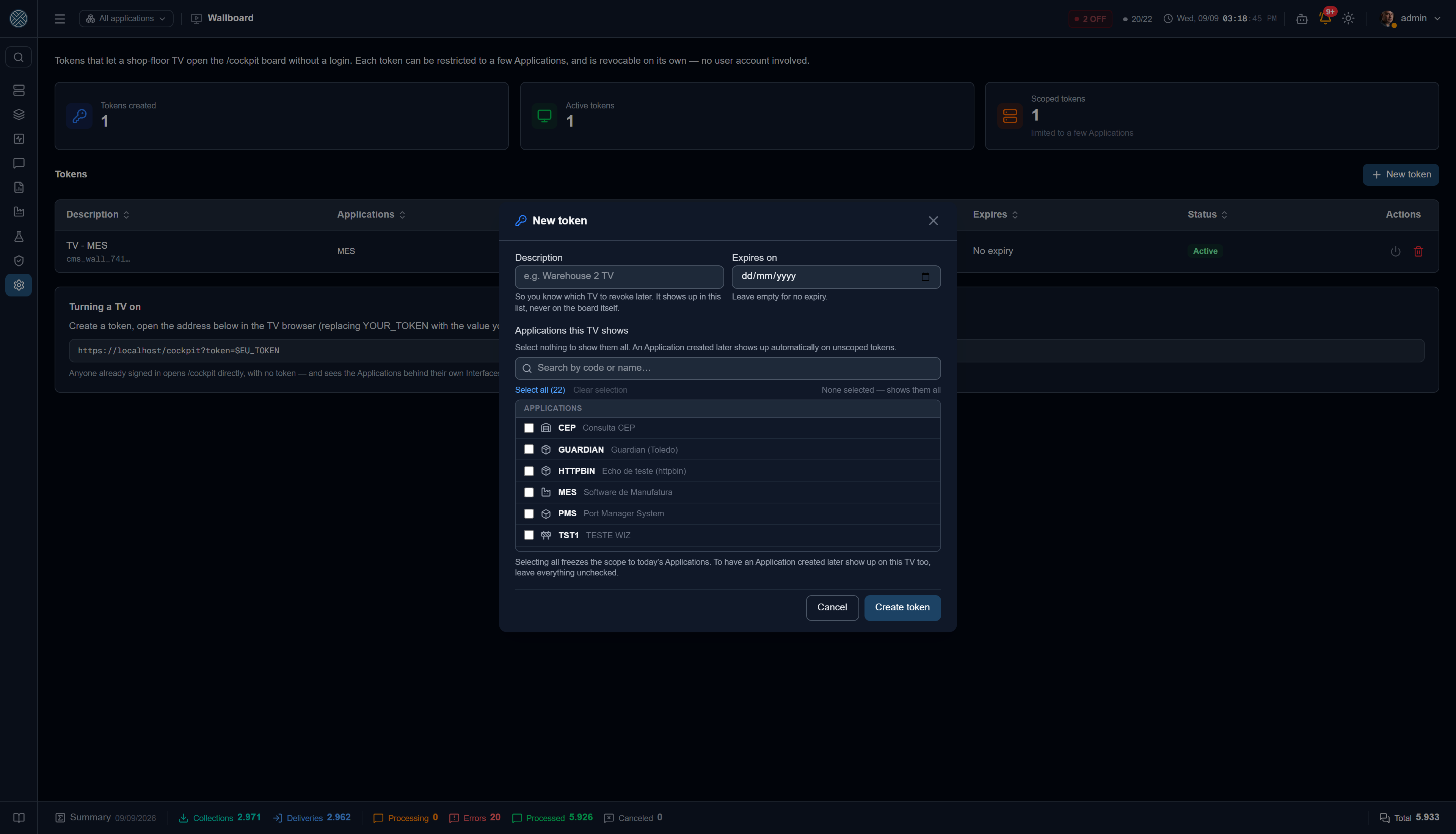
Description
“Warehouse 2 TV”, “Reception”, “Supervisor’s office”. It exists so you know which TV to revoke later — it shows in this screen’s list, never on the board itself.
Expires on
Empty means no expiry. A date here is useful for a construction-site TV, a trade-show one or a pilot: the token dies on its own when its reason does.
Applications this TV shows
The field that decides the token’s reach. The list comes grouped by the same categories as Applications — Applications, Industrial Protocols, Databases, SAP, Files —, with a search by code or name (whoever sets up the warehouse TV tends to remember the system’s name, not the three-letter code), and a Select all that adds to the current selection instead of replacing it: with the search filled in, it ticks only what is in view.
Create
The token is generated right away, and the screen shows the value and the TV-ready URL once.
Selecting all is not the same as leaving everything unticked. Selecting all freezes the scope on today’s Applications — an Application created tomorrow will not join this TV. Leaving everything unticked means “all of them, future ones included”. For a general board, ticking nothing is the right answer; selecting all is for when today’s list is exactly the list you want.
The TV URL
https://your-cms/cockpit?token=YOUR_TOKENOpen that address in the TV browser and go full screen. On the first load the TV stores the token
and wipes the parameter from the address bar — the URL of a browser in kiosk mode sits in plain
view, lands in the history and leaks in a support screenshot. From then on, opening /cockpit is
enough.
The URL offered on screen is built from the base URL configured in the system, not from the address you happen to be using: the TV browser almost never reaches the CMS by the same path as whoever administers it.
The token value is never shown again. The CMS stores only a hash — the same design as MCP tokens. If the token is lost, the way out is to create another one and revoke the old.
A TV that has no token yet
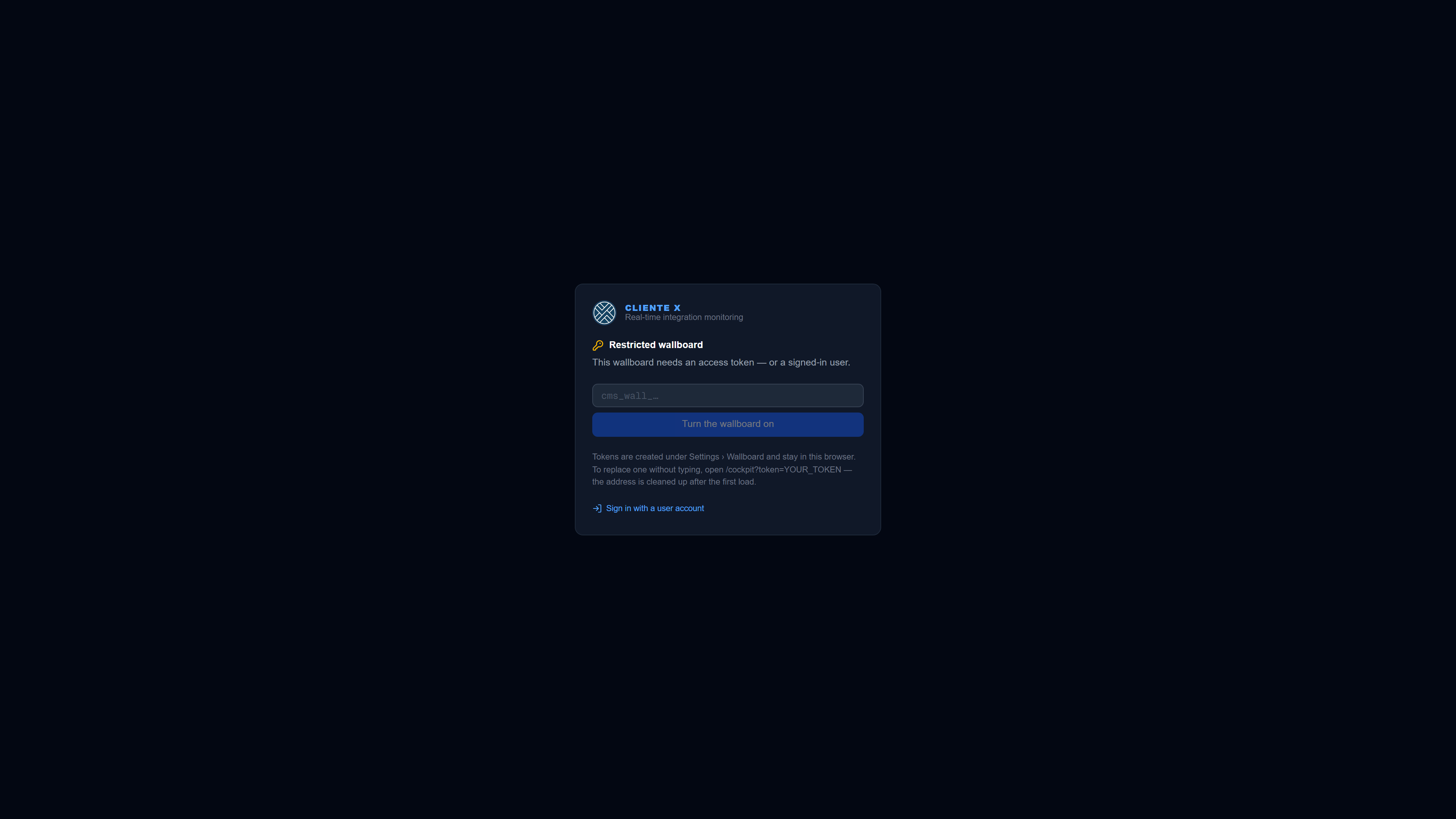
With no session and no token, /cockpit shows Restricted board, with a box to paste the token by
hand — handy when the TV has no keyboard for a long URL but does have a remote.
The screen tells two cases apart, and the difference saves a trip to the shop floor:
| What the screen says | What happened |
|---|---|
| This wallboard needs an access token | There was never a token in this browser |
| The token stored in this browser was not accepted | There was one, and it was revoked or expired |
The API answers with a single 401 for a non-existent, revoked or expired token. Three different answers would turn the route into an oracle of valid tokens. The distinction above comes from the browser, which knows whether it stored a token — not from the server.
Revoking
Each token switches on and off on its own in the list, and can be deleted for good. Revoking one does not affect the other TVs nor any user account: the TV using it loses the board on the next refresh and goes back to asking for a token.
That is what makes the per-Application scope a good deal: a leaked token from the Shipping TV exposes the status of those Applications, not the whole plant inventory — and revoking it does not take the other screens down.
The list shows each token’s last use, which is the piece of information that answers “does this TV still exist?” before you go revoking whatever nobody recognises.
Every mutation is audited — COCKPIT_TOKEN_CRIADO, COCKPIT_TOKEN_ALTERADO, COCKPIT_TOKEN_REVOGADO
and COCKPIT_TOKEN_REMOVIDO in the Audit Log. In an incident, the revoked one
is what matters: when that TV stopped seeing.
Permission for the screen
The screen is a Tool of its own, /settings/cockpit, granted under Profiles.
It is not the same as administering users: creating a wallboard token creates no account and
grants access to no screen beyond the board.
Whoever administers tokens does not necessarily have the Applications Tool. Without it the scope picker disappears and the screen says why — the token is born showing all of them — instead of displaying an empty list and creating a token with a silently wrong scope.