Settings
The Settings menu group holds what applies to the whole installation. This page covers four screens: Parameters, Workers, Licence and Danger Zone. The others in the group have pages of their own — Variables and External Connections and Schedulers.
Parameters — /settings
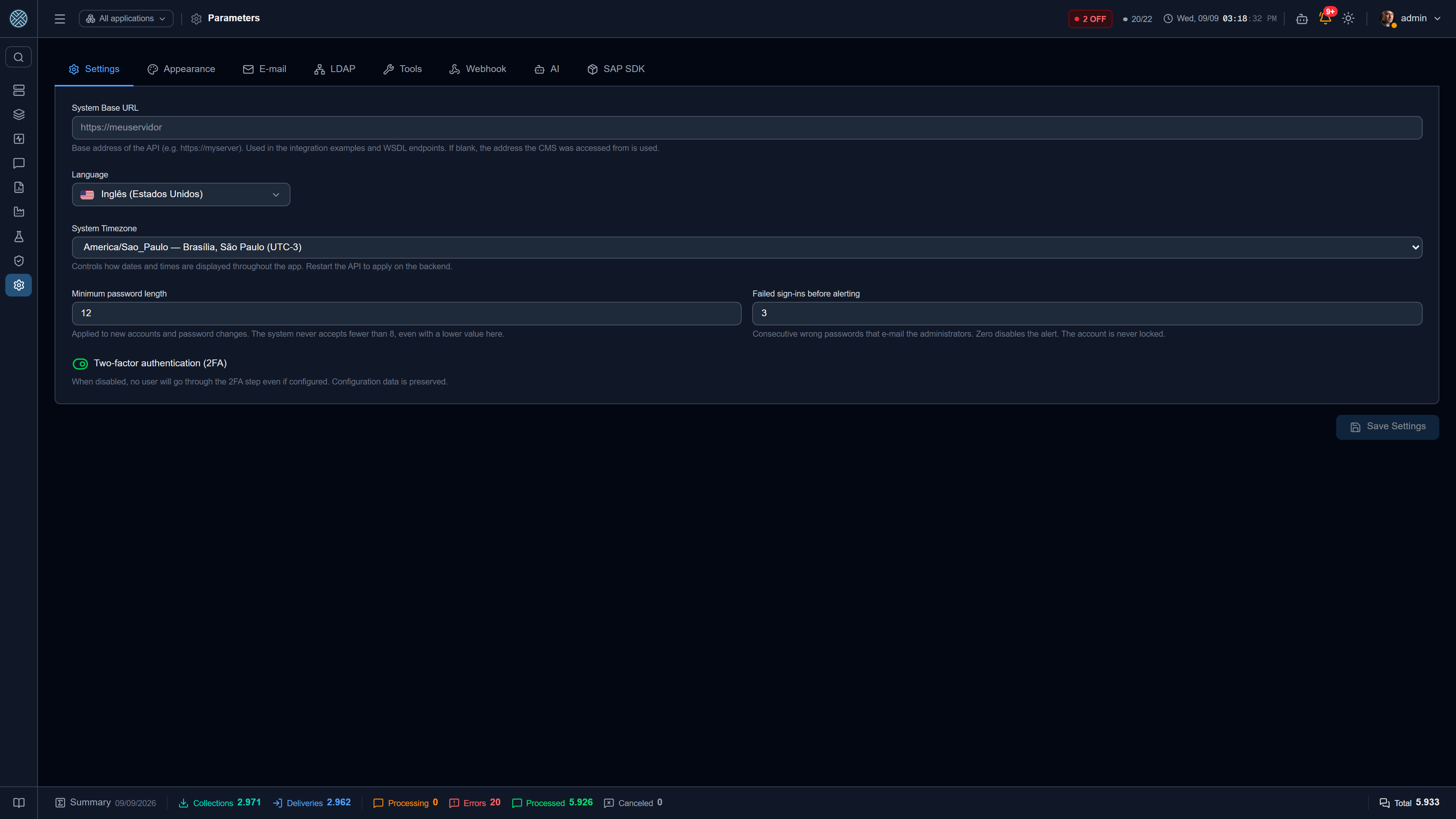
Nine tabs, each with a closed subject. Anything that is a password or a key is stored encrypted and never shown again — those fields open blank with a “leave empty to keep” note. The exception is changing the address: changing the SMTP or LDAP host, the Webhook URL or the AI Base URL without retyping the matching password (or key) erases the saved one. A secret never follows a new address on its own.
Settings
The basics of running the installation.
| Field | What it defines |
|---|---|
| System Base URL | Public address of the CMS. Used in integration examples and WSDL endpoints. Left blank, the CMS uses the address it was reached through |
| Language | Default interface language — Portuguese, English or Spanish |
| System Timezone | How dates and times are shown across the application |
| Two-factor authentication (2FA) | Turns on the second factor requirement at login |
Turning 2FA off here makes no user go through the second factor step, even those who already set it up. Each user’s configuration is preserved: turning it back on restores everything, with nobody having to re-enrol their authenticator.
Changing the timezone applies immediately in the interface; the backend needs the API to be restarted to follow.
Appearance
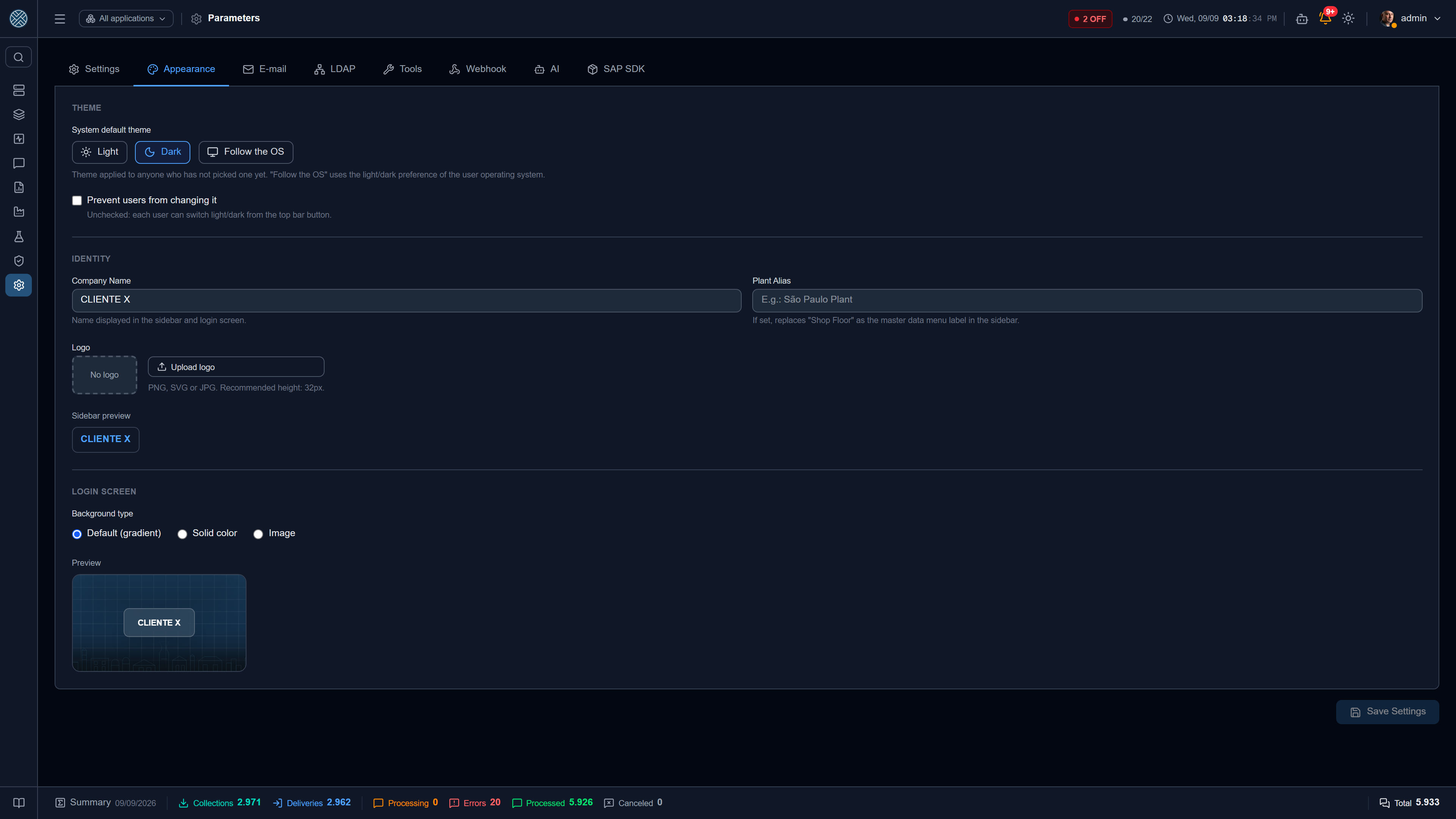
The face of the installation — this is where the CMS stops looking like a generic product.
| Area | Fields |
|---|---|
| Theme | Default theme (light, dark or follow the operating system) and locking the user’s ability to switch |
| Identity | Company name, plant alias and logo |
| Login Screen | Background: default, solid colour or image |
The default theme applies to whoever has not chosen one. Ticking lock user change, the theme toggle disappears from the top bar and everyone uses the theme set here.
The plant alias, when filled in, replaces “Integration Config” as the name of the configuration group in the side menu — useful in multi-plant installations, where the menu starts saying “São Paulo Plant”.
The logo shows up in the sidebar, on the login screen and on the Cockpit.
With no colour and no image chosen, the default background of the login screen draws the brand’s industrial scene — a navy gradient, a technical mesh and the line silhouette of a factory. The preview next to the fields is the very component the login uses, so it cannot promise a background different from the one that will be shown; and it resolves the theme the way login does, from the installation’s default theme rather than from the preference of whoever is editing the screen.
SMTP server used by Alerts and by sends started from the screens (token by e-mail, message PDF): host, port, user, password, sender and Require encrypted connection (TLS).
Encryption follows the port, and the line under the switch says what sending will do:
| Port | Switch on | Switch off |
|---|---|---|
| 465 | TLS from the first byte (implicit SSL) | Same — 465 always uses TLS |
| 587, 25 or 2525 | Starts in plain text and upgrades to TLS (STARTTLS); fails if the server does not offer TLS | STARTTLS if the server offers it; otherwise sends unencrypted |
| Other | TLS from the first byte | TLS not required |
On 587 the switch does not mean implicit SSL. Until 2026-09-29 it did, and sending failed with
wrong version number in the API log: the server answered a TLS handshake in plain text.
The SMTP settings saved here take precedence over environment variables. This screen is what actually configures alert e-mail — setting it only in the environment is not enough.
LDAP
Authentication via Active Directory or OpenLDAP, as an alternative to the local login.
| Field | Role |
|---|---|
| Enable | Turns on directory validation |
| Host / Port / SSL | Directory address (ldaps:// when SSL) |
| Bind DN and password | Service user that performs the search |
| Base DN | Where to look |
| Search filter | Use {{login}} as the placeholder — (sAMAccountName={{login}}) on AD, (uid={{login}}) on OpenLDAP |
| Timeout | Query limit, in ms |
Enabling LDAP does not convert anyone automatically. Directory validation applies to users whose authentication source is set to LDAP on their profile — see Security. That allows a gradual migration and keeps a local emergency user.
The Test connection button performs the service bind and says whether it worked, before any user tries to log in.
Tools
Catalogue of the system’s Tools: every CMS screen corresponds to a Tool, and it is the Tool that Access Profiles grant or not. The tab shows name, description and endpoint for each one, with active/inactive counts.
It is a maintenance tab: Tools are created by the system itself on each release. You come here when you need to take a screen offline for everyone, or to check which Tool a route requires.
Disabling a Tool removes the screen for all profiles, the administrator included. If the intent is to restrict it to a group, the place is the Access Profile, not here.
Webhook
Endpoint that receives alerts marked for external sending — typically an automation (n8n, Power Automate) that fires WhatsApp, Teams or SMS.
| Field | Role |
|---|---|
| Enable | Turns on sending |
| Webhook URL | Endpoint that receives the alert JSON |
| User / Password (Basic Auth) | Optional, sent with the call |
The Test Webhook button makes a real call. The payload format is in Alerts.
AI
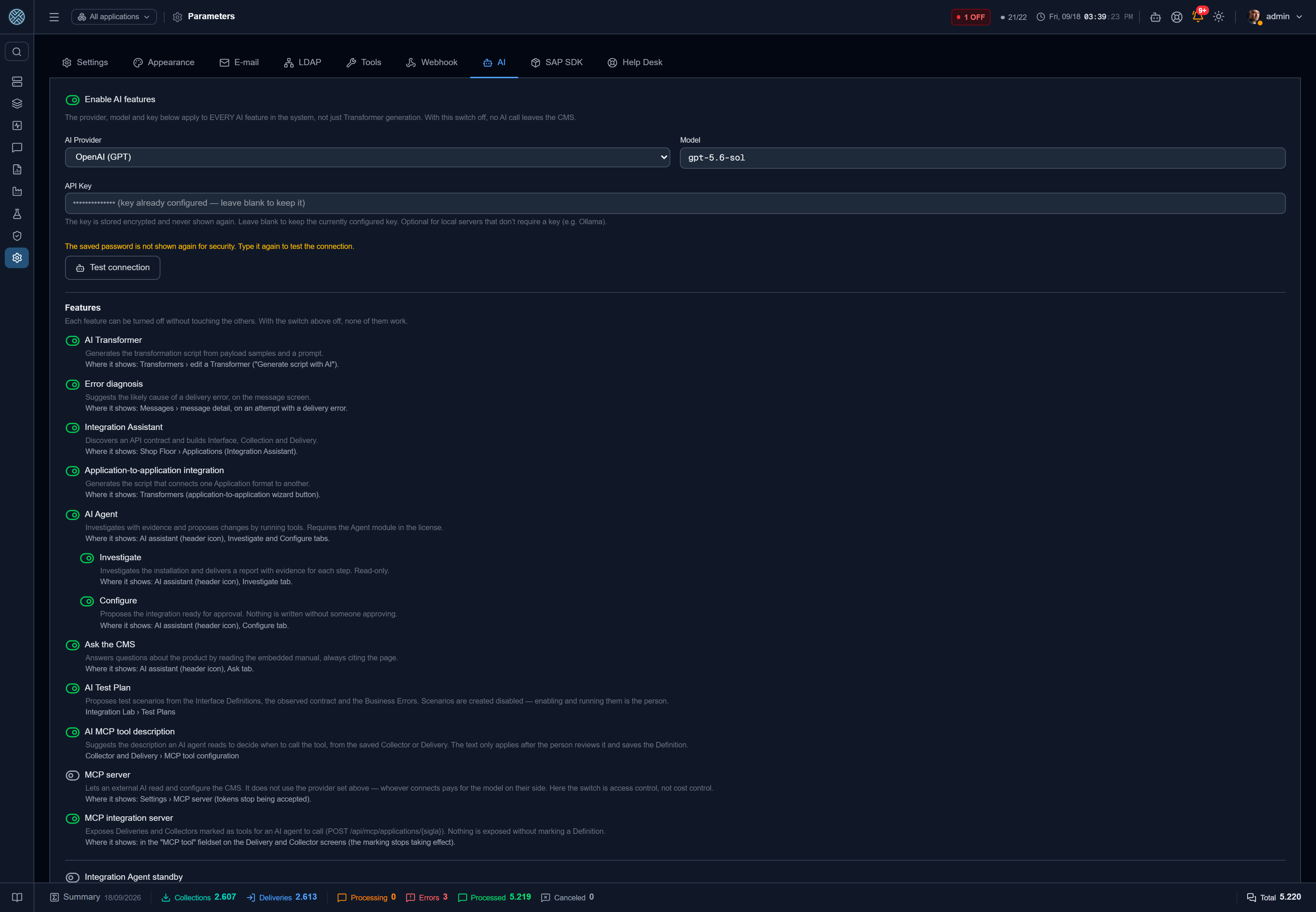
Provider used by every AI feature in the product, and the on/off switch for each one of them.
| Field | Role |
|---|---|
| Enable | The master switch. With it off, no AI feature works |
| Provider | Anthropic, OpenAI or one compatible with the OpenAI API |
| Model | Model name |
| API Key | Encrypted, never shown again. Optional on local servers |
| Base URL | Compatible provider only: Ollama (http://localhost:11434/v1), Groq, OpenRouter… |
The third provider exists for those who cannot send anything outside: pointing the Base URL at an Ollama on your network, generation runs entirely inside the company. In that mode the Model field is required and the key is usually unnecessary.
The Test connection button confirms provider, model and key before anyone depends on them.
Features
Below the provider, each AI feature has its own switch. Turning one off does not affect the others; with the master switch off, none of them work. They all arrive enabled on an upgrade — silently turning off what the customer already uses would cost more than it saves — while the master switch arrives off on a new installation, so nobody talks to an external provider without someone deciding to.
| Feature | What it does | Where it shows |
|---|---|---|
| AI Transformer | Generates the transformation script from samples and a prompt | Transformers, in the editor |
| Error diagnosis | Suggests the likely cause of a delivery error | Messages, on a failed attempt |
| Integration Assistant | Discovers an API contract and builds Interface, Collection and Delivery | Applications |
| Application-to-Application | Generates the script linking one Application’s format to another’s | Transformers |
| AI Agent | Parent switch of the two paid tabs. Requires the Agent module in the licence | AI Assistant |
| ↳ Investigate | Investigates the installation and delivers a report with evidence. Read only | Investigate tab |
| ↳ Configure | Proposes the integration ready for approval | Configure tab |
| Ask the CMS | Answers about the product by reading the embedded manual, citing the page | Ask tab |
| AI Test Plan | Proposes test scenarios from the Definitions, the observed contract and the Business Errors. Scenarios are created disabled | Test Plans |
| AI MCP tool description | Suggests the description the agent reads to decide when to call the tool. It only applies after the person reviews and saves it | Collector and Delivery, in the MCP tool popup |
| MCP Server | Lets an external AI read and configure the CMS | MCP Server |
| MCP integration server | Exposes the marked Deliveries and Collectors as tools an AI agent calls | MCP integration server |
The two MCP servers are the exception: they do not consume the provider configured here — whoever connects pays for the model on their side. In those cases the switch is access control, not cost control. Turning off the configuration one makes the tokens stop being accepted, and the refusal happens after the token is validated, so that calling without a credential does not reveal that the server exists. Turning off the integrations one takes the address of every Application offline at once, without unmarking any Definition.
When every feature is off, the AI Assistant icon disappears from the header: a button that opens an empty panel contradicts whoever turned everything off.
Integration Agent standby
The last switch on the tab, and the only one off by default. With it on, a fired alert makes the agent investigate on its own and leave the report ready for whoever received the alert — spending your AI key without anyone clicking. It requires the Agent module, and the diagnosis runs with the permission of the alert recipient. Details in AI Assistant.
SAP SDK
Installs the SAP NW RFC SDK used by the SAP connectors. SAP licenses the library and it does not
ship with CMS: the customer downloads their own copy from the SAP Support Portal and uploads the
.zip here — CMS validates the package, writes the files and restarts the connectors on its own.
The tab is shown to administrators only: uploading or removing the SDK installs or removes a native library the connectors execute, and that is not a task to delegate through a Tool.
The tab shows the detected version (e.g. 7.50 PL18), the architecture, who installed it, when,
and the state of each connector. While there is no SDK, the SAP connection types appear disabled
under External Connections — visible, with the reason and a shortcut that opens this tab directly.
Step by step, the right variant to download and what the validation rejects: SAP SDK.
Help Desk
The service tools where CMS opens a ticket when an alert fires — ServiceNow, Jira Service Management, Freshservice, Zendesk, GLPI, InvGate and a notification in SAP PM. This is where you activate the tool (URL, authentication and the Interface it uses), test the connection and register the ticket body template. The tab only shows up with the Help Desk Tool on the profile.
The complete walkthrough, with destinations and the link to alerts: Help Desk.
Wallboard — /settings/cockpit
The tokens that let a shop-floor TV open the Cockpit without a login, scoped per Application and revocable one by one. Anyone who already has a CMS session needs no token at all.
Workers — /settings/workers
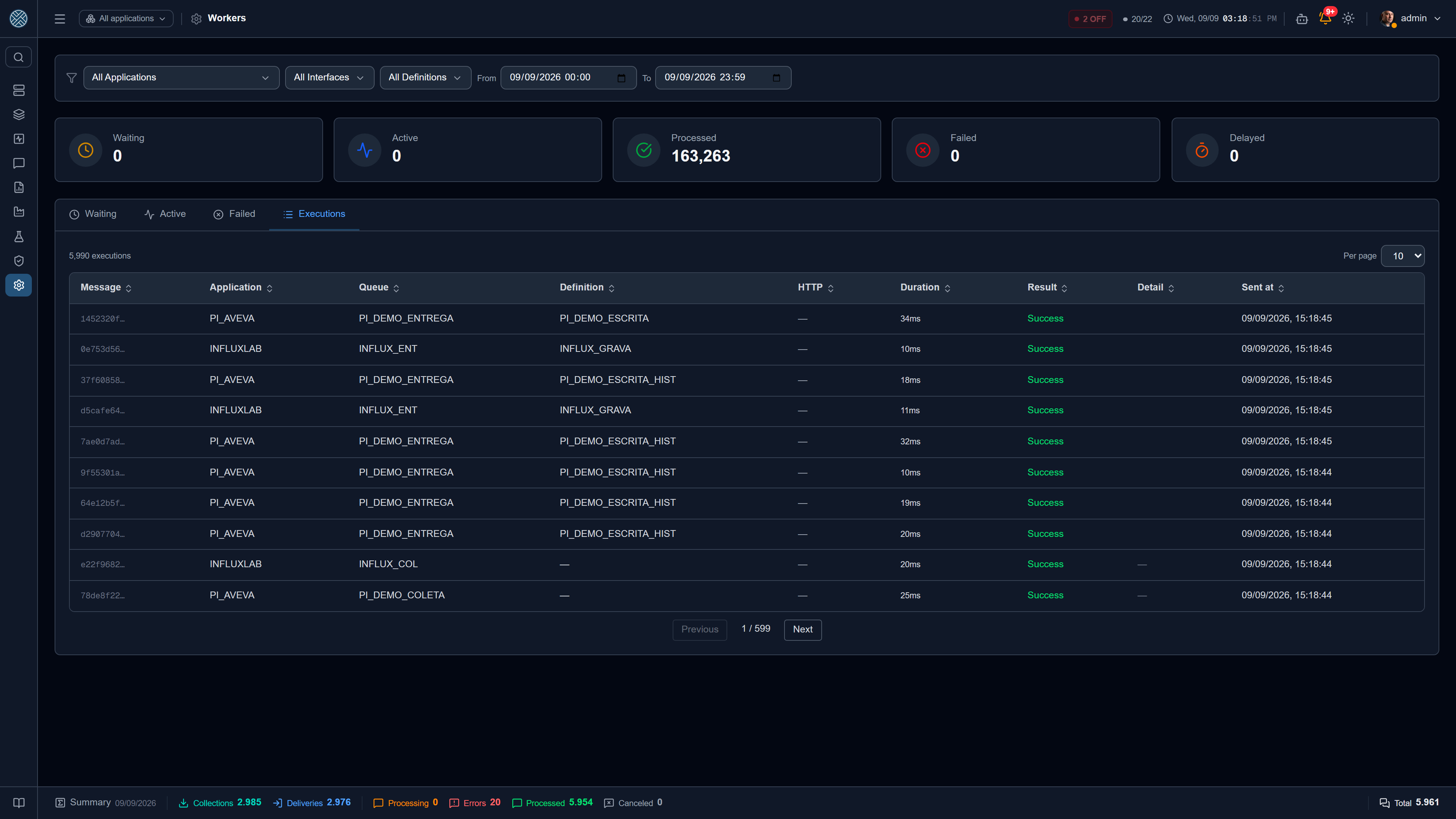
What the Interface Panel shows per Interface, this screen shows per job: the internal queue the CMS uses to process messages, seen from the inside.
The period uses the same selector as Messages: it opens on Today and, with a shortcut such as Last 15 minutes, the window moves along with the screen’s automatic refresh.
The five numbers at the top answer the most common operational question — “is it piling up?”.
| Indicator | What it means | Comes from |
|---|---|---|
| Waiting | Messages not processed yet | The message table |
| Active | Jobs the workers are processing right now | The queue |
| Processed | Total messages delivered successfully | The message table |
| Failed | Jobs that ran out of attempts and stopped | The queue |
| Delayed | Jobs scheduled for the future — a retry with a wait | The queue |
Failed counts jobs, not messages in error. A message that failed delivery and went back to the queue shows up under Messages with Errors; only the job that gave up lands here. The two numbers are different on purpose, and not matching is expected.
The four tabs open the list behind each number. Executions is the one used day to day: one row per attempt, with Application, Interface, Definition, HTTP status, duration, result and the error detail when there was one.
On the Failed tab, each row carries the failure reason and two buttons: retry and remove from the queue — individually or in bulk, for the selected set.
Removing a job from the queue does not cancel the message: it drops the pending work, not the record. To take the message out of the flow for real, use Cancel Message.
Unlike the Reports screens, the five indicators here ignore the filters: they are the live state of the whole queue, refreshed every few seconds. The Application, Interface, Definition and period filters narrow the lists in the tabs. That is deliberate — the question “is it piling up?” is about the system, not about the slice you happen to be looking at.
Licence — /settings/license
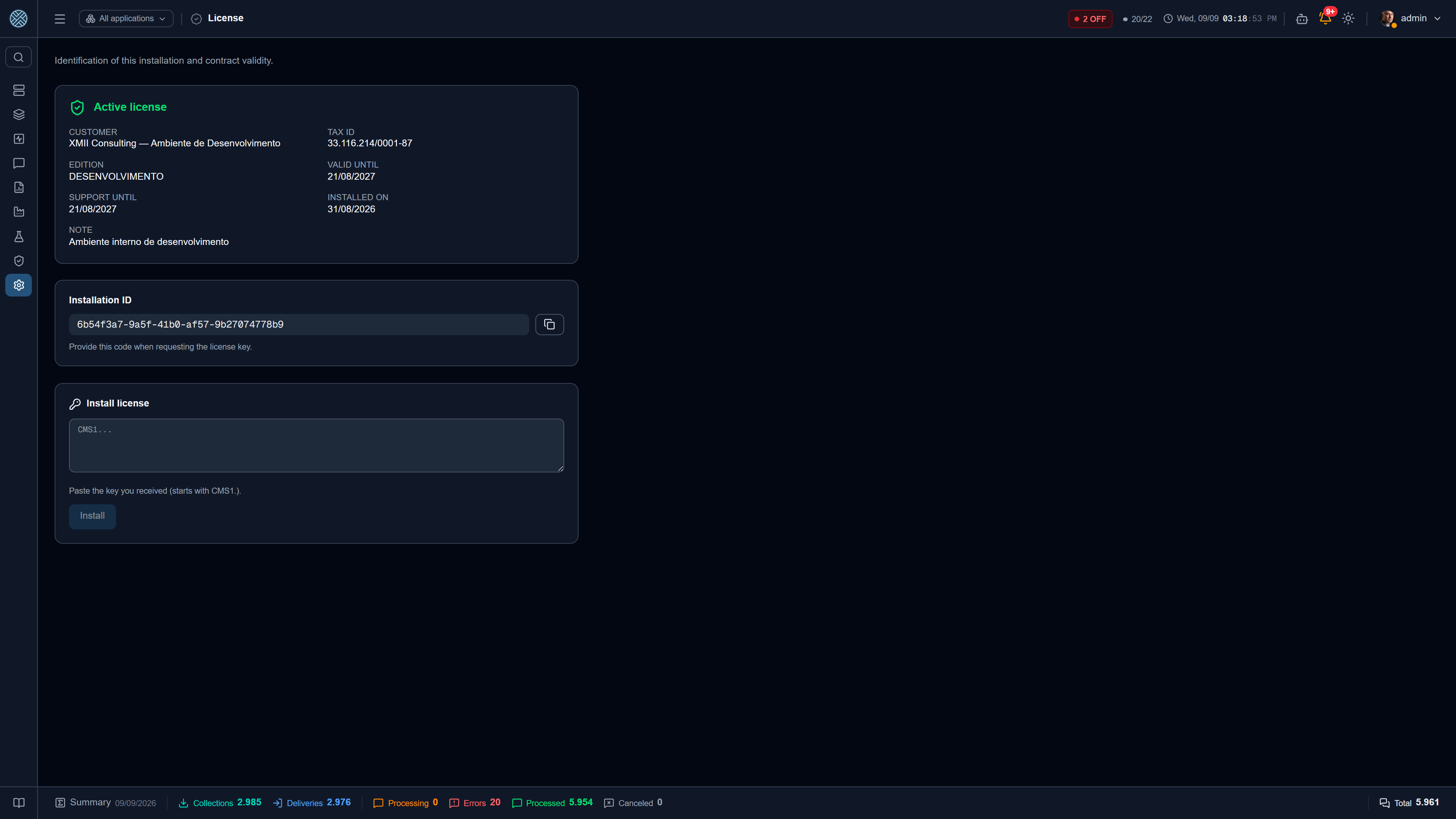
Identification of this installation and contract validity: customer, tax ID, edition, expiry date, support until, days remaining and notes.
The screen also shows the installation ID — the code XMII Consulting asks for to issue the key. A
new key is installed by pasting the received text (it starts with CMS1.) and clicking install.
| State | Means |
|---|---|
| Licence active | All good |
| Expiring soon | Banner at the top of the screens, with the days remaining. Starts 30 days ahead |
| Licence expired | The system restarts itself every 30 minutes, up to 10 times |
| Blocked | The 10 restarts are used up: the CMS stops responding |
| No licence installed | Installation not yet licensed; the system works normally |
| Invalid licence | The installed key does not belong to this installation |
What happens once the licence expires
From the expiry date on, the licence has an operational consequence. Without one, “expired” was a warning people learned to ignore, and the contract had no effect at all.
The escalation has two steps:
- Restarts. Every 30 minutes of execution, the CMS ends the process and Docker brings it back. That is 30 minutes of process lifetime, not of wall clock — so every round gives the same window to install the key. The counter appears on the screen and in the warning e-mail.
- Blocking. After 10 restarts, the state becomes Blocked and the CMS refuses everything: message intake, collection and delivery included.
While blocked, three things stay up — without them there would be no way out of the block from inside the product: login, the Licence screen (to check the state and install the new key) and read access to Settings, which feeds the branding and language of the login screen.
The counter is stored in the database, not in memory — the restart itself would wipe the count and the escalation would never leave the first step. Installing a new key resets everything, because it writes a new record.
No licence and invalid licence are deliberately outside the escalation: punishing a freshly created installation, which is still going to ask for its key, would be self-harm.
The banner at the top of the screens has three visual weights — expiring soon, expired and blocked cannot look the same — and states what will happen to the system and when, instead of merely asking you to contact the vendor.
Danger Zone — /settings/danger-zone
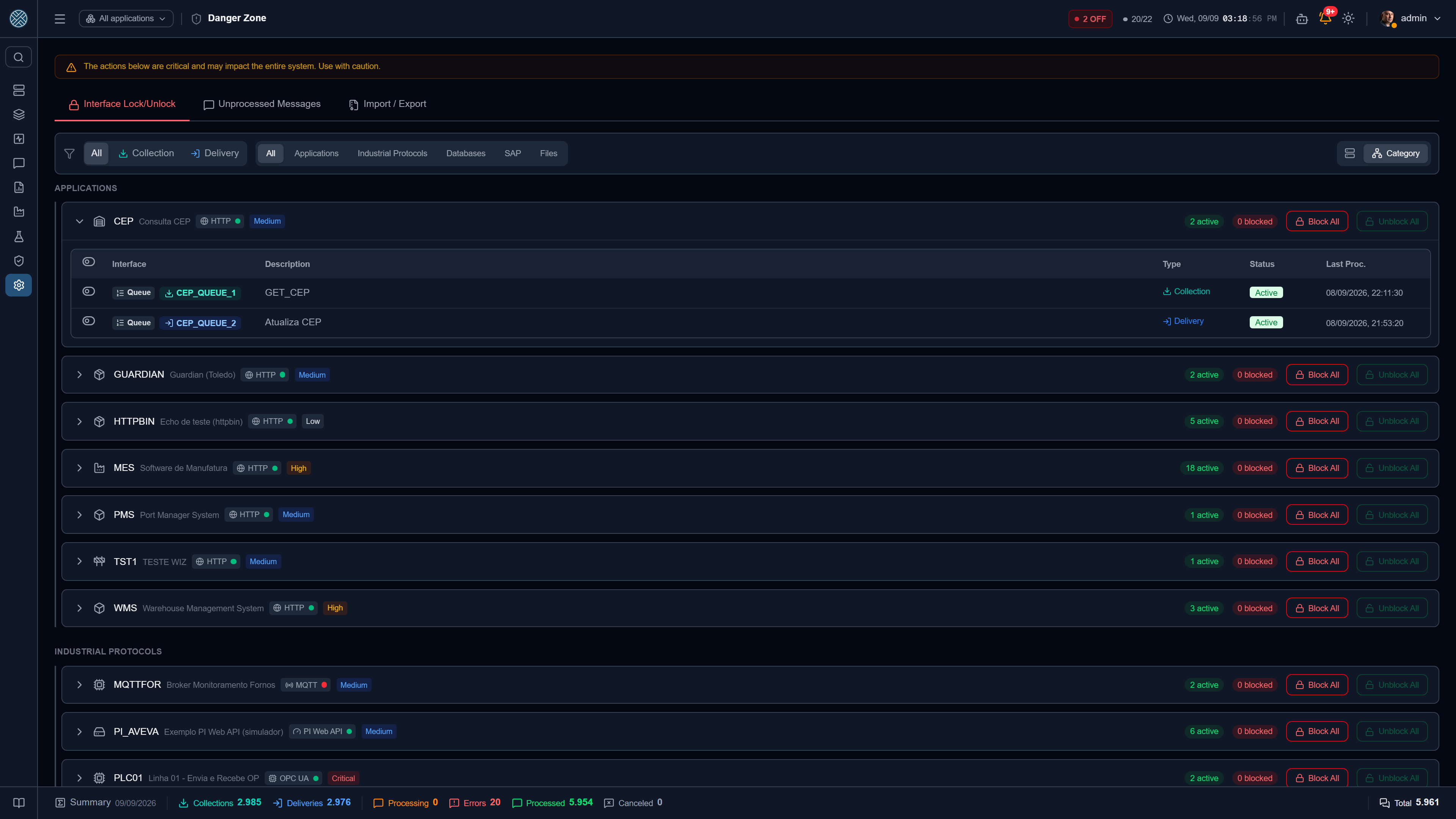
Operations that affect a lot at once. Three tabs.
Interface Blocking / Unblocking
The Interfaces grouped by Application, with active and blocked counts, a type filter (Collection / Delivery) and multi-select.
| Action | Reach |
|---|---|
| Block / Unblock All | Every interface of one Application |
| Block / Unblock Selected | Only the ticked ones, even across applications |
Both require a typed confirmation. Bulk blocking is the standard manoeuvre before a maintenance window on the destination system: messages keep coming in and wait in the queue, without becoming errors.
Unprocessed Messages
The full list of pending messages, with the same filters as the Messages screen, and two bulk actions: reprocess and cancel.
Bulk reprocessing does not work with “all messages matching the filter” selected — messages are re-enqueued one by one. Clear the selection and reprocess page by page.
Cancelling asks for a typed confirmation and deletes nothing: the messages take the Cancelled status, leave the processing queue and stay in the history. It is the way out for a batch that should never have come in — a test, a duplicated load — without losing the trace that it existed.
With “all messages matching the filter” ticked, cancellation happens on the server, without the browser enumerating ids — which is what makes it possible to cancel tens of thousands of messages at once. The filter always respects the user’s allowed Interfaces.
Import / Export
Moves configuration from one environment to another — from development to production, from one plant to another, or as a backup before a big change.
Only administrators see this section: import writes Roles and Parameters, and export decrypts the secrets of every Application. Migrating an environment is for whoever administers the whole installation.
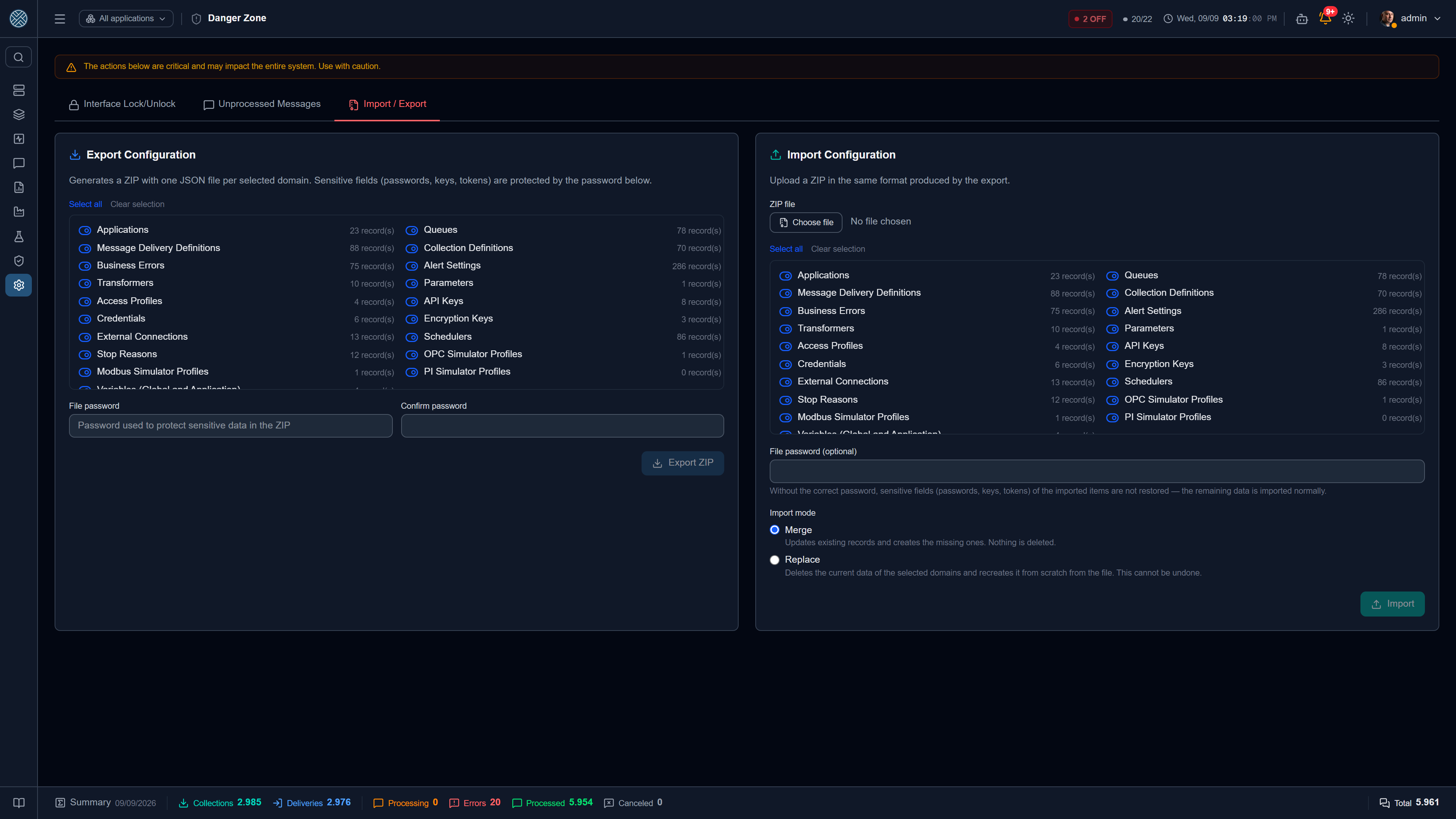
Export produces a ZIP with one JSON per selected domain. Available domains:
| Applications | Interfaces |
| Delivery Definitions | Collection Definitions |
| Business Errors | Alert Configurations |
| Transformers | Parameters |
| Access Profiles | API Keys |
| Credentials | Encryption Keys |
| External Connections | Schedulers |
| Stop Reasons | Variables |
| OPC Simulator Profiles | Modbus Simulator Profiles |
| PI Simulator Profiles |
Sensitive fields (passwords, keys, tokens) are protected by a file password, supplied on export and required on import.
Import accepts the same ZIP (up to 200 MB uncompressed), in two modes:
| Mode | What it does |
|---|---|
| Merge | Updates what exists and creates what is missing. Nothing is deleted |
| Replace | Deletes the current data of the chosen domains and recreates it from scratch. Cannot be undone |
Replace requires a justification and a typed confirmation, and is recorded in the audit log.
Without the correct password, the sensitive fields of imported items are not restored — the rest comes in normally. The result is a complete configuration with empty credentials, which fails on the first run. The screen warns about it, but it is worth checking after importing.
The import result comes broken down by domain: created, updated, skipped, errors and warnings.
Delivery Definitions carry along each one’s Transformer by producer Application, by the Application’s code and the Transformer’s name. If either one does not exist at the destination, that row is skipped, with a warning in the result — without the Transformer, it would mean nothing.
A list inside an item — a Definition’s forwardings, a Delivery’s Transformers by producer, an Access Profile’s permissions, a Test Plan’s scenarios — that is absent from the file leaves whatever exists at the destination as it is. That is the case of an export made before the list existed: previously, the absence was read as an empty list, and the import deleted at the destination what the file never knew existed. A list that comes empty still applies, and empties the one at the destination.
Interfaces created by import enter the scheduler already running — no need to restart the API. A scheduler that already existed and was switched off is not switched back on by the import: whoever stopped an interface by hand does not see it come back on its own.