MCP integration server
Besides the MCP configuration server — which lets an AI read and configure integrations — the CMS publishes a second MCP server, the integration one: it exposes Deliveries and Collectors you mark as tools that an AI agent calls to send data into the CMS or fetch data through it.
The difference matters: the configuration server builds integrations; the integration server uses the ones that already exist. A Delivery becomes a “send this to the MES” tool; a Collector becomes “check stock in the ERP”. The agent doesn’t need to know the URL, the auth or the format — it fills in the fields the tool declares, and the CMS does the rest through the same path as any producer.
Nothing is exposed by default. A Definition only becomes a tool after someone turns on Expose as MCP tool on its screen. Packs and the AI itself never turn that on.
The address is per Application
Each Application has its own address:
POST https://YOUR-CMS/api/mcp/applications/{CODE}It lists only the Deliveries and Collectors of that Application that are marked and that the
credential can see. The configuration server (/api/mcp) stays separate — an external system’s API
Key never reaches the create/configure tools.
Who can call
Three credentials, the same ones that already send data to the CMS — nothing new to hand out:
| Credential | How | Where it’s created |
|---|---|---|
| API Key | Authorization: Bearer <token> | API Keys |
| Inbound Credential | Authorization: Basic base64(login:password) | Credentials, Inbound direction |
| User MCP token | Authorization: Bearer cms_mcp_… | MCP Server, under Security Services |
The user MCP token also requires, on the service user’s Role, the /mcp/integration-tools Tool —
on the Roles screen it shows up as MCP Integration Tools. Being able to edit a Delivery is not
being able to trigger it to write to equipment or an ERP. And the token is valid only while the
user is: deactivating the service user brings their token down immediately, without waiting for
expiry.
Expose a Definition
Find the switch in the form
Edit the Delivery or the Collector. The Expose as MCP tool switch looks the same as Enable WebService (WSDL) and sits next to it:
- Delivery — on the first line of the Receive Validations section.
- Collector — on the line of the Dynamic API URL, which shows up as soon as the Collector gets its first Input Parameter.
A Collector with no Input Parameter, or of a type the source itself fires (MQTT, OPC UA Trigger, file), does not show the switch: it would never show up for the AI.
Turn the switch on
Once it is on, the Application MCP address shows up, with a copy button, together with a button showing the configuration state: Configured, in green, or Configure, in orange. Orange means the name, description or limit is missing — and, in that state, the Definition does not save with the tool enabled.
When it is turned on for the first time, the name comes already suggested from the code and the limit starts at 30 calls per minute.
Configure it in the popup
The button opens the MCP tool configuration popup:
- Tool name — what the agent matches (up to 64 characters, letters, numbers,
_and-; unique in the Application, counting Deliveries and Collectors together). There’s a suggestion button. - Description for the AI — what the model reads to decide to use the tool. Say what it does, when to use it and what it returns. The button with the sparkle icon suggests the description with AI (see below).
- Limit/min — cap of calls per minute. For physical writes, use a low value.
- On a Collector, Return collected content to the AI decides whether the tool returns what it fetched (the Collector REST API never did). Encrypted content never leaves.
- On a Delivery that writes to equipment or an ERP — OPC UA, Modbus, Sparkplug, PI, BAPI with commit —, a red notice reminds you that an authorized agent will be able to trigger that write.
- How to configure and use expands the access summary and the MCP client configuration snippet, with a copy button.
The popup edits the form live; nothing is stored until the Definition’s Save.
Connect the client
Point the MCP client (Claude Desktop, VS Code, Cursor) at the address, with one of the credentials above. The Connect via MCP button builds the ready-made snippet — see the next section.
The description suggested by AI
Writing a good description is the hard part: it is what makes the agent pick the right tool. The suggestion button delivers a draft from what is stored in the Definition — which is why it only works after the first save, and stays disabled, with the explanation, until then.
The model receives the Application and Interface descriptions, the parameters (and which ones are required), whether the Collector returns content, the Delivery mode and whether it writes to equipment. It never receives a credential or connection data. The text comes back in the screen’s language, with up to 600 characters — the description goes into every tool listing, and long text costs on every call.
The suggestion goes into the field with an Undo next to it, and only applies after someone reviews and saves it. It depends on the configured AI and on the AI MCP tool description feature, under Settings › AI; with either one off, the button says why. Each suggestion is recorded in the Audit Log.
Connect via MCP
The Connect via MCP popup shows the address, the authentication header and a sample configuration to paste into the client:
{
  "mcpServers": {
    "cms-MES": {
      "url": "https://YOUR-CMS/api/mcp/applications/MES",
      "headers": { "Authorization": "Bearer <your-token>" }
    }
  }
}
It opens from three places:
| Where | Authentication in the sample |
|---|---|
| API Keys, on each key’s row | Bearer |
| Credentials, only on those with the Inbound direction | Basic (login and password) |
| MCP Servers, when opening each Application | Any of the three |
The secret never appears in the popup: the sample carries a placeholder, and whoever configures it pastes the value they already have — through the Copy button of the screen itself, which records who copied it.
What the tool returns
| Type | The tool… | The AI gets |
|---|---|---|
| Synchronous Delivery | sends and waits for the destination | the destination’s response |
| Asynchronous Delivery | queues it | the message id (follow up with cms_message_status) |
| Collector | runs it and forwards to the destinations | id and status; and the content, if you marked it |
The arguments are the Definition’s input contract: the Collector’s Input Parameters, the
Delivery’s Input Payload. A Delivery without an input contract receives the ready message body,
in a single argument, corpo, in the Definition’s Content-Type.
Since the arguments already arrive in the Delivery format, the tool does not go through the Transformer by producer Application — not even when called with the API Key of a producer that has one. Only the Delivery’s own Transformer runs.
The fixed cms_message_status tool shows the status of the messages that credential sent via
MCP — status, attempts, dates.
The status comes in English
On the screens, a message’s status is still in Portuguese (NAO_PROCESSADA, ERRO_ENTREGA…). In
the MCP response it becomes a stable English value, with a short sentence, situacao, that the
agent relays in the language of whoever asked:
status | Means |
|---|---|
queued | Received and queued; delivery or forwarding is scheduled |
processing | Being processed |
done | Completed successfully |
retrying | Waiting for a new automatic attempt |
error | Failed to deliver to the destination, or to collect from the source |
business_error | Refused by a Business Error rule |
cancelled | Cancelled |
source_offline | The source Application is offline; it runs on its own when the Application is back |
destination_offline | The destination is offline; the message waits for a new attempt |
The agent on the other side serves people in any language: a raw NAO_PROCESSADA ended up repeated
word for word to the user.
MCP Servers — /mcp-servers
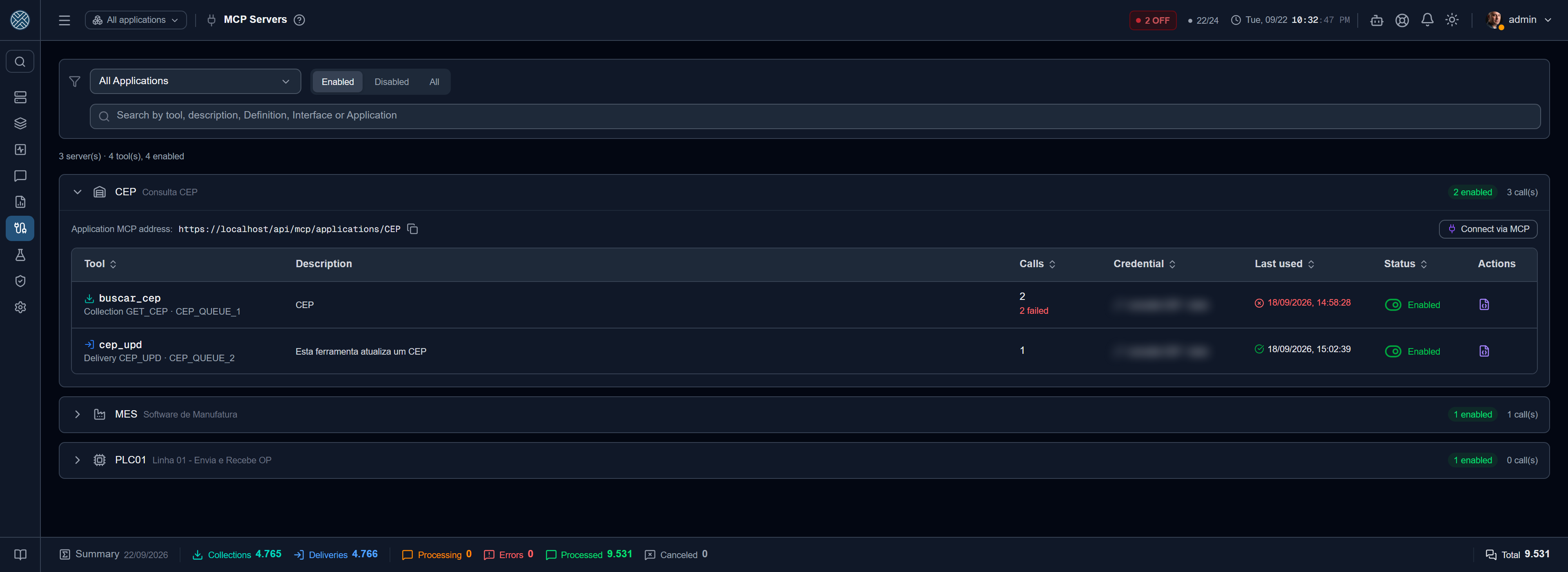
Every Application with at least one Delivery or Collector marked as a tool is an MCP server, with its own address. This screen, under Integration Config right after Triggers, gathers those servers and the tools of each one. The two screens sit side by side because they answer the same question: who else fires this Collector or Delivery, besides the source system — the internal scheduler or an AI agent.
Each Application is a block that expands — on its own when there is only one, or when a search is active. The header counts the enabled tools, the disabled ones and the calls. Once open, the block shows the MCP address with a copy button, Connect via MCP and one row per tool:
| Column | What it shows |
|---|---|
| Tool | The name the agent sees and, below it, whether it is a Collector or a Delivery, with the Definition code · Interface |
| Description | The description for the AI, truncated — the full text appears on hover |
| Calls | How many calls reached the tool, and how many failed |
| Credential | The last credential that called; the +N opens the usage split per credential |
| Last used | When the last call happened, and whether it failed |
| Status | Enabled or disabled, with the button to turn it on and off |
The row icon opens the input contract. Name, description, limit and parameters are still edited in the Definition’s own form — this screen answers “what can the AI call right now”.
The screen opens on Enabled. The disabled ones are under Disabled and All — that is where a tool is turned back on without opening the form. You can filter by one or more Applications, and the search looks up tool, description, Definition, Interface or Application.
Turning it on and off from here
Turning a tool on or off on this screen is the same as checking or unchecking the switch in the form, and the change goes into the Definition’s change history. The confirmation states the effect beforehand: when turning it off, the tool disappears for the agents and calls start being refused, but name, description and parameters stay stored. When turning on a Delivery, the notice reminds you that the agent will be able to send messages through it to the destination.
Turning it on reapplies the same validations as the form — name, description, limit, parameters, unique name in the Application. A Collector without Input Parameters is refused: it would never show up for the AI.
An enabled tool can still be invisible to the agent. The row warns Not visible to the AI and says why: the Definition is inactive, or the Collector has no Input Parameters.
What counts as a call
Each call (tools/call) that reaches the tool counts once, split per credential — API Key, Inbound
Credential or MCP token. A call refused for an invalid argument or for the per-minute limit counts
as a failure, as does a Delivery the destination refused.
The counter is its own, not a count of messages: a message disappears with the Interface’s retention, and a Collector generates several messages in a single call. It started counting in the version that brought this screen — earlier calls are not shown.
The input contract
The contract popup shows what the agent receives when listing the tools: the behavior (synchronous
or asynchronous Delivery, Collector with or without returning content), and one row per parameter,
with type, required, default value, constraint (range or list of values) and the description for the
AI. See the JSON Schema sent to the AI shows the exact inputSchema — the same one the server
delivers in tools/list, not a reconstruction.
Permission
The screen has its own Tool, MCP Servers (/mcp-servers), with two levels: view and
enable/disable. The list honours the user’s allowed Interfaces, and enabling a tool on an Interface
the user cannot see is refused. On a new installation, the CMS_Developer role already comes with
the edit level — whoever builds the integration already turns the tool on through the form; here it
is the same field, in bulk.
Where the call shows up afterwards
- On the Messages screens, a message created by an MCP tool carries a violet robot icon — in the grid, in the popup and on the message page —, with the tool and credential names on hover.
- Under the Definition’s Settings button, the API Keys tab gains the line Exposed as MCP tool, with the name and the address.
Security
- Human opt-in, per Definition. Nothing is a tool without someone marking it; physical writes ask for confirmation on save.
- Validation before the message exists. Unknown alias, missing required field or a value out of the configured range become an error for the agent to fix, with no message created.
- Per-minute limit per tool and credential.
- Scoped by the credential. The tool never grants more access than the credential already has via the API. You can have one read-only API Key and another write-only — recommended for physical writes.
- Secrets never leave, and encrypted content is never decrypted for the agent. The secret scan runs before the response becomes text, not only on its structured version.
The model on the other side is the client’s. What a Collector returns enters its context; if the same session has a write tool, malicious text in the data could induce a write. Separate read and write credentials.
Turning the server on and off
In Settings › AI, the MCP integration server switch turns the whole address on or off, separate from the configuration server’s switch. It ships on — since nothing is exposed without marking a Definition, the real control is the marking. With it off, the MCP Servers screen shows a banner warning that no tool responds until the server is turned back on.