Business Errors — /business-errors
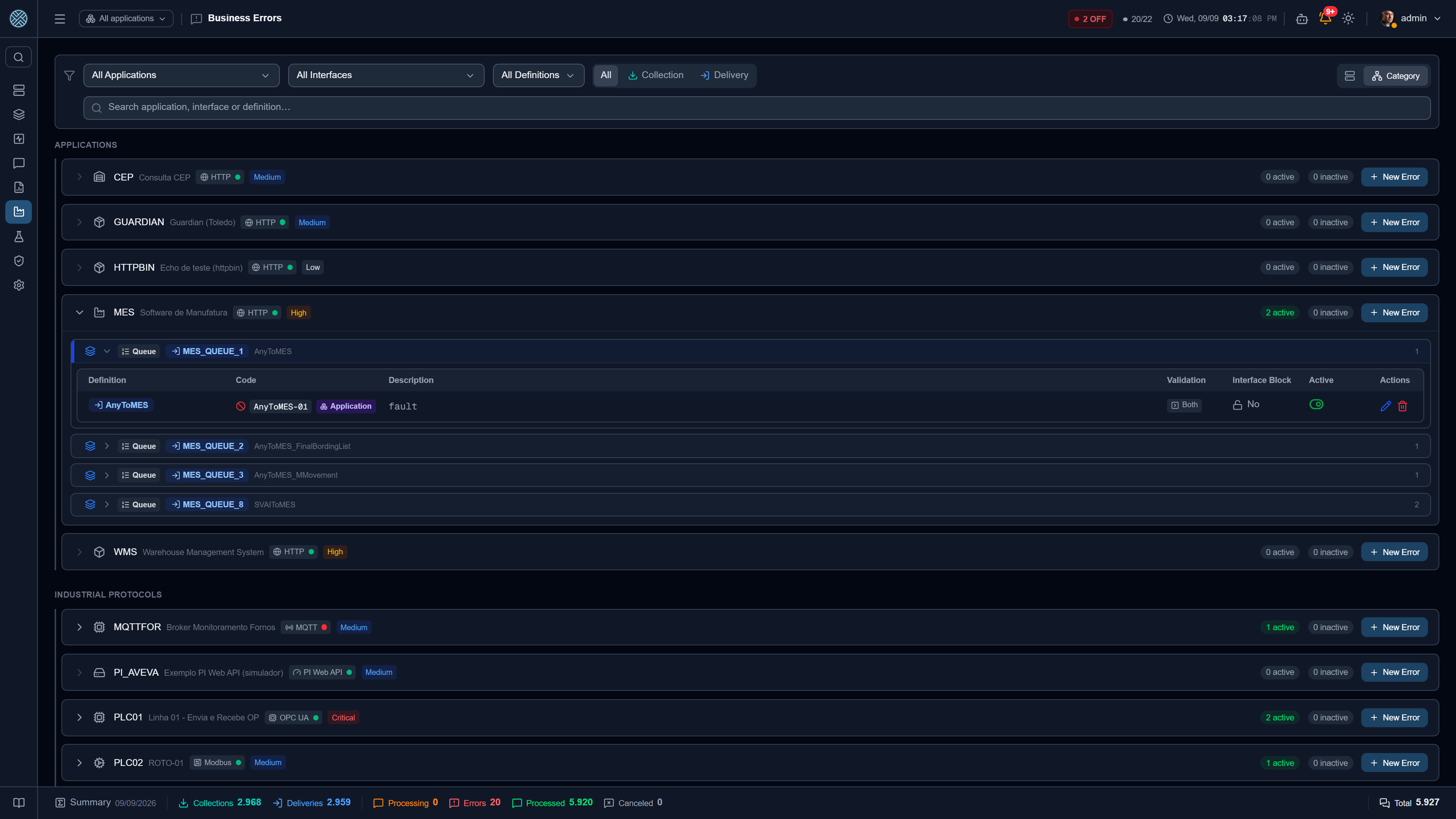
The transport worked — HTTP 200, RFC executed, INSERT accepted — and the message still did not do
what it was supposed to. The destination answered “order not released”, “invalid tax ID”, “accounting
period closed”. As far as the CMS is concerned, technically, it was a success.
Business Errors correct that reading: they are rules that look at the content of what came in or what came back and say “this was a failure”.
Without this classification, a destination rejecting everything shows up on the panels as 100% success — and the problem is only discovered when someone misses the data, days later.
Anatomy of a rule
| Field | Role |
|---|---|
| Application | The Application that owns the rule. A rule never crosses Applications |
| Where the rule applies | Chosen Definitions, or the whole Application |
| Error Code | Optional. The source system’s code, for grouping in reports |
| Search Terms | What to look for in the payload. Several terms separated by ; |
| Validate against | Input, Output or Both |
| Reason | Free text explaining why that error usually happens |
| Blocks Interface | If detected, stops the whole interface |
| Active | Turns the rule off without deleting it |
Where the rule applies: chosen Definitions or the whole Application
One rule applies to several Definitions at once, including Definitions of different Interfaces of the same Application. “Accounting period closed” tends to be the same text across every financial integration, and does not need to be registered once per Definition.
| Scope | Reach |
|---|---|
| Chosen Definitions | Only the ones you tick in the list |
| Whole Application | Every Definition of the Application, including the ones created later |
With Whole Application, the CMS keeps the links itself: a new Definition — created by hand, by import, by pack or by an assistant — is covered by the rule from the start. In the list, these rules carry the Application badge.
A Business Error never crosses Applications. “Whole Application” is the maximum reach, and that is why the Application is the first thing chosen in the form.
In a Whole Application rule there is no “unlink from this Definition only” — the next synchronisation would put the link back. To take it out of circulation, change the scope or delete the rule.
Search terms: OR, not AND
ordem_error;quantidade=0 means “any of these”. One term appearing in the payload is enough to
classify the message. A single term behaves exactly as it did before ; separation existed.
Matching is by literal content (substring), not regular expression — which is what lets you paste the source system’s error text and have it work.
What gets stored on the message is the entire text of the Search Terms field, not the term that matched. That text is what the Business Errors report groups by — editing the field later changes how new messages are grouped.
Validate against: input, output or both
| Direction | Looks at |
|---|---|
| Input | The payload the interface received |
| Output | The response the destination returned |
| Both | Both |
Most rules are Output rules — that is where the destination’s answer lives. Input is useful to refuse a malformed message early, before spending a call on the destination.
Some Collection types have no input side — an MQTT subscription, for instance, is passive receipt. There, an Input rule simply never matches; it raises no error and no warning.
Interface blocking
This is the mechanism that separates the CMS from a plain error log.
Ticking Blocks Interface, the first message matching the rule stops the interface. Following
messages stay in the queue, intact, waiting. The block is recorded with origin ERRO_NEGOCIO, the
rule text and the ID of the message that caused it.
Why that is desirable: without blocking, a destination in an invalid state — closed period, missing master data, logical maintenance — would receive hundreds of messages it is going to reject one by one. All become errors, all need reprocessing later, and the history is polluted.
How to release
Unblocking is recorded with its origin:
| Origin | When |
|---|---|
| Manual | Someone released the interface on the Interfaces screen or in the Danger Zone |
| Reprocessing | The message that caused the block was reprocessed successfully |
| Cancellation | The message that caused the block was cancelled |
The last two are the normal path: fix the cause and the interface releases itself. The whole history lives in the Interface Blocking report.
Blocking is a business decision, not a technical one. “Invalid tax ID” should almost never block — it is a problem with that message. “Accounting period closed” almost always should — no message will get through until someone opens the period.
Automatic rules
Some rules are not typed here: the CMS keeps them in sync from another screen, and they show up in the list tagged AUTO. On those, the only editable field is Blocks Interface — the rest belongs to the originating screen.
| AUTO tag generated by | Source |
|---|---|
| Required OPC UA tags | Collection Read Tags / Delivery Write Tags marked “required” |
| Required Modbus tags | The same, on the Modbus adapter |
| Required Input Payload | Fields marked “required” in the SAP Function Parameters popup of an SAP RFC Delivery |
The logic of these rules is inverted compared to the normal ones: instead of “this term appeared”, they check “these values are present”. A null, empty or zero value counts as absent — which on a PLC is exactly the case to handle: a tag not written in this cycle returns zero, not an error.
This solves a real shop floor problem: the PLC answers successfully and returns zero on every tag because the part has not passed yet. Without this rule, the CMS would record a measurement of zero as a valid reading.
What happens to the message
The classified message takes the Business Error status and keeps the text of the rule that matched plus the registered reason. It shows up in:
- Messages with Error, where it can be reprocessed in bulk;
- the Business Errors report, grouped by application, interface and definition;
- the Business Error alert, if one is configured — see Alerts.
Permission
The Tool is /business-errors. Like the other Application-grouped screens, it also requires the user
to see the matching Application and Interface.