Messages
Messages — /messages
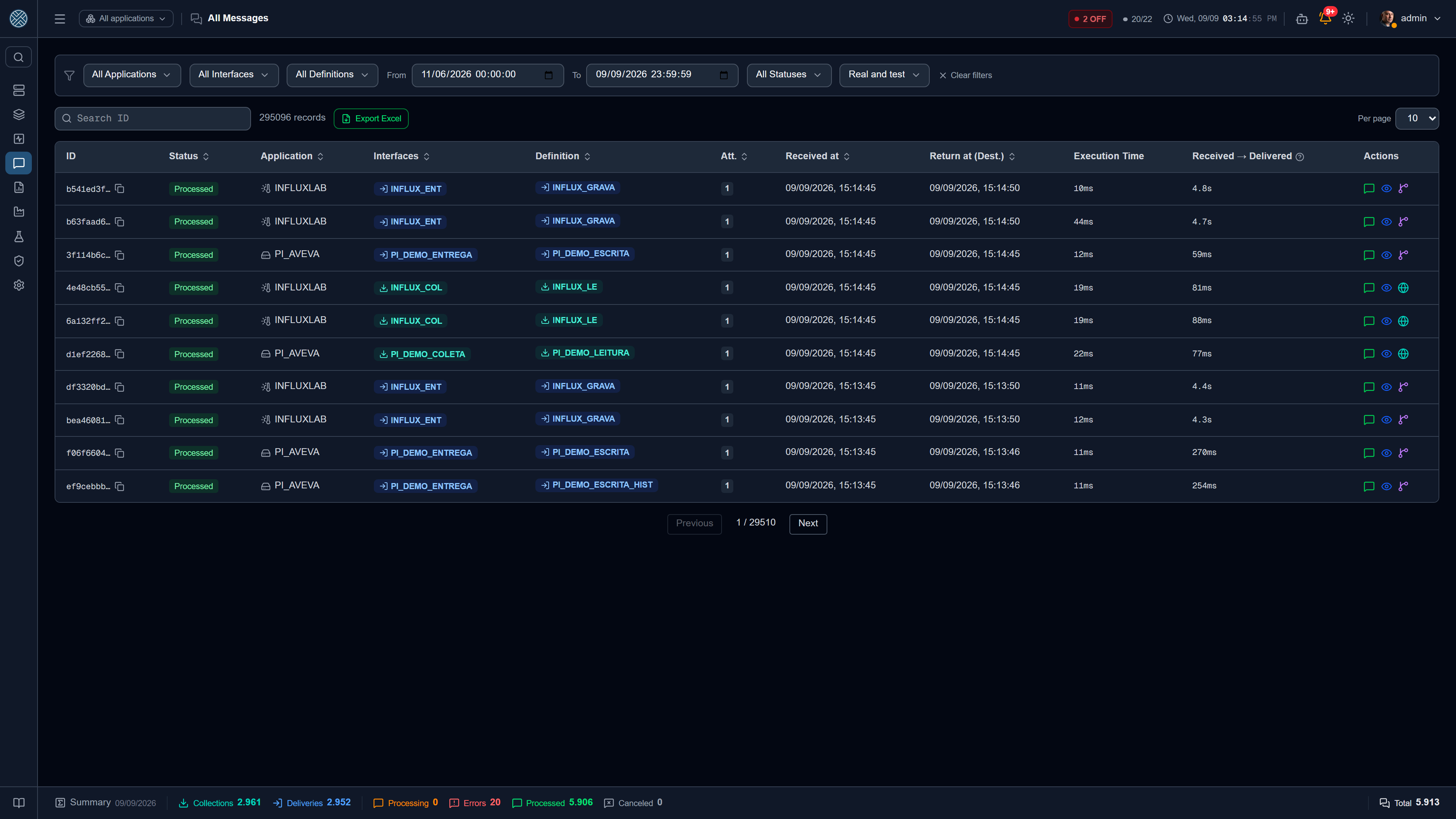
Full list with search and filters by status, application, interface, definition and period — the filters include the Help Desk tools, so you can find a ticket’s message and see what the tool answered. Each row opens the message detail — and the icon that opens the message follows the colour of that row’s status, just as the footer totals follow the state they count. In a grid of a hundred rows, that is what lets you find the error without reading the status column.
The status filter uses the same icon as the row it filters — picking “delivery error” in the dropdown and spotting the matching row in the grid means recognising the same mark, not translating a label.
Period
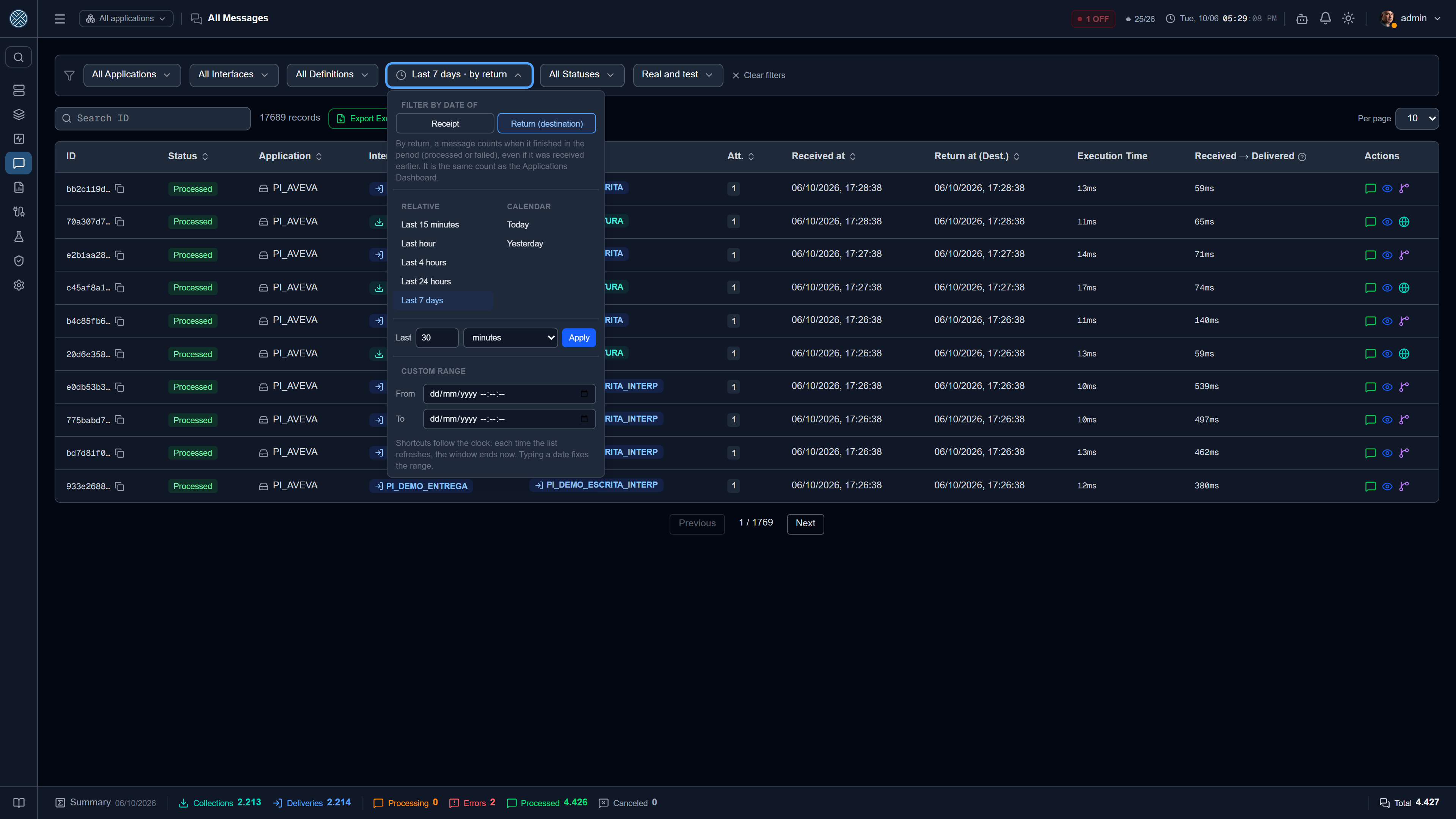
The period is a single button, with a clock, that shows what is in effect — Today, Last hour or the dates, when they are fixed. It opens a panel with:
| Group | Options |
|---|---|
| Relative | Last 15 minutes, Last hour, Last 4 hours, Last 24 hours, Last 7 days |
| Calendar | Today, Yesterday |
| Last X | Any number of minutes, hours or days, up to 999 |
| Custom range | The From and To fields, for a fixed window |
Shortcuts follow the clock. “Last hour” does not turn into two dates when you click it: each time the list refreshes the window ends now, and whoever comes back to the screen later still sees the actual last hour. Today runs until 23:59:59, so a message arriving a minute from now also shows up. Typing a date fixes the range — the button starts showing the dates, and the other end comes pre-filled with the window the shortcut covered.
Date of receipt or of return. The top of the panel has Filter by date of, with two options. Receipt, the default, filters by the moment the message reached the CMS. Return (destination) filters by the moment it finished — processed or failed —, even if it arrived earlier: a message received yesterday that failed today falls in “Today” by return and outside it by receipt. By return, the button shows the choice next to the period (Today · by return), and a message that has not finished yet does not show up. Clear filters goes back to receipt.
It is the dashboards’ count: the Applications Dashboard, the footer and the Daily X-Ray count Error and Processed by return date and without test traffic. That is why clicking those numbers opens the list already by return and with real traffic only — and the list matches the number clicked.
Real traffic and test traffic
A message fired from the Test Bench shows up here with an amber flask next to the status; hovering over it shows who fired it. It is in the list on purpose: whoever tested needs to find what they just sent.
What it does not do is enter the accounting — dashboards, reports and the Daily X-Ray ignore it. Hence the three-position traffic filter:
| Position | Shows |
|---|---|
| Real and test | Everything |
| Real traffic only | What came from the world, without the tests |
| Test Bench only | What somebody fired while testing |
The exception is the Test Bench’s Publish to source mode: it produces the stimulus on the broker, the PLC or the folder, and the message born from that is real — the CMS cannot tell what you published from what the equipment published.
Where the message came from
Next to the status, a small icon tells you when the message did not come from the usual source system:
| Mark | Means | On hover |
|---|---|---|
| Lightning bolt | It was fired by a Trigger | The Trigger name |
| Lifebuoy | It is the opening of a Help Desk ticket | The ticket destination |
| Violet robot | It was created by an AI agent, through an MCP tool | The tool and the credential that called it |
The marks show in the grid, in the popup and on the message page. They are origin information only, with no shortcut: unlike the test flask, they are all real traffic and count in dashboards and reports.
Processed Messages — /messages/processed
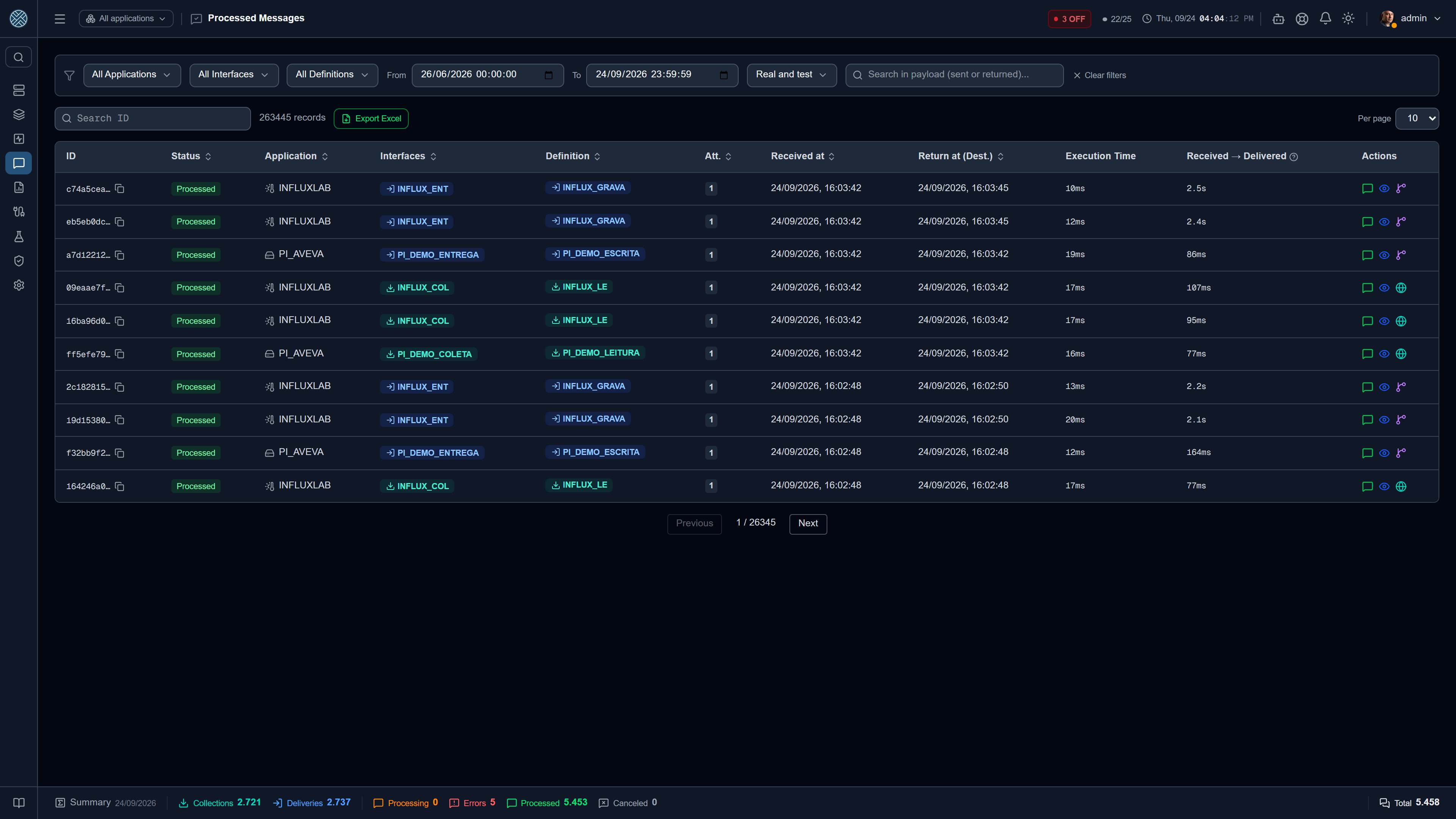
Filters down to what was delivered successfully. Useful for proving delivery when the destination system claims it never received anything: the history keeps the response the destination returned.
When the Definition has Allow resend on, the row gets the resend button (the orange paper plane) — see Resending a processed message.
Delivery Errors — /messages/delivery-errors
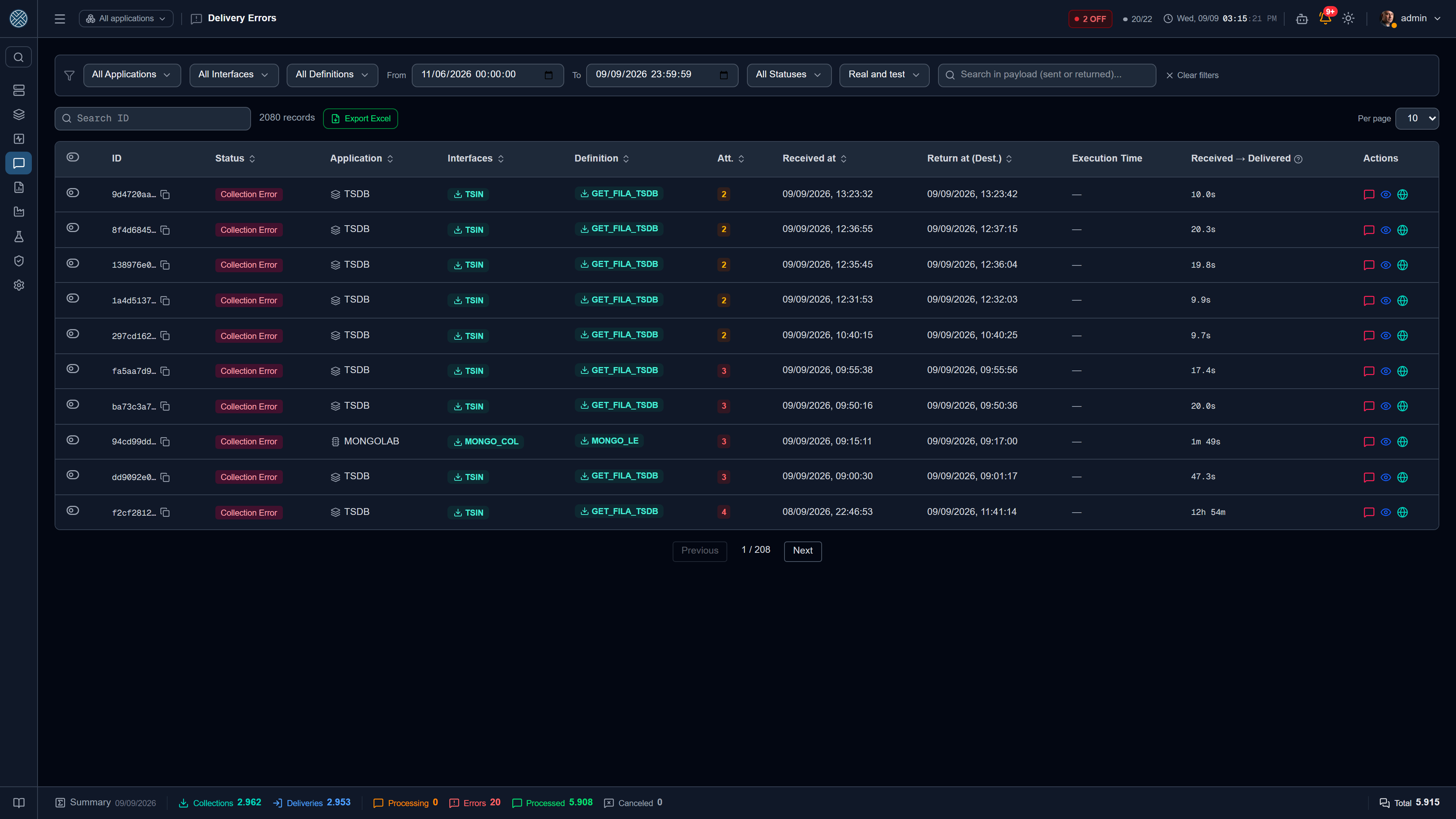
Technical (ERRO_ENTREGA) and business (ERRO_NEGOCIO) failures, with individual or bulk
reprocessing. Reprocessing creates a new attempt; previous history is preserved.
Each reprocessing is recorded in the Audit Log, as REPROCESSAR_MENSAGEM.
Cancellation — /messages/cancellation
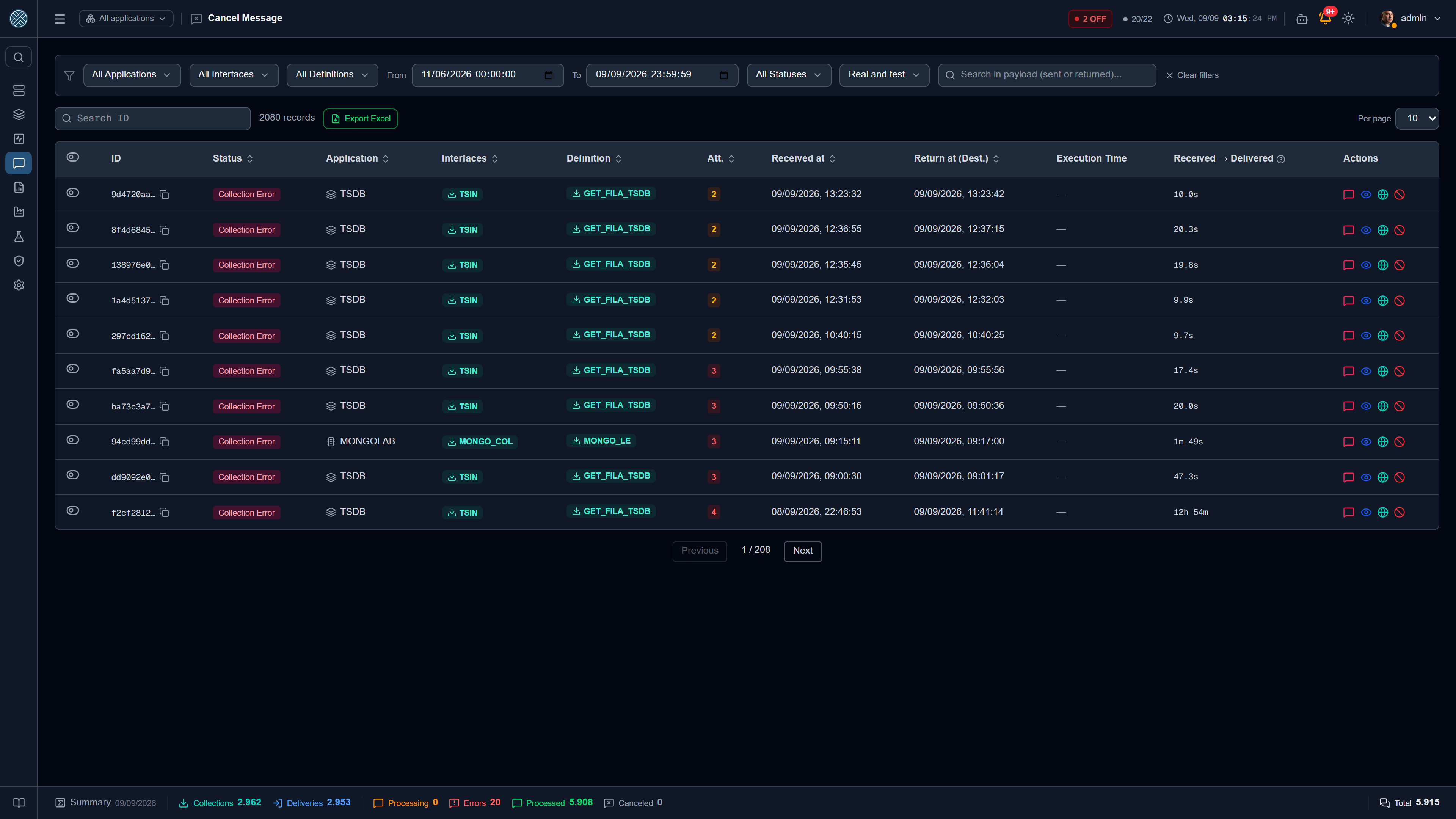
Bulk cancellation, with a confirmation screen. A cancelled message (CANCELADA) is no longer
delivered or automatically reprocessed.
Cancelling is a business decision, not technical cleanup: the message leaves the delivery flow but stays in the database and in reports until retention purges it.
Content Search — /messages/content-search
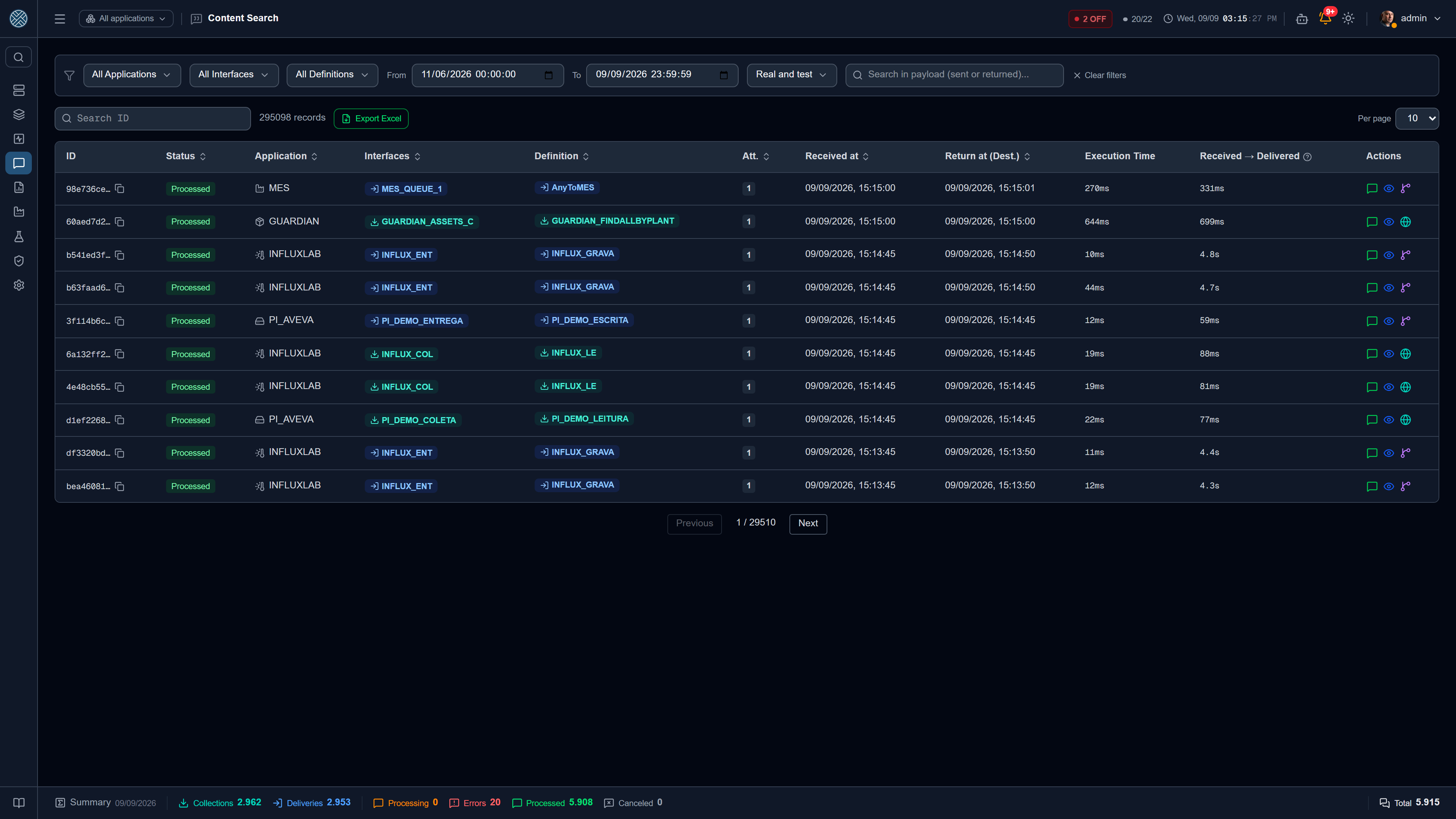
Searches inside the payload, not just metadata. It answers questions such as whether pallet PAL001 was ever sent.
Encrypted payloads are not searchable by content — that is exactly what encryption prevents.
The Ctrl+K shortcut
The same search also exists as a global shortcut: Ctrl+K opens a field from any screen in the
system, without choosing an Application, an Interface or a period first. It is the path for when
somebody turns up with an order number in hand and the only question is whether it went through.
The popup shows at most ten results, each with the snippet around the term — enough to recognise the right message before opening it. Anyone who needs the full list follows the link at the bottom of the popup to Content Search.
The quick search honours the same permissions as the screen: it reaches only the user’s Interfaces, and it does not even appear for someone with no message Tool at all. A message whose term happened to match inside an encrypted stretch is left out of the results — showing the snippet would work around the very encryption rule meant to hide it.
Export to Excel
Every message screen has an Export Excel button that downloads exactly the slice on screen: the same filters, without the pagination. The spreadsheet is built in your browser — no file holding production data is written to the server — and it stops at 50,000 rows.
Arriving here through a link
These screens take their filters from the URL: Application, Interface, Definition, status,
message id, period and the content term. That is how the message icon on the Collector and Delivery
grids works, along with the period chart’s “dig deeper”, the Ctrl+K footer and the
AI Assistant shortcuts.
Consequences worth knowing:
- The link owns the whole screen. Arriving through a filtered address clears the Interface and Definition left over from the previous visit. Otherwise the screen would open narrower than the link promised, with nothing to explain why.
?export=1downloads the spreadsheet straight away. The screen opens filtered and fires Export Excel by itself, exactly once. It is what the AI Assistant uses when someone asks to “export today’s messages”.?periodo=carries the shortcut, not the dates.?periodo=24h,?periodo=hojeor?periodo=7dopen the screen on a period that follows the clock — the link stays right days later.dataInicio/dataFimstill work for a fixed window.?campoData=retornoswitches the period to the return date, and?teste=falsekeeps real traffic only — the two the dashboards use so the number clicked matches the list.- A link pasted without a session is not lost. Opening a CMS address while signed out leads to the sign-in page and, once in, to the screen you asked for — as long as it is a path of this same installation. An address on another domain is dropped along the way, so the sign-in page never becomes an open redirect.
The link is only a shortcut to the filter: the server is what runs the search, with your permission. An address pointing at an Interface you cannot see opens empty, never with its data.
Message Detail — /messages/:id
Everything about one message:
- Received payload (and the transformed one, when a Transformer applies)
- Attempt history: timestamp, outcome, destination response, error message
- Time to delivery, broken into parts — see below
- Decrypt action, when the payload is encrypted — requires authorization, re-authentication and a justification (see Security)
- Send by e-mail, which sends the message PDF to CMS users — see below
- Resend, on an already processed message whose Definition allows it — see below
- Open ticket, on a failed message: opens a Help Desk ticket already filled in with the Application, the Interface, the error and the message link — see Help Desk
- Forwardings not made, when the condition of a Collection forwarding or of a Forward Response was not met: the destination and the reason, rule by rule. A Processed message with no child in a destination no longer looks like lost data — the rule decided
When the producer has its own Transformer
On a Delivery with a Transformer by producer Application, a message that went through it has one more piece of content, and the detail shows all three in the order they happened:
| Block | What it is |
|---|---|
| Payload Received from the producer Application | What the producer sent, in its own format |
| Converted to the Delivery format | What came out of the producer’s Transformer — the input of the Delivery Transformer |
| Transformed Payload (Delivered) | What was delivered to the destination |
Without a Transformer on the Delivery itself, the converted content is the delivered one, and the middle block does not appear. The Producer Application transformer field says which one ran: it is the name recorded at the time, which stays there even if the Transformer is renamed or deleted later. The PDF and the e-mail follow the same order, with a link to each part.
What the producer sent also follows the Delivery’s Encryption Rule — see Security.
The raw content, and the link to it
The expand icon on each content block — received, converted, delivered, return — opens the viewer, which does more than show the text:
| Button | What it does |
|---|---|
| Formatted / Original | Formatted re-indents the JSON for reading; Original shows the content exactly as it was stored — the mode that serves to compare against what the other system says it sent |
| Copy | Copies the text to the clipboard |
| Download | Saves the original content to a file, with the extension deduced from the content itself |
| Link | Copies an address that opens this screen with this content already open |
The byte counter beside it is for the original content, never the formatted one: it is the number you check against the log on the other side. And it counts UTF-8 bytes, not characters — a payload with accents has more bytes than letters.
Download and Link only appear when the content belongs to a message. The same viewer opens the sample payload of a Definition and the Audit Log detail, and there it stays read, copy and search.
The address the Link button copies is /messages/:id?view=received|converted|delivered|return — plus
&attempt=N when it points at a specific attempt. It is the same link printed in the message PDF
and in the e-mail: the PDF truncates long payloads, and this is how whoever received the attachment
reaches the whole text.
The link does not hand content to whoever holds the URL: it opens the screen, which asks for a sign-in and applies your Tool and your interface scope like any other. An address that served the payload directly would end up on the mail server, in forwards and in the proxy log — and there it would be worth a password. Encrypted content does not open through a link either: it still requires the decryption flow, with authorization, justification and a record.
For whoever needs the text outside the screen — comparing, counting bytes, reproducing a case —
there is GET /api/messages/:id/raw/:part, with part in received, converted, delivered or
return and the optional ?attempt=N. It answers the content as an attachment, reformatting nothing
and decrypting nothing. On a message that went through the producer’s Transformer, received is what
the producer sent and converted is what was converted to the Delivery format; outside that case,
converted answers 404 instead of repeating the received content under another name. Pasted into the address bar it would answer 401, because the API only
authenticates by header; that is why there is also the page /messages/:id/raw/:part, the same
content opened with the browser session, filling the screen with no menu around it — the URL you
paste into a ticket.
The total time, broken down
The “received → delivered” interval on its own is misleading. On an Interface scheduled every 55 seconds, a message that arrived right after a cycle sits idle for almost a whole cycle before any processing happens — and the total reads as CMS slowness when it is in fact the scheduling interval plus the destination’s response time.
So the detail shows the total and, beside it, the parts:
| Part | What it is |
|---|---|
| Queue wait | From arrival to the first dispatch: the Interface scheduler cycle |
| CMS | Internal processing — transformation, persistence |
| Destination | How long the destination system took to answer, on the last attempt |
| Attempts | How many times it was tried, when it was more than once |
This is what separates “CMS is slow” from “the schedule is one minute” and from “the ERP is taking eight seconds per call”.
Send by e-mail
The Send by e-mail button generates the message PDF and sends it as an attachment to one or more CMS users. Three details are worth knowing:
- The PDF is the same one the download button produces: same generator, same document.
- Recipients come from the user registry, filtered by who can see that Interface. There is no field to type an address — that would turn the button into a way of sending production payloads anywhere.
- The send is recorded in the Audit Log with the attachment’s hash: it can be proven later which file went out, without CMS keeping a copy of it.
The action has a Tool of its own, /messages/email. Being able to see a message does not, by itself,
grant the right to send it outside.
Resending a processed message
Sometimes the destination received the message but lost or undid it — and asking the producer to generate everything again is the expensive path. The Resend button sends the message again through the CMS.
It shows on the message detail, on the summary popup and on the Processed Messages row, when all of this holds:
- the message is Processed;
- its Definition has Allow resend on;
- the profile has the Resend Processed Message Tool (
/messages/resend) — among the default profiles, only CMS_Developer; the Monitor ones do not, because resending writes to the real destination; - it was not created by a forwarding, and is not a ticket message.
A resend never reopens the original: it creates a new message, linked to it. The original stays Processed, with its own history, and shows Resent as with a link to each copy; the new one shows Resend of and who asked for it.
| Definition | What goes again |
|---|---|
| Delivery | The payload the original received, as it arrived, goes through receipt again with the current Transformer and settings — the most common reason to resend is “we fixed something and need to send it again”. On a synchronous Delivery, the popup shows the destination response |
| Collector | What was already collected is forwarded again to the current destinations. The source is not fetched again. With the Interface blocked, the message waits for the unblock |
Before going, the popup says where it goes — the Delivery destination, or the Collector
destinations, and the forwardings that run again — and asks for the confirmation word. Each resend
is recorded in the Audit Log, as REENVIAR_MENSAGEM.
A message created by a forwarding has no button: its Transformer is the forwarding’s. To send again a delivery born from a Collector, resend the Collector message — it forwards and generates the delivery again.
Where to act in bulk
Bulk actions over larger volumes — blocking interfaces, reprocessing or cancelling what is pending — live in the Danger Zone, with a typed confirmation and an audit record.
The Message Definition screen (/message-management), despite the similar name, is not about
individual messages: it is the unified view of an Application’s Collections and Deliveries. It is
described in Configuration.