Security and encryption
Users — /users
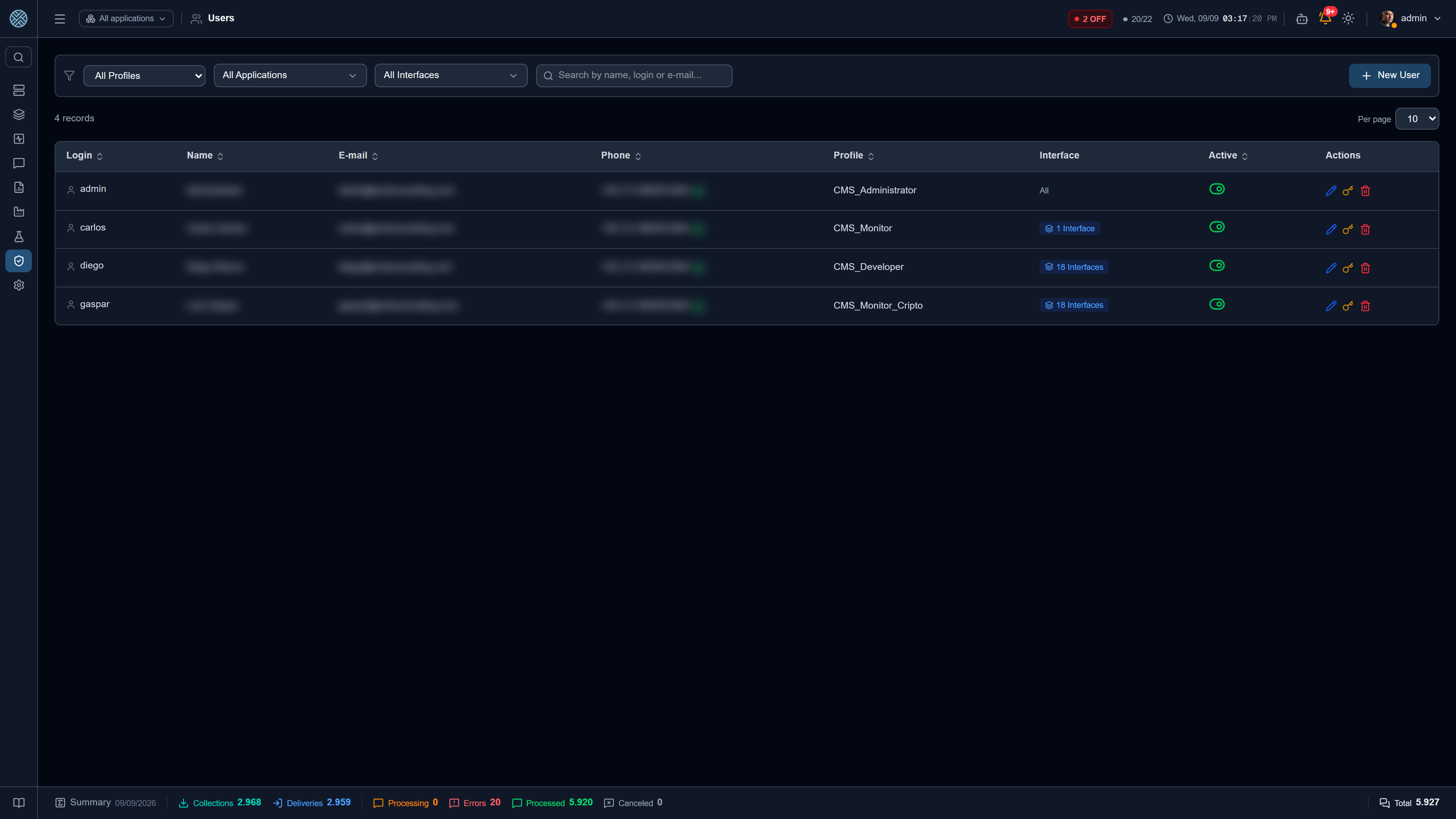
CRUD of users, with access role, allowed interfaces and alert subscriptions. Login can be local (password stored in CMS) or via LDAP/Active Directory, according to the global setting.
The phone number only shows up in the form when the alert subscription is on — it is the only place the number is used, in the payload the WhatsApp channel hands to the automation (see Alerts). With the subscription on it becomes required; turning the subscription off clears the field.
Receives daily summary is a separate opt-in, and deliberately so: it switches on the Daily X-Ray e-mail, which goes out cut to the Applications and Interfaces that user can see. Tying it to the alert subscription would force anyone who only wants the e-mail summary to register a mobile number, since the alert subscription also governs WhatsApp.
Allowed interfaces
This is the second permission axis, independent of the Role: the Role says which screens the user opens; the allowed Interfaces say which data they see inside them. An operator with the Messages Tool granted, but only two Interfaces ticked, sees the messages of those two.
The list comes grouped by Application, and each group header carries an All checkbox that grants (or removes) the whole group at once — in a plant where the user gets the entire Application, ticking 18 interfaces one by one was the normal path, not the exception. With only part of the group ticked, the checkbox sits in an indeterminate state: you can tell the Application is partially granted without opening the group and checking interface by interface.
No interface ticked means unrestricted access, not no access — the same convention as the administrator. It is the default for whoever looks after the whole installation; restricting is the explicit act.
The scoping applies per route, not just to the listing: asking for a record by id returns 404 when it belongs to an Interface outside your reach, and the body of a POST cannot point at an Interface you do not have. It applies to writes as well, not just reads — creating, editing or deleting a record of an Application you cannot see is refused, including when the edit tries to move the record there.
Eleven screens were brought in line with that rule over September 2026 — Alerts, Business Errors, the Cockpit, Credentials, API Keys, Application Variables, Encryption Keys, Encryption Rules, Transformers, the Collection and Shipping logs and External Connections —, so a restricted user may notice they now see less than before. That is the fix, not a regression.
The last three arrived by different routes, and it is worth knowing which:
| Screen | What it now cuts |
|---|---|
| Transformers | With no Scope a Transformer is global and everyone sees it; with a Scope, only whoever holds one of the scoped Interfaces. It applies to the by-id routes too — without that, another area’s script was one GET away |
| Collection Log and Shipping Log | The messages were already cut; what leaked was the axis, which groups by the Application that sent — and whoever sends to your Interface is usually another area’s Application. Sources beyond your reach become one aggregated bar, with no name. The name goes, the number stays: the total still matches the Messages screen |
| External Connections | A connection gets its owner from usage — an Application’s Keep Alive and the Collections that fetch through it. A connection nobody uses yet stays visible to everyone, otherwise it would vanish from the screen the instant after Save |
What each user sees about themselves
In their own popover in the header, anyone can check their granted Interfaces — grouped by Application, with each one’s type (Collection or Delivery) and blocking state. It does not depend on having the Users or Applications Tool in the role: seeing your own permissions is different from administering someone else’s.
The same popover lets you change or remove the avatar photo. The image is resized to a 256×256 JPEG in the browser before upload — the original camera photo never reaches the database — and the server only accepts an image data URL.
Roles — /roles
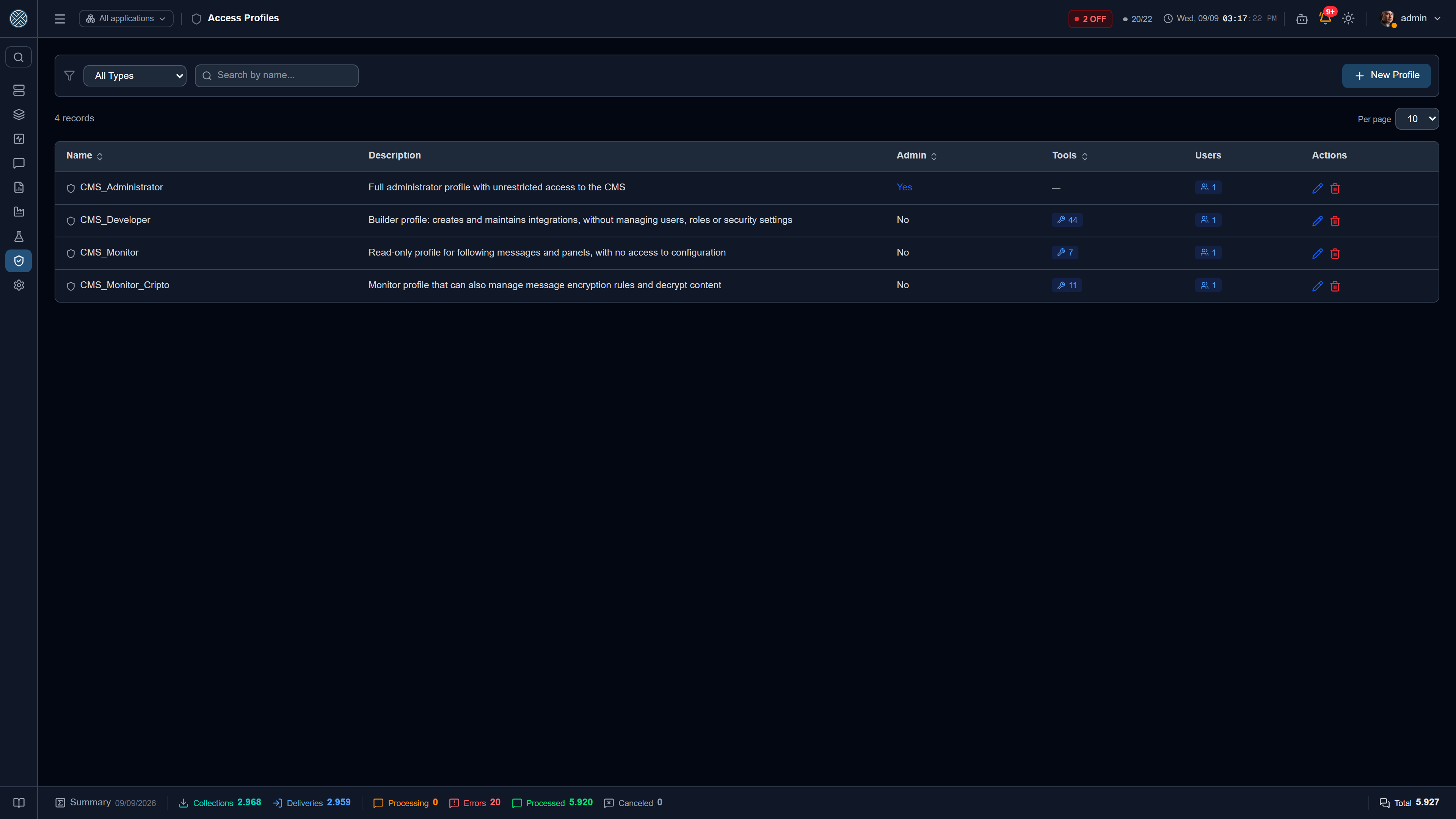
A Role is a set of granted Tools. Each Tool corresponds to a screen — it decides what shows up in the menu and what the API authorizes.
Screens grouped by Application and by Interface depend on the Applications and Interfaces Tools to load their lists. A role without them sees an empty screen, not a permission-denied message.
Access level per Tool
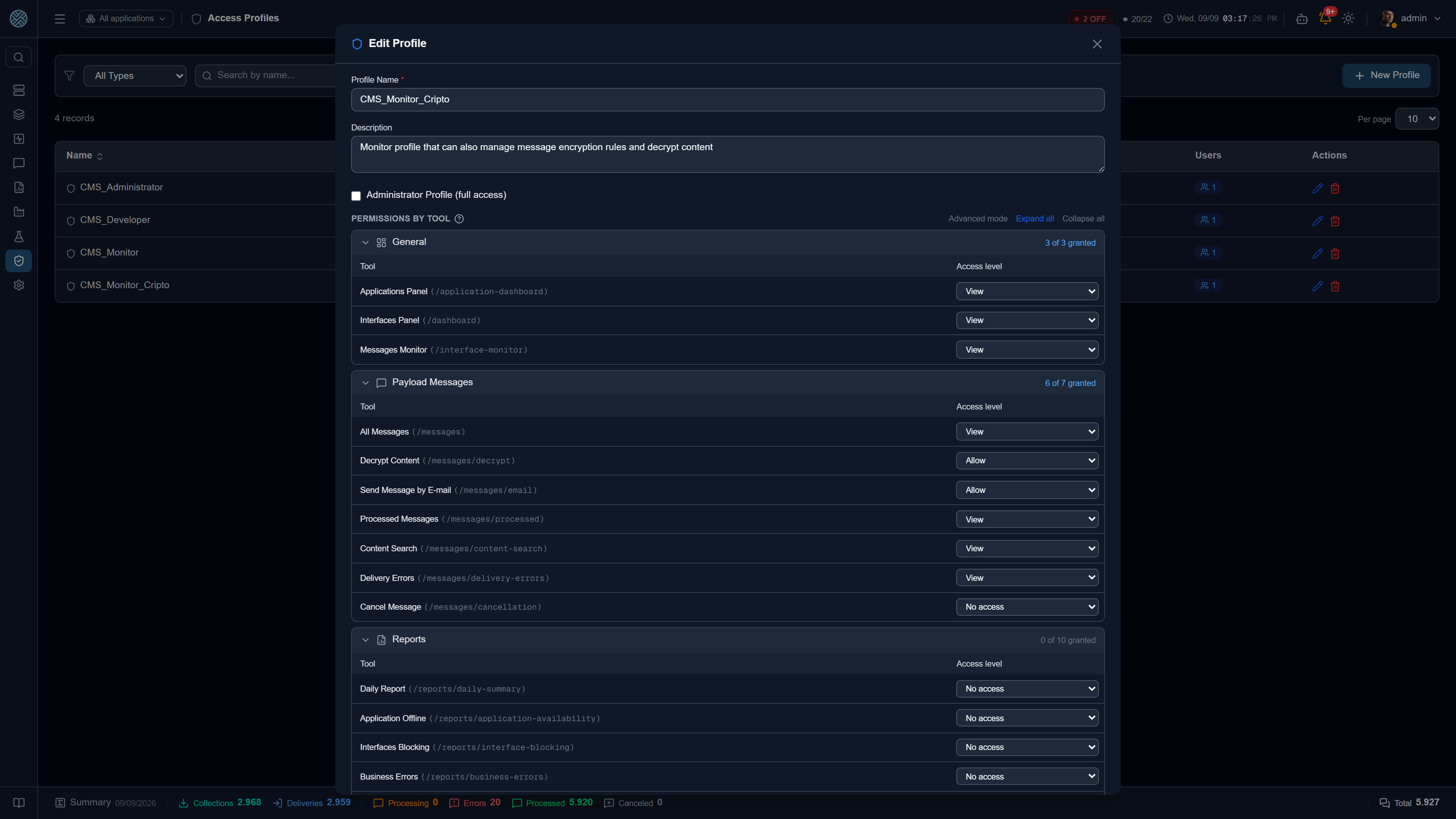
For each Tool the role is granted a level, not a set of HTTP methods:
| Level | What it allows |
|---|---|
| No access | The screen does not appear in the menu, and the API refuses |
| View | Opens the screen and sees the data, changing nothing |
| View and edit | Views, creates and changes — but does not delete. On Messages, this is the level that allows reprocessing and cancelling |
| Full access | Everything the Tool allows, deletion included |
| Allow | Runs the action, for Tools with no screen of their own — decrypt content, send by e-mail, install a license |
Each Tool offers only the levels that make sense for it: the Audit Log can only be viewed, and Install License can only be allowed or not. What decides this is the list of methods those routes actually accept, kept on the Tool record itself.
The screen used to show four checkboxes — GET / POST / PUT / DELETE — and the problem was
not cosmetic: reprocessing a message is a POST on /messages, not a separate Tool, so ticking
only GET released the screen and left it not working, with nothing explaining why. Advanced
mode still shows the four checkboxes, for combinations that fit no level.
The roles that ship with the system
| Role | For whom |
|---|---|
| CMS_Administrator | Unrestricted access. Created with isAdmin and depends on no Tool |
| CMS_Monitor | Follows messages and panels, without entering configuration |
| CMS_Monitor_Cripto | The same, plus the Encryption Rules and the right to decrypt content |
| CMS_Developer | Builds and maintains integrations, without administering users, roles or security |
CMS_Developer reaches the whole Integration Lab — Test Bench, Test Plans and Simulators — plus decrypting content, the AI Sessions and read-only MCP. It does not get Collection, Message Definition or the SAP SDK: those are the doors through which what runs in production gets changed.
They are created on the boot in which they are missing, and after that the CMS no longer touches their permissions: what you remove on the screen stays removed on the next restart. To carry a change of these roles to an installation that already exists there is a dedicated script, which shows the plan before writing.
On a new installation three Tools are born switched off under Settings › Tools — Collection Definitions, Delivery Definitions and Workers — as in the reference installation. Switching them on is a conscious act by whoever administers. That applies to creation only: the CMS never switches back on at restart what an administrator turned off, because switching a Tool off revokes access for every non-admin role at once.
Actions restricted to administrators
Holding the Roles, Users or Tools Tool authorizes managing records, not escalating privilege. Nine operations require the caller to already be an administrator, regardless of the profile’s Tools:
| Operation | Screen |
|---|---|
Marking a Profile as administrator (isAdmin) | Roles |
| Writing a Profile’s permission matrix | Roles |
| Changing a user’s Profile | Users |
| Changing someone else’s login (your own stays free) | Users |
| Changing the authentication origin (local or LDAP) of any account | Users |
| Deactivating or reactivating a user | Users |
| Deleting a user | Users |
| Resetting someone else’s password — also requires confirming your own password (and your 2FA code, if enabled) | Users |
| Creating, enabling/disabling or removing a Tool | Tools |
Outside access control, two actions that affect the whole installation also require an administrator since September 2026: configuration Import / Export and uploading or removing the SAP SDK (see Tools that are not screens).
The criterion is not the field, it is the question: does this operation change access control? Editing name, description, phone or e-mail remains the job of whoever holds the Tool. And the permission matrix only requires privilege when it changes — the screen submits the whole form on every edit, and resending what is already stored is not a grant.
Without this, a support profile with write permission on Roles could mark itself as administrator;
or, without touching isAdmin, grant its own profile every Tool in the system — the practical
effect is the same, because authorization reads the matrix and isAdmin is merely a shortcut. And
with write permission on Users, it could deactivate the administrators one by one until nobody was
left who could undo it: an inactive user loses access to everything, this control included. Every
attempt, allowed or denied, is recorded in the Audit Log — and so is the grant that goes through.
A Tool’s endpoint field is immutable after creation: it is the key the API uses to match route and permission, and repointing it would change the Tool’s meaning for every profile at once. The active flag carries the same weight — disabling a Tool revokes it from every non-administrator profile at once, and re-enabling it undoes a revocation made on purpose.
Password policy and sign-in alert
Under Settings › Parameters:
- Minimum password length — applied to new accounts and password changes. The system never accepts fewer than 8 characters, even with a lower value configured.
- Failed sign-ins before alerting — consecutive wrong passwords that e-mail the administrators and the account owner. Zero disables the alert.
The account is never locked by failed attempts: locking on the third error would let anyone who
knows a login take down administrative access on purpose. What makes mass attempts expensive is the
per-origin rate limit on the sign-in routes. Every wrong password is recorded in the Audit Log under
the LOGIN_FALHO action, with the source IP.
First sign-in
The administrative account created on the first run starts with a random password (printed once in the API log) and an expired password: the first sign-in does not open the system, it requires setting a new password. The same applies to any password an administrator resets for someone else.
Tools that are not screens
Not every Tool maps to a menu item. Some govern one action inside a screen the user already has, and exist so that they can be granted separately:
| Tool | What it unlocks |
|---|---|
| Decrypt Message | The decrypt button on the message detail |
| E-mail Message PDF | Sending the message by e-mail |
| Install Pack and Integration Assistant | The assistants that open from inside Applications |
| Integration Agent | The Investigate and Configure tabs of the AI Assistant. The Ask tab is free and depends on no Tool at all |
| Import / Export | The import/export section inside the Danger Zone — administrators only: the Tool alone no longer grants it |
| SAP SDK | The SDK installation tab, under Parameters — also administrators only |
| Tools | The tab that turns system Tools on and off |
MCP Integration Tools (/mcp/integration-tools) | Lets a service user’s MCP token call the tools of the MCP integration server. API Keys and Inbound Credentials do not need it |
In Roles they appear grouped under the screen they belong to — Decrypt Message next to Messages, Install Pack next to Applications — rather than in a loose list at the end.
The separation exists so that seeing does not imply being able to. Granting access to Messages is routine; letting somebody decrypt a payload or send the PDF outside is a different decision, and so it is a different checkbox.
Two-factor authentication (2FA)
When 2FA is enabled globally (Settings), login becomes:
POST /auth/login→ if the user has 2FA enabled, it returns a 5-minutetempTokeninstead of the access token;- the user enters the TOTP code from the authenticator app;
POST /auth/2fa/validate(withtempToken+ code) → returns the final JWT.
Each user enables 2FA on their own account: POST /auth/2fa/generate returns the QR code and
POST /auth/2fa/confirmar with the first code completes activation.
With 2FA on globally and not yet activated on your account, an amber dot appears on the header avatar; the state in full stays on the 2FA line of the user menu. When everything is in order there is no mark at all — there is no action to take, and a second green badge competing with the bell and the Standby counter would only teach people to ignore amber in that bar.
Payload encryption
Messages can be encrypted with AES-256-GCM before being persisted, without affecting the payload actually delivered or collected — the destination still receives the original content.
Encryption Keys — /encryption-keys
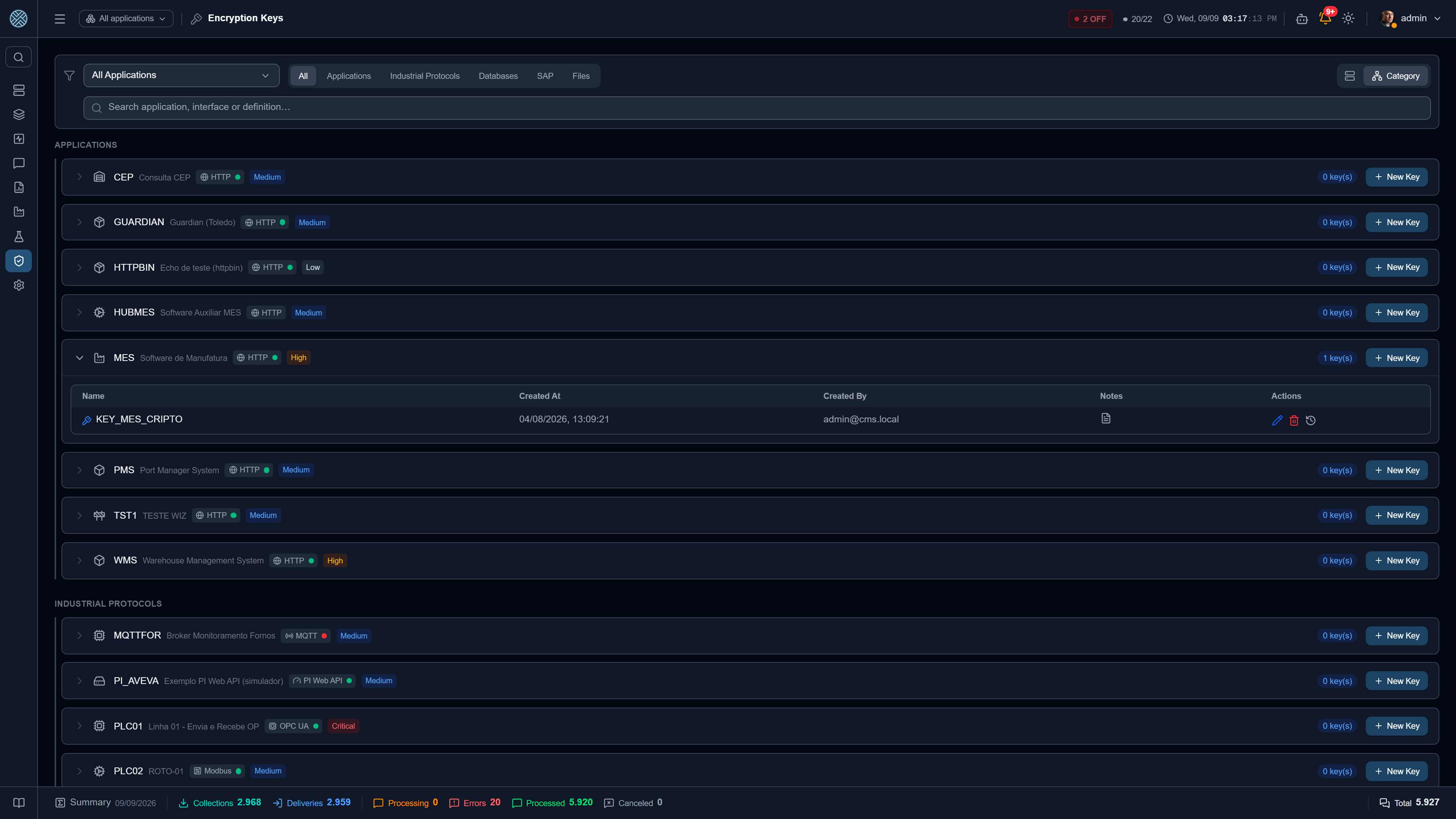
Symmetric material generated (or provided) by the user, stored encrypted at rest through envelope
encryption (CREDENCIAL_ENCRYPTION_KEY). Each key records who created it and can carry a list of
users authorized to decrypt.
An empty list is fail-closed: only users with the administrator role can decrypt.
Encryption Rules — /encryption-rules
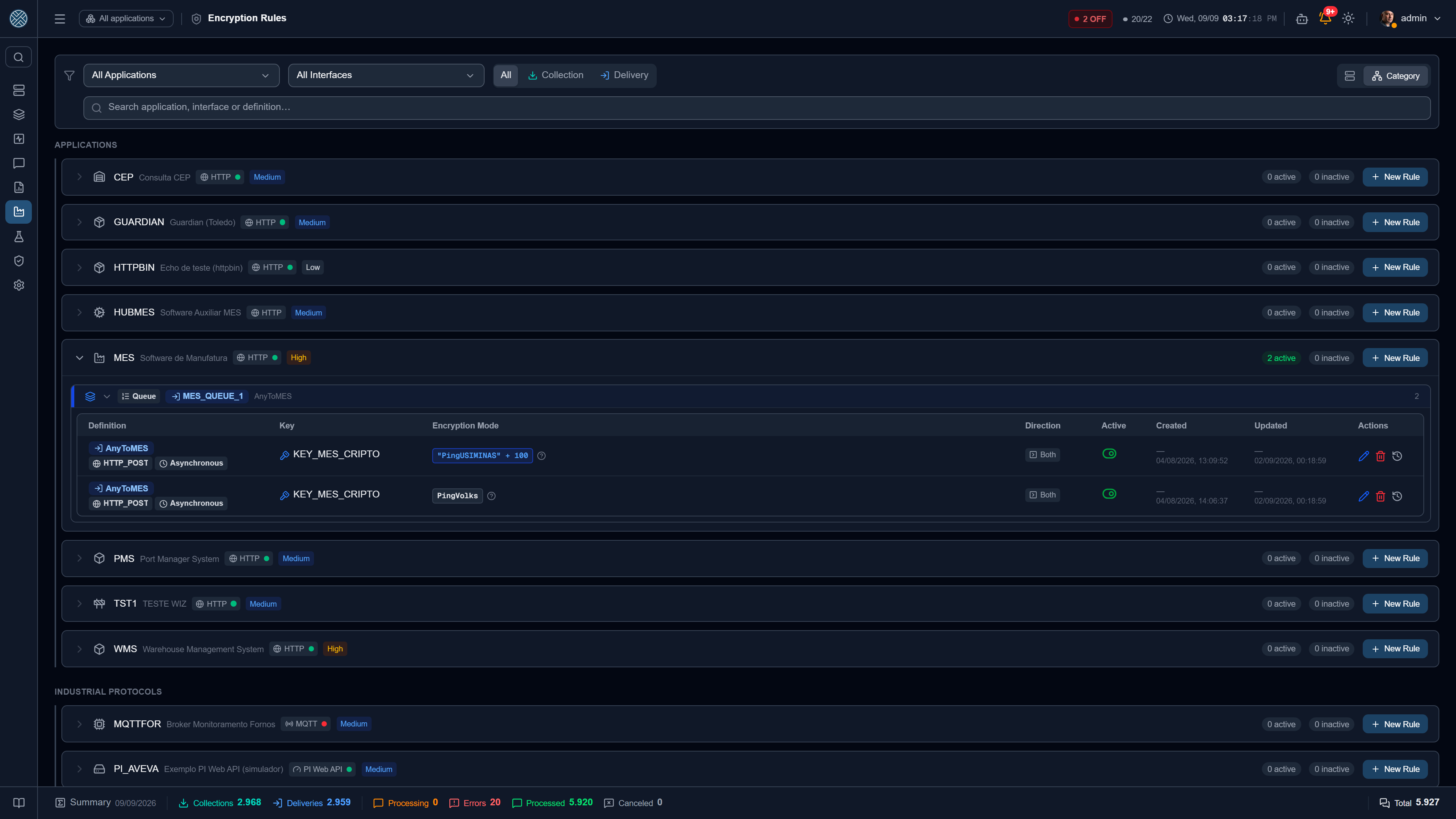
Bind a Key to a Message or Collector Definition, conditioned on a wildcard text and a direction (Outbound, Return or Both). A key can also be bound unconditionally straight on the Definition.
On a Delivery with a Transformer by producer Application, the message also stores what the producer sent, in a format that is not the Delivery’s — and the rule matches by text. If the wildcard text appears in that content, the rule applies as on any payload. If it does not, but the rule matched the converted content, the producer’s content is encrypted whole with that rule’s key: otherwise the converted content would be encrypted and the original, with the same data, in clear right beside it. A Partial rule does not carry over, because the stretch it would encrypt does not exist in the other format.
The listing also tells who created and who last changed each rule, with a date. It is the same authorship as Connections and Transformers: the author is always whoever was signed in at the time, stored as an e-mail address, never a field sent in the form. A rule created before the column existed shows a dash.
On-demand decryption
An encrypted payload is only reverted when someone clicks Decrypt on the message detail — never automatically in a listing or export. On that click, CMS requires:
Authorization
Being on the authorized list of the key used (or being an administrator).
Re-authentication
Entering your own password — and the 2FA code, if enabled.
Justification
A non-empty text explaining why the content needs to be seen.
Audit Log — /reports/audit-log
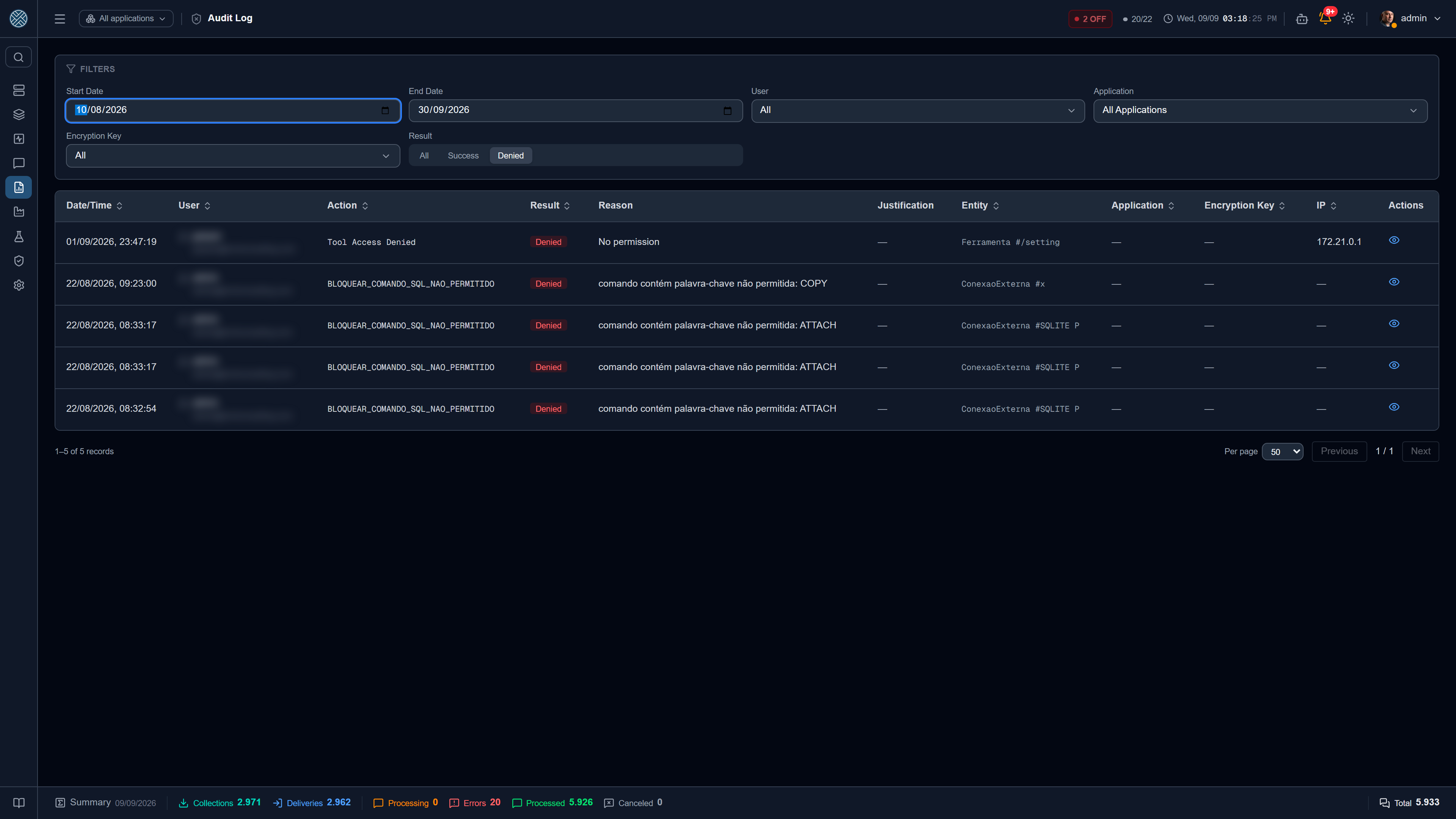
Every decryption attempt — authorized or not, right or wrong password — produces an event with user, action, outcome (success/denied), the technical reason for denial, the justification typed, the affected entity and the source IP.