Test Bench — /test-bench
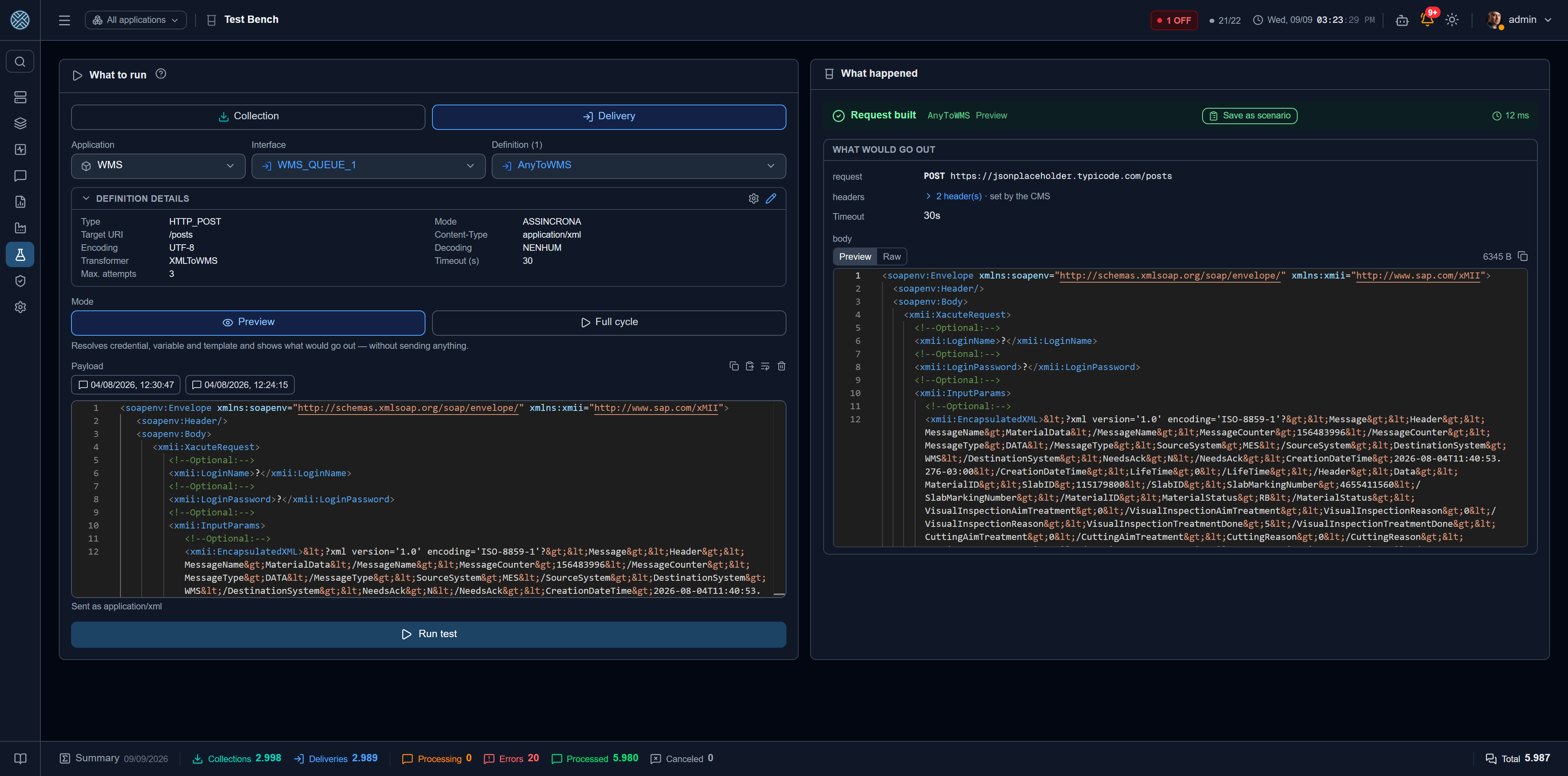
Testing a freshly configured integration used to take you out of the product. Exercising a
Collection with Input Parameters meant building a POST in Postman or Insomnia; watching a
Delivery happen meant a message actually arriving — that is, waiting for a real cycle.
The cost was not just the click. The test payload lived in one person’s collection: nobody reviewed it, nobody re-ran it when the integration changed, and it did not travel along when the integration was installed at another customer.
The Test Bench brings that inside the CMS.
The combos offer the Collections and Deliveries of the Interfaces you can see — each with the Interface description next to its code —, except those of the Help Desk tools: to test a ticket destination, use the Open ticket button in ITSM Configuration, which goes through the destination’s body.
The rule behind the screen
The test runs down the production path, marked as a test. There is no second execution engine: testing a Delivery means injecting a real message into the Interface, and testing a Collection means calling the same executor the scheduler calls.
That is a decision about trust. A separate test path would be a guarantee that the test passes and production fails — which is exactly why a green test here is a statement about the real system, not about a simulation of it.
The “test” mark
If the test goes down the production path, it has to be distinguishable from real traffic. Every message created here is born marked, and the mark changes what the system does with it:
| What a test message does not do |
|---|
| Does not block the Interface, even if it hits a Business Error set to “block queue” |
| Does not fire delivery error, business error or blocked queue alerts |
| Does not count on the dashboards, in the reports or in the Daily X-Ray |
| Does not enter the Observed Contract — a test payload never contaminates the schema inferred from traffic |
On the Messages screen, in the interface monitor and in the message detail it carries an amber flask, which shows who fired it on hover, and the traffic filter lets you pick between real and test, real traffic only or Test Bench only.
The Publish to source mode is the exception, and a deliberate one — see below. The message born there is real, because the CMS has no way to tell the stimulus you produced from the one the equipment produced.
The four modes
The mode is the screen’s central question: how far does this test go?
| Mode | What it does | Writes outside the CMS? |
|---|---|---|
| Dry run | Resolves credential, variable and template and shows what would go out | No |
| Read | Runs the fetch at the source and shows what came back; stores no message and delivers nothing | Reads, does not write |
| Publish to source | Produces the stimulus at the source itself — publishes to the broker, writes to the PLC, drops the file in the folder — so the Collection reacts on its own | Yes |
| Full cycle | Goes down the entire production path: stores the message and delivers to the real destination | Yes |
Dry run is the everyday configuration mode: it shows the method and URL, the query string, the headers the request would really carry (including the ones the CMS adds), the already-transformed body, or the SQL command with its binds — all without anything leaving the machine. It is the one mode that works well before activating the Definition, which is why the “+N inactive” box exists in the picker: the most useful moment for a dry run is right before switching the integration on.
Read exists only for Collections, and not every Collection takes it. When it does not, the screen
says why instead of just refusing — a FILE_WATCH has no “fetch now”, an HTTP_POST would write to
the destination, a push type waits for the outside world to call.
Publish to source is what gives a test to the connector that is not called but triggered: MQTT, OPC UA, Modbus and watched folders. You publish to the topic, write the trigger value or create the file, and watch the Collection react down its normal path.
Where the payload comes from
Typing JSON from scratch is the screen’s last option, not its first. Above the editor sit the sources the CMS already has:
| Source | What it is |
|---|---|
| From the Observed Contract | An example built from the schema inferred from that Definition’s real traffic |
| Example N | A sample declared by hand, stored in the Observed Contract |
| A real message | The payload of one of the last messages that went through, with date and time |
A Definition with an Encryption Rule is not offered real messages as a starting point — and the screen says so instead of omitting it silently. Decrypting to fill in a test field would work around the very rule somebody configured on purpose.
The editor is the same Monaco used across the product, and it highlights by the language of the Definition’s own Content-Type — an XML body does not come out underlined in red for being read as broken JSON.
When the Definition has an input contract (the “comes from outside” fields of an SAP Delivery,
the Input Parameters of a Collection), the payload gets a Form | JSON switch. In the Form, each
contract field is a box, with the required ones marked — nobody needs to remember the exact name of
localInstalacao. Both views edit the same content: switching from one to the other loses nothing.
Sending as a producer Application
On a Delivery with a Transformer by producer Application, Full cycle gains the Send as field. Without it, the test would only follow the path of whoever already sends the Delivery format, and each producer’s Transformer would go untested.
| Option | What the test does |
|---|---|
| No producer Application (already in the Delivery format) | The default. Only the Delivery transformer runs |
| A producer (code — Transformer) | The payload goes through that producer’s Transformer before the Delivery’s, like a real message from it. Write it in the format that producer sends |
Once a producer is chosen, the editor and the Content-Type sent follow the producer’s — XML, if it sends XML — and the screen stops checking the Input parameters: the payload is in the producer’s format, and it is the producer’s Transformer that brings it to the contract. The sender is still you, and the message is born marked as a test like any other from here. In the result panel, the producer’s Transformer shows up before the Delivery’s, in the order they ran.
A real message that went through a producer’s Transformer suggests what the producer sent, with its code next to the date — and picking it already sets Send as to the same producer and switches to Full cycle. Otherwise the test would send the producer’s dialect as if it were the Delivery format.
The field only exists in Full cycle: Dry run starts from a payload already in the Delivery format and does not run the producer’s Transformer, so offering the producer there would show a request that would never go out. With Send as filled in there is no Save as scenario either — the scenario does not store the producer, and replaying it would send the producer’s dialect without the producer’s Transformer.
Before writing to the real destination
Full cycle and Publish to source ask for a typed confirmation: you write the Definition’s code to proceed. The text names the destination, the kind of operation and — for publishing to the source — that the resulting message will be real.
The confirmation exists so somebody sees which destination is about to be written. It does that the first time; from the second on, in a tuning session where the same test is fired ten times over, it would become repeated typing. Hence the “don’t ask again” box, with deliberate limits:
- it is per Definition and per mode — waiving Full cycle does not waive publishing to the source, which is graver;
- it lasts while the tab is open, and dies with it;
- while it is active, the screen warns in amber that the next click fires straight away, with a button to start asking again.
What happened
The right-hand panel tells the story in the order it happens: what was sent first, the destination’s answer after. Seeing the response without the request forces you to guess what the CMS assembled — and that is where most configuration mistakes live.
Each step expands and collapses: request, query string, headers, body, command, binds, response. On content steps there are two tabs, Preview (formatted) and Raw (byte for byte, as it went).
- A Global Variable used as a bind is named, without its value.
- Content protected by an Encryption Rule shows up encrypted, with a note that decrypting needs its own Tool.
- When a message was created, there is a direct shortcut to it on the Messages screen.
- When a forwarding’s condition was not met, the Forwardings not made box says which destination was left out and why. The Condition Met alert does not fire for a test message.
A Collector waiting for the Interface cycle
In the Full cycle of a Collector with a destination, the message is born Not Processed and is only forwarded in the Interface’s next cycle — which, on an Interface scheduled every hour, may be almost an hour away. The panel says so in full: “Waiting for the next cycle of Interface X: 09/24/2026 15:00” (or “runs every N s”, on an interval Interface).
Next to it sits Forward now, which brings forward the forwarding of only this test’s
messages. It does not run the Interface cycle — that would also run the production fetch and take
along any other message waiting there. With the Interface blocked the button does not show: nothing
is forwarded until the unblock. The click is recorded in the Audit Log, as
ENCAMINHAR_TESTE_COLETA.
Getting here the short way
Nobody wakes up deciding to “go to the Test Bench”: you are looking at a Definition and want to see it work. So the main entry point is not the menu, but the Test button on the Collection or Delivery row in Collection Definitions, Delivery Definitions and Message Definition. It opens this screen already pointed at that Definition.
The Test Bench reads the Definition as stored. If there are unsaved changes on the configuration screen, the CMS warns before bringing you here: whatever is on screen and not yet saved stays out of the test.
Keeping the test you just ran
A test that worked is knowledge that usually gets lost. The Save as scenario button takes the run that just happened — Definition, mode, payload and parameters — and stores it in a Test Plan, with the option of turning the result you got into an expectation.
If the test failed, the screen says so: the scenario will assert that the failure happens. That is useful to document a known problem, and terrible if it was not the intent — hence the warning, not a block.
Where it sits in the menu
Integration Lab, next to Test Plans and the Simulators. The grouping is a statement about the work: Integration Config is where an integration is set up, the Lab is where it is exercised. The simulator fakes the source, the Test Bench fires the stimulus — testing an OPC UA Collection means using both together.