Schedulers — /schedulers
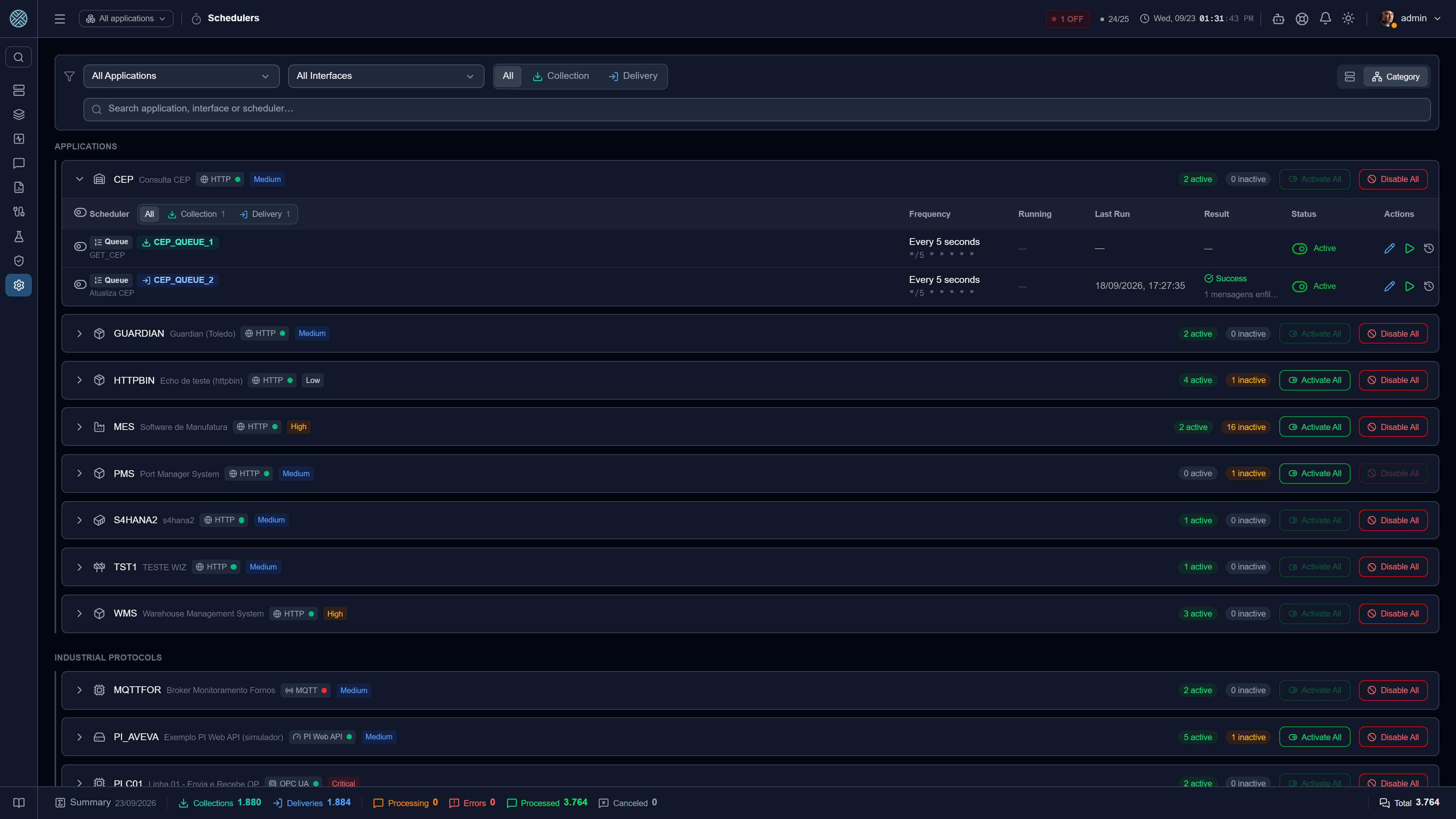
Almost everything the CMS does without being asked goes through a scheduler: processing an interface’s messages, fetching data in a Collection, checking whether applications are up, purging old messages. This screen shows all of them in one place.
A paused scheduler is the most common cause of “the collection stopped bringing data”. Nothing
breaks, nothing turns into an error: messages simply stop being processed. That is why there is a
dedicated alert type — AGENDADOR_PAUSADO — and a status of its own on the Interfaces
Panel.
Two kinds of scheduler
The listing splits jobs into two groups, and the difference matters because permissions differ. There is also a third one, Triggers, described further below — for permission purposes it behaves like the Interface group.
System schedulers
Created by the CMS itself on first startup:
| Job | What it does | Default |
|---|---|---|
keep-alive | Queries every application’s keep-alive and updates the ON/OFF status | every 10 seconds |
limpeza | Removes messages and processings older than the retention set on each Interface | every day at 2 AM |
Check-msg-acumulada-alert | Checks interfaces with queued messages above the limit and fires the alert | every minute |
Check-chamado-atrasado | Opens a ticket for an Application past the offline time set on the alert | every minute |
Check-sap-cpi-processamento | Checks on SAP CPI whether the iFlows that received Deliveries ended successfully and fires the iFlow failure alert. With no SAP CPI connection with a management API, it makes no calls | every minute |
resumo-diario | Closes the previous day’s Daily X-Ray and sends the summary to subscribers | every day at 12:10 AM |
revisao-ia | Notifies reviewers when there are flagged AI sessions awaiting review | every day at 7 AM |
Only administrators see and touch System schedulers. A regular user sees only the schedulers of the Interfaces they have access to.
Interface schedulers
One per registered Interface, named fila-{CODE}. It runs the interface cycle: find what there is to
do, enqueue and process. The screen groups these jobs by Application, with active/inactive counts
per group.
Creating an Interface creates the scheduler; renaming the Interface renames the job preserving its state (a disabled job stays disabled); deleting the Interface removes the job.
An Interface created by import, by an assistant or by an SAP Pack is registered and running from the start — no need to restart the API.
The Interfaces of the Help Desk tools show up in a group of their own, Help Desk. Worth checking: with a tool’s Interface scheduler off, the ticket enters the queue and never leaves — in SAP PM, the notification stays “waiting” forever.
Triggers
One per registered Trigger, named trigger-{id} and shown under the name the
person gave it. They sit in their own group, Triggers, before System, with the target (the
Collector or Delivery) and the schedule in plain words on the row.
Here you can pause, run now and see the history. Two things differ from Interface schedulers, on purpose:
- Enabling does not happen here. Enabling a Trigger goes through a confirmation that only the Triggers screen asks — trying to enable from this screen shows a notice with the shortcut to it, and “Activate all” skips Triggers and says how many were left out.
- Editing the schedule is also done on the Triggers screen: the pencil takes you there. The tabs are the same, but a Trigger keeps the whole choice in its record — changing it only on the job would leave the two saying different things.
How the schedule is chosen
The pencil opens the same editor as the Trigger record, with five tabs:
| Tab | What it sets | Example |
|---|---|---|
| Every | Short cadence, no fixed time | every 5 seconds |
| Daily | One time a day, optionally weekdays only | 07:30, Monday to Friday |
| Weekly | Selected days and a time | Tuesday and Thursday, 06:00 |
| Monthly | Day of the month (1 to 28) and a time | day 5, 23:00 |
| Advanced | The cron expression, for what the tabs don’t cover | 0 0 2 15,30 * * |
The screen shows the choice in plain words and the next three runs, in the server time zone, before you save. A schedule the target cannot honour shows up as an error right there, instead of becoming a job that never fires.
The screen does not build the expression: it sends the choice and the server converts it, with the same rule the Trigger uses. That is why the two screens never disagree on what “every 15 minutes” means.
Milliseconds appear only for an Interface. An Interface stores short cadence as an interval (which is what allows 200 ms), while the internal System schedulers can only store cron — and cron has no room for a fraction of a second.
The CMS accepts cron with seconds (six fields). That is what allows 0/10 * * * * * on the
keep-alive.
Two things the screen refuses, and why
- “Last day of the month” exists on the Trigger and not here. It is not just an expression: it is a cron firing from the 28th to the 31st plus a mark that discards the first three, and only the Trigger record keeps that mark. Accepting it here would schedule four runs instead of one.
- On a System scheduler, “every N” only passes when N divides the unit above it evenly (5, 10, 15, 30 seconds — not 45). A step of 45 seconds would fire at :00 and :45 and then wait 15 s: the screen would say one thing and the system would do another.
An Interface stored in cron mode with a cadence expression (*/5 * * * * *) opens on the Every
tab and, on save, is stored as an interval. It is the same schedule — and interval is the mode
the CMS uses for an Interface under a minute — but the row changes mode even if you touch nothing.
A very short interval on a Collection means querying the source close to real time — and a slow source can pile up executions. Start conservative and tighten after measuring the average time on the Messages Monitor.
What you can do on the screen
| Action | Effect |
|---|---|
| Enable / disable | Starts or stops the job. Takes effect immediately, no restart |
| Edit schedule | Opens the five tabs, with the plain-words phrase and the next runs |
| Run now | Fires an execution outside the schedule, for testing |
| History | Last executions of that job, with start, duration, status and message |
There are also bulk actions: enable or disable every scheduler of an Application, or just the selected ones. Disabling in bulk asks for a typed confirmation — it stops an application’s entire integration.
The Frequency column states the schedule as a sentence — “Every 1 hour”, “Every 5 minutes”, “Weekdays at 07:30” —, the same one as the Triggers screen. When the stored value is a cron expression, it shows small right below, for checking; an interval has no expression, the sentence is already the exact value.
The Running column shows, in real time, which interfaces currently have a message in flight.
History and diagnosis
Every execution records start, duration, status (Success or Error), message and the IDs of the messages involved. The full history, with filters by job, status and period, lives in Scheduler Log — including a chart of executions per hour, usually the fastest way to see “it stopped at 2 PM”.
Executions with nothing to do write no record. On an interval job, that means “last execution” can look stale even on a healthy job — it simply had no work.
Permission
The Tool is /schedulers. A non-administrator user only sees (and can only touch) schedulers of
Interfaces present in their allowed Interfaces — System jobs stay out of reach, bulk actions
included.