Scheduled Stops — /scheduled-stops
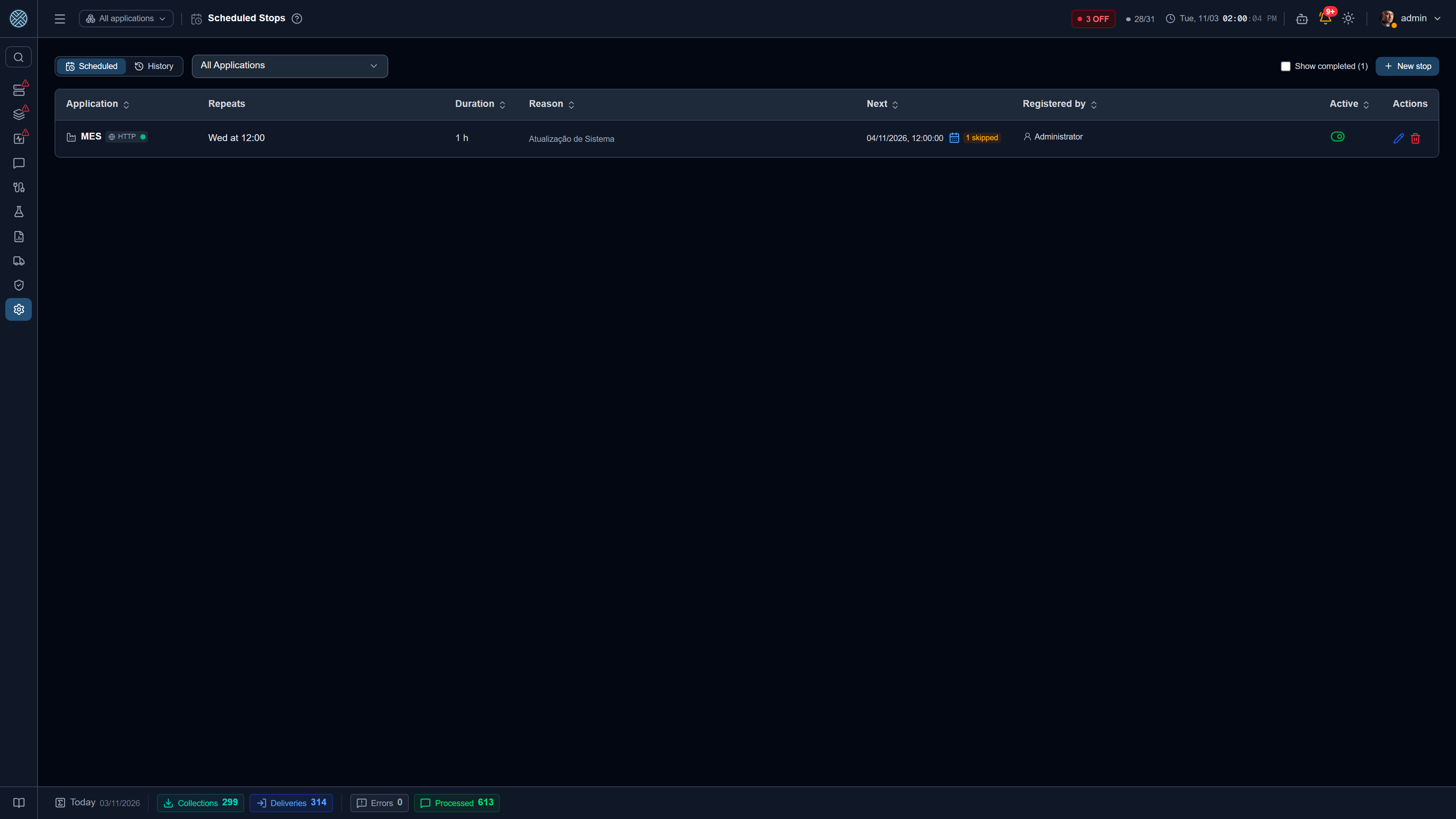
Version upgrades, nightly backups, line stops: what is agreed in advance should not raise an alert or drag the availability indicator down. You register the rule here, and when the window starts the Application goes into maintenance on its own, just like the Stop for maintenance button on the Applications screen.
What happens during the window
- Keep Alive keeps testing, but with no alert or ticket, and the Application does not count as OFF.
- Messages and Triggers are accepted and held, without using up an attempt, until the window ends.
- Collections and Deliveries do not run. Collections with a permanent connection (MQTT, OPC UA, Modbus, file, Sparkplug, SAP IDoc) switch off and back on at the end.
- If the Application is still down when the window ends, the OFF alert goes out at that moment.
- The window’s time is left out of the availability percentage.
Registering a stop
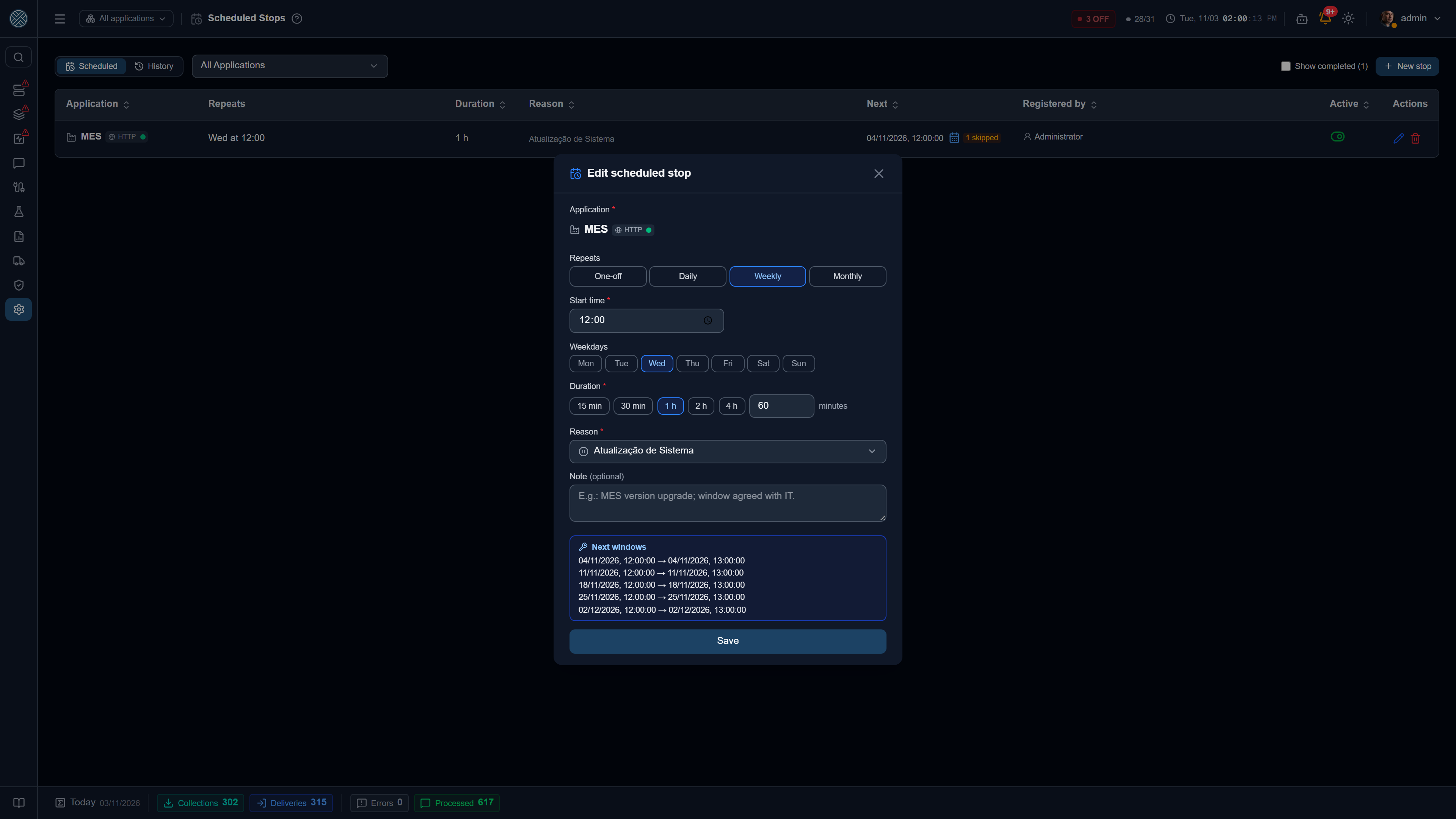
| Field | What applies |
|---|---|
| Application | Chosen on creation and fixed on edit. The list shows only the integrated, active Applications you can reach |
| Repeats | One-off, Daily, Weekly (one or more days) or Monthly (a day of the month or the last day) |
| Start time | For repeating stops it follows the server’s time zone, like Triggers |
| Duration | Shortcuts from 15 min to 4 h, or in minutes, up to 7 days |
| Reason | Comes from the Stop Reasons catalogue. With no active reason registered, the note becomes mandatory |
| Note | Free text, shown next to the reason |
The form’s Upcoming windows box shows the dates the rule will generate before you save.
The switch in the Active column pauses the rule: no new window opens while it is off. Deleting the rule keeps the history of the windows that already happened and does not end the one in effect now; for that, use End maintenance on the Applications screen.
Upcoming windows and skipped dates
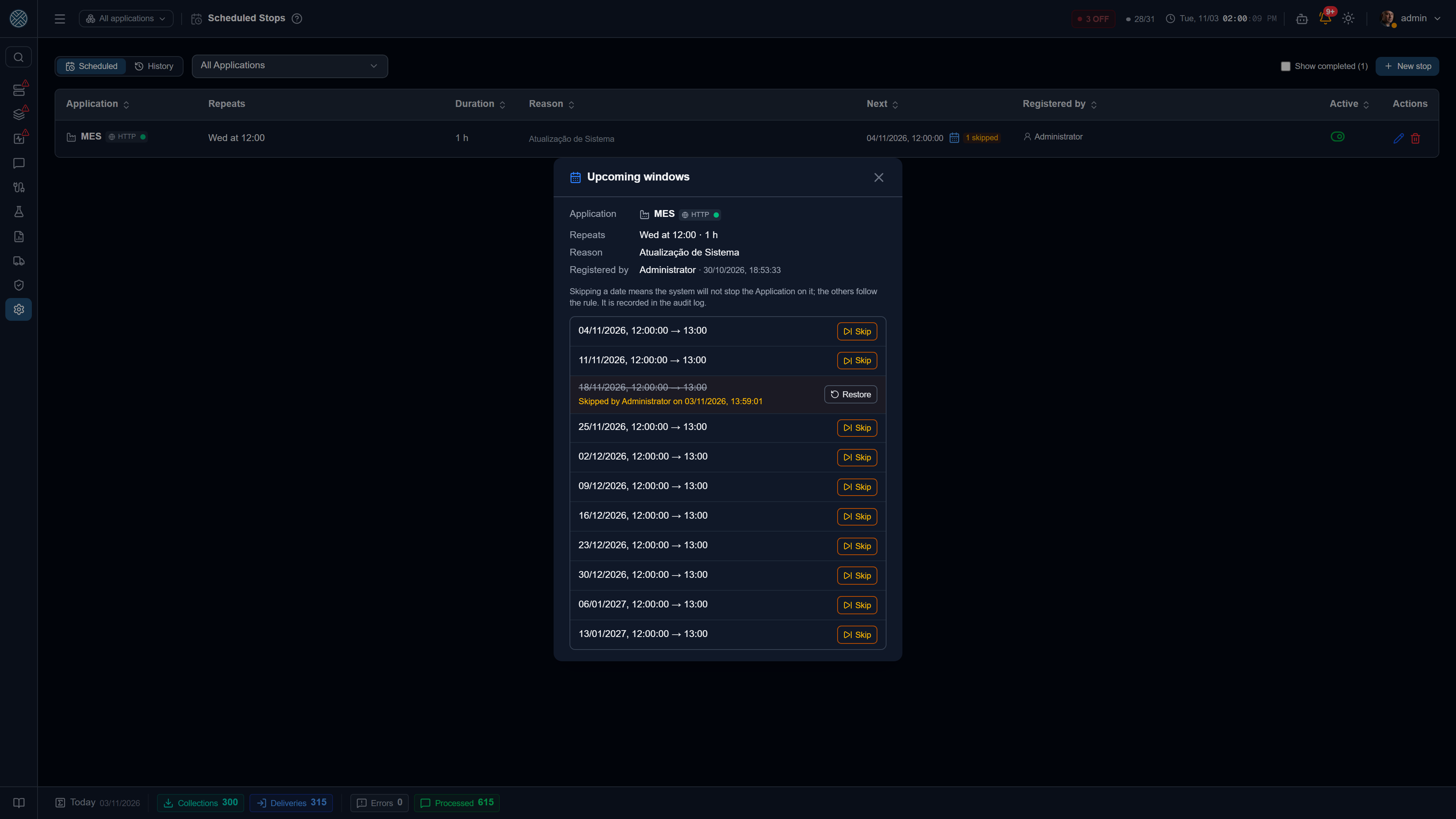
The calendar icon in the Next column opens the rule’s next 10 windows, with the Application, the repetition, the reason and who registered it.
Skip discards one date without touching the rule: the system does not stop the Application that day, and the other dates still apply. The skipped date stays struck through in the list, with who skipped it and when, and Restore undoes it. It does not count among the 10, so the list always shows 10 stops that will happen. The grid shows the count next to the calendar.
You can only skip a future date that the rule actually generates. The window in progress is ended with End maintenance. If the rule is edited and the time changes, old skipped dates no longer match a window: they have no effect and are discarded once they pass.
Each skip and restore goes into the Audit Log, as
PULAR_OCORRENCIA_PARADA and RESTAURAR_OCORRENCIA_PARADA, with the code, the date, the duration and
the reason.
A one-off stop that has passed
A One-off stop leaves the grid once its time has passed, so the list shows only what is still to come. Show completed brings it back, with one of two badges:
| Badge | Meaning |
|---|---|
| Completed on | The window opened. Clicking takes you to the History |
| Did not happen | The time passed without the window opening: Application deactivated or rule paused at that moment |
Editing a stop that has passed opens the form at the same time on the next day, and a note shows the old date. A one-off stop must end in the future: with a past date, Save is disabled and the preview explains why.
History: planned vs. actual
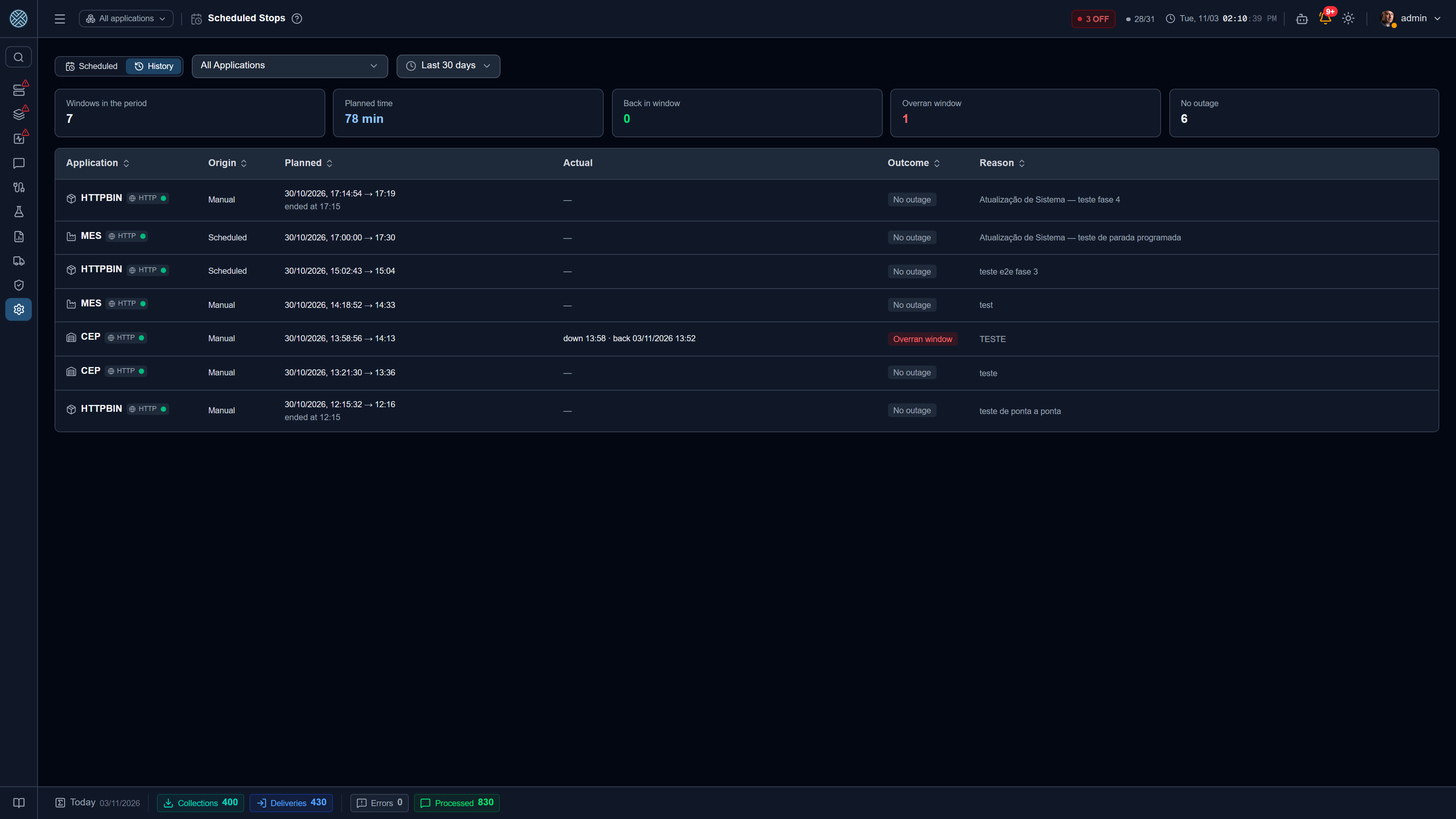
The History tab lists each window in the period, scheduled or opened by hand (Origin column), with the plan, what Keep Alive actually recorded and the outcome. The cards at the top add up the windows, the planned time and each outcome.
| Outcome | Meaning |
|---|---|
| Back in window | Went down during the window and came back before the planned end |
| Overran window | Came back after the planned end, or has not come back yet |
| No outage | Keep Alive recorded no outage during the window |
| In progress | The window is still in effect |
When the return happens on another day, the Actual column shows the date with the time.
Permission
The Tool is /scheduled-stops, in the Settings group of the menu, just below Stop Reasons. Users with
read access only see the grid and the popup, without the Skip and Restore buttons.