Transport between environments — /transports
An integration is built and tested in a test CMS, and then it has to exist, identical, in the production CMS. Re-typing it record by record is slow, and it is where mistakes come from: a forgotten field, the wrong Transformer version, a forward that was left behind. Transport moves configuration from one CMS to another as a package, and the destination writes nothing until a person reviews and approves it.
Three rules always hold:
- Nothing is applied on its own. The package arrives as pending and is written only after the preview and an approval by someone with permission at the destination.
- Everything is created inactive. Deliveries, Collectors, Connections, Transformers, Alerts, Triggers and Routers created by a transport start switched off, and a checklist says what is missing before turning them on.
- Secrets do not travel. Credentials and External Connections go without password or user, and the Application goes without URL or certificate. Those belong to each environment and are filled in at the destination.
The Transports menu sits right after the Integration Lab, because it is the next step on the same path:
| Item | Route | For |
|---|---|---|
| Build package | /transports/send | Choosing what to move, then downloading the file or sending directly |
| Built packages | /transports/sent | History of what left this CMS and its status at the destination |
| Received packages | /transports/received | Inbox: preview, approval, activation and undo |
| Environments and tokens | /transports/environments | Direct-sending destinations, tokens for whoever sends here and trusted origins |
Environment type
In Parameters › Appearance, the Environment type field (Development, Test or Production) shows a coloured strip at the top of every screen and on the login page, so nobody works in the wrong environment. Transport uses this value:
- Production does not send. In Production, Build package and Built packages leave the menu, and the server refuses to build.
- Production does not receive from Production. A package whose origin declares itself Production is refused.
- An origin with type Not set is accepted, with a warning in the preview.
The type guards against mistakes; it is not a security control. The real protection is the package signature, the approval at the destination, the direct-sending token and “create only”.
Build package
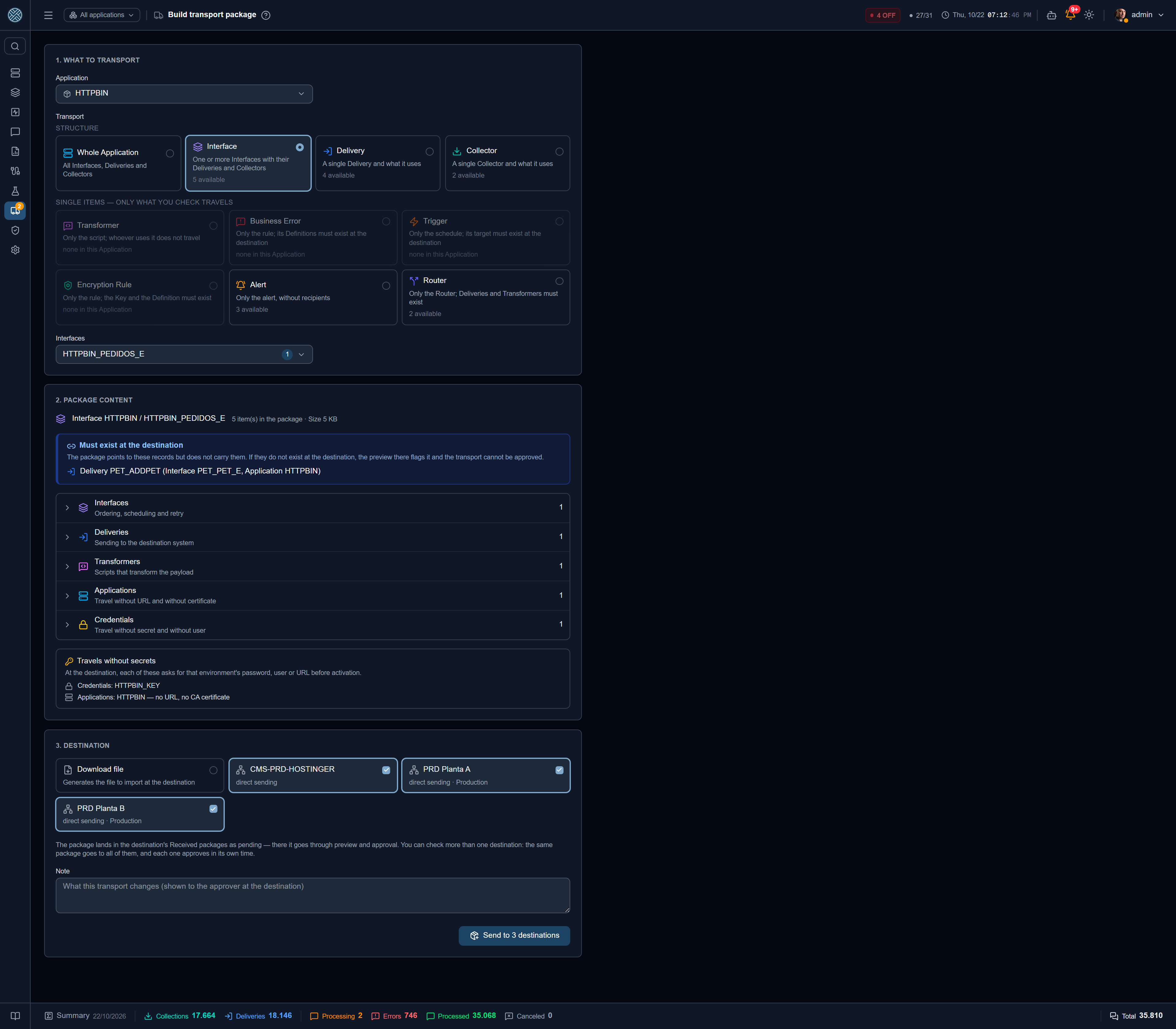
The page has three steps, top to bottom.
1. What to transport. Two groups:
- Structure — a whole Application, one or more Interfaces of the same Application, or a single Delivery or Collector. What they use goes along: forwards, conditions, Transformers, Business Errors, Alerts, Triggers, the Credentials and Connections (without secrets) and every variable of the Application (name only).
- Single items — Transformer, Business Error, Trigger, Encryption Rule, Alert or Router. Here only what you check travels. This is the way to fix a Transformer or ship a new Trigger without resending the whole Interface. Whatever the item points to (the Trigger’s Delivery, the Encryption Rule’s Key, the Router’s Deliveries) must exist at the destination.
2. Package content, computed on the server before anything is built:
- counts per type and the package size;
- Travels without secrets — the records that will ask for a password, user or URL at the destination;
- Must exist at the destination — what the package references but does not carry. If it is missing there, the preview flags it and the transport cannot be approved;
- Variables used — they travel by name only; a Calculated one carries its expression;
- Warnings — points to check. They do not block sending.
3. Destination. Download file, which builds a .json to import at the destination, or
one or more registered environments for direct sending (see Direct sending).
The Note field is shown to whoever approves at the destination. Use it to say what changes.
Every package leaves signed with this CMS’s key (see Package signature).
The transport icons on the rows of Applications, Interfaces, Deliveries and Collectors are shortcuts: they open this page with the item already chosen.
Built packages
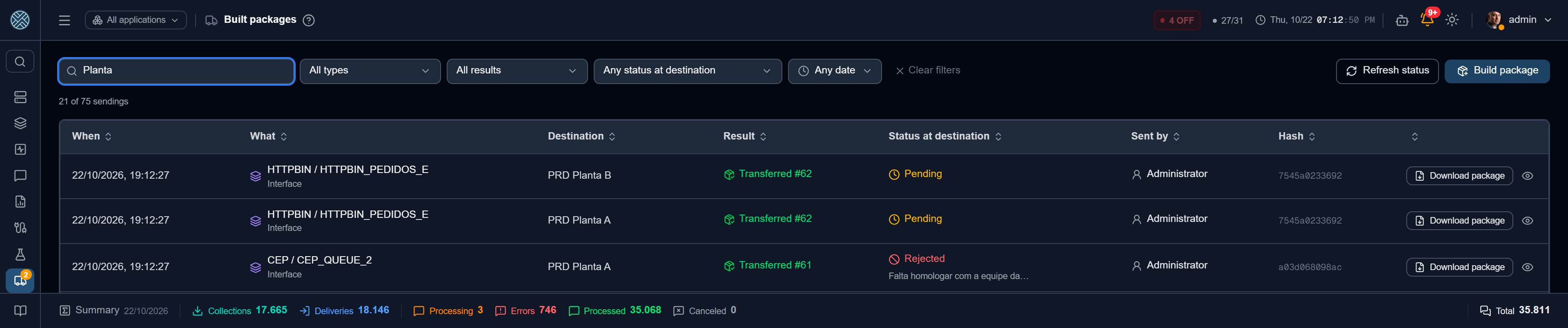
History of everything that left this CMS: when, what, where to (file or environment) and the outcome, for example “Transferred #12” or “Sending failed” with the reason. Download package downloads the file of any row again. That is the way out when direct sending failed and the file has to be imported. The icon under Who built opens the contact details of whoever built the package and its summary, to help the people on both sides talk.
Status at destination
For direct sending, the Status at destination column shows what happened there: Pending, Applied, Activated, Rejected (with the reason), Undone or Expired. The origin asks the destination with the same token used to send; the destination never calls the origin. The screen asks on its own when it opens, only about what can still change, and Refresh status asks again right away. A deleted or switched-off destination is not asked: the row keeps the last known status. A package downloaded as a file cannot be checked and shows ”—”. The Any status at destination combo filters the grid by this column, with the same icons as the destination inbox.
Received packages
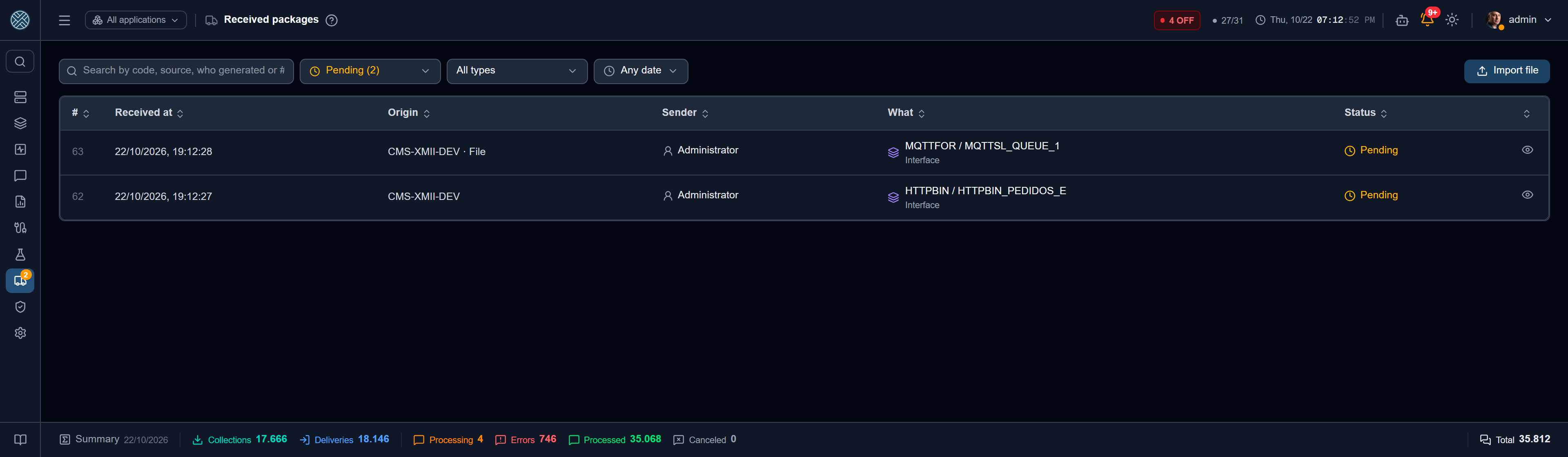
The inbox. The screen opens on Pending, and the status combo switches to Applied, Rejected,
Undone, Failed, Expired or all of them. Each option shows how many packages it has, with the
same icon and color as the Status column. It combines with the search (code, source, who generated
or number), the type and the period. Import file, in the title, deposits a .json as pending
and writes nothing else.
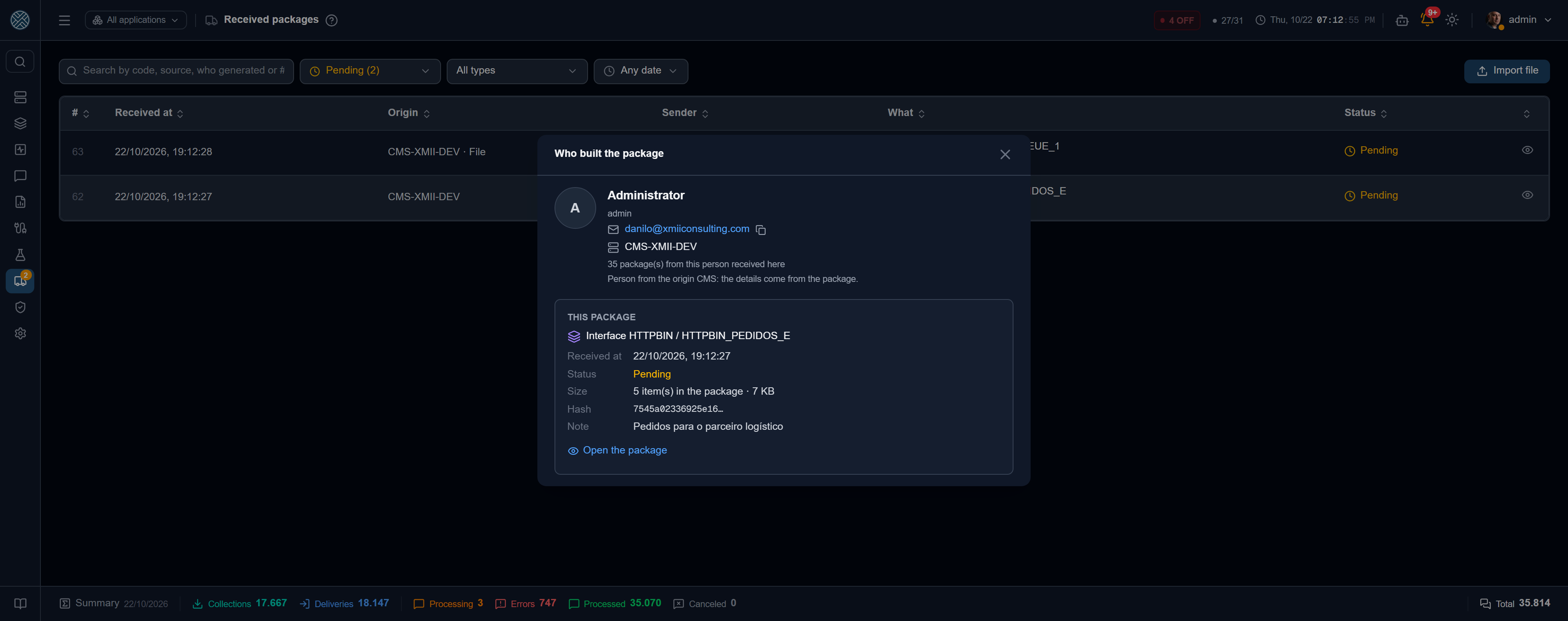
The icon under Sender opens who built the package. The person belongs to the origin CMS, so the popup shows what the package brought about them (name, login and e-mail, with a copy button), which CMS it came from, how many of their packages have arrived here and this package’s summary. The same works from the package header.
Each person sees only the packages of the Applications they can reach. A package that involves no Application (a single Transformer, for example) is shown only to users with unrestricted access.
Counter and e-mail notice
The Transports menu item shows an amber counter of the pending packages the person can see,
refreshed every minute. When a package arrives, by file or direct sending, the CMS also e-mails
the people who can approve it: active users with the approval permission (/transports/approval)
and an e-mail address on file who can reach the package’s Application. The e-mail carries the
origin, who built it, the note and the link to the package. Without SMTP configured the notice is
not sent, but the package is still in the inbox and in the counter.
The package
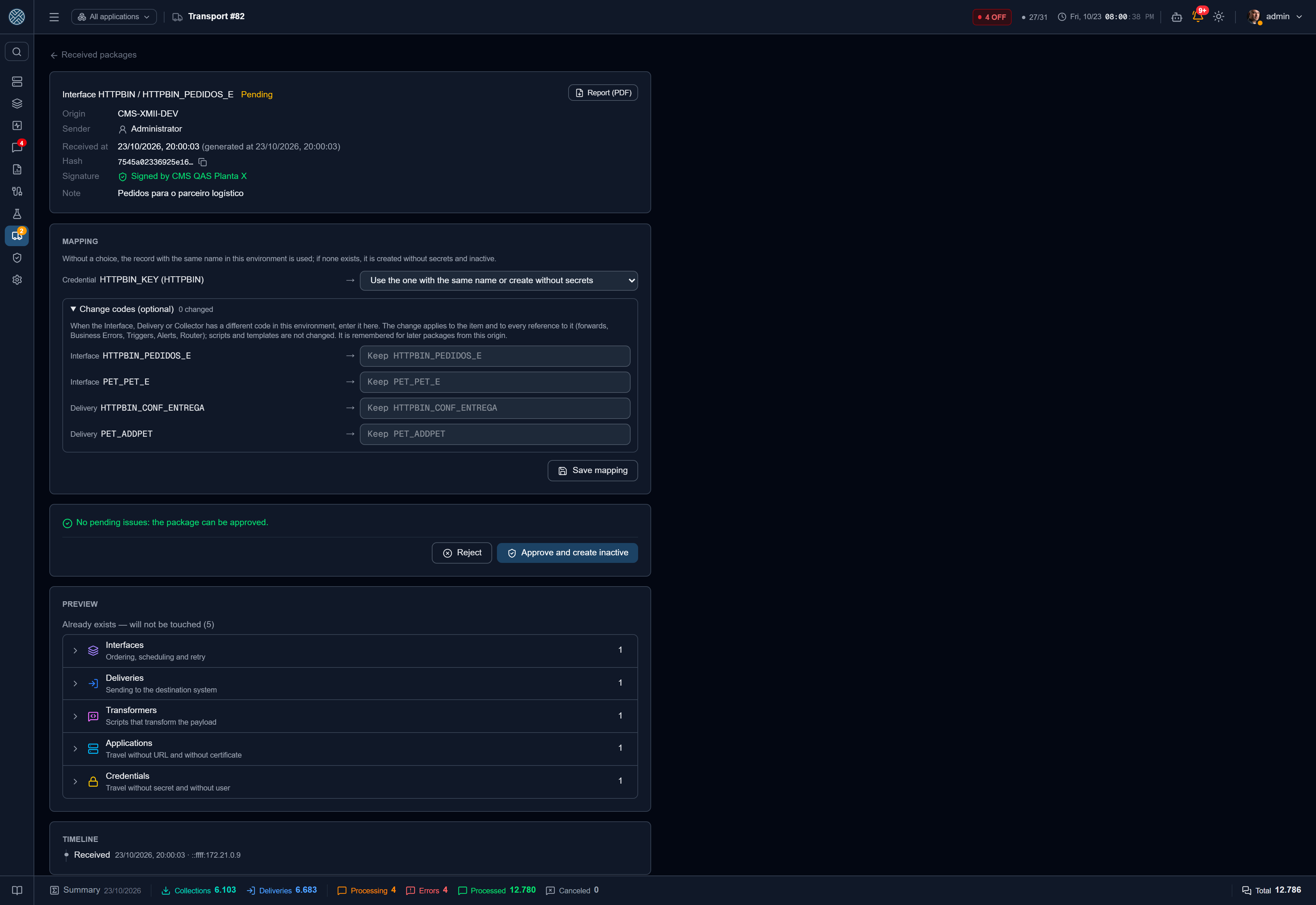
The header shows where the package came from, who built it, the content hash, the signature and the note. Report (PDF) builds the document for auditing: origin, who built it, sending id, hash, signature, who decided, item by item what was created or replaced (with the changed fields) and the whole timeline.
Preview
The preview compares each item in the package with what exists in this CMS:
| Result | What happens on approval |
|---|---|
| Will be created (inactive) | Created, switched off |
| Already exists — will not be touched | Marked same when identical. Marked local prevails when it is an Application, Credential, Connection, variable or Business Error that exists here differently: the local one stays, with a warning |
| Conflict | Exists here with different content. Blocks the whole package — see Updating what already exists |
A Business Error is only ever created by transport, never updated. If the rule already exists here with a different setup, the local one prevails and the preview warns. If new Deliveries in the package should use the rule, link them in Business Errors.
Other issues that block approval: a reference that does not exist here (a forward’s Delivery, an Encryption Key), an existing Interface with a different queue type, an Application outside the approver’s reach or, with “Require a signature” on, a package without a trusted origin’s signature.
Credentials and Connections have a mapping. Instead of creating a new one (without secrets), you can point to one that already exists here with the same direction or type. The mapping is remembered for later packages from the same origin. Save it before approving, because approval uses the saved mapping.
Leaving items out
Some of the package’s requirements can be solved when approving, without building another package. The approver can leave out the items nothing else in the package uses: Encryption Rule, Business Error, Alert and Trigger. On the item’s row, Do not bring this item takes it out of the package. It moves to the Left out group, with Bring it back, and the preview is recalculated without it. For example, an Encryption Rule whose Key does not exist here stops blocking the approval.
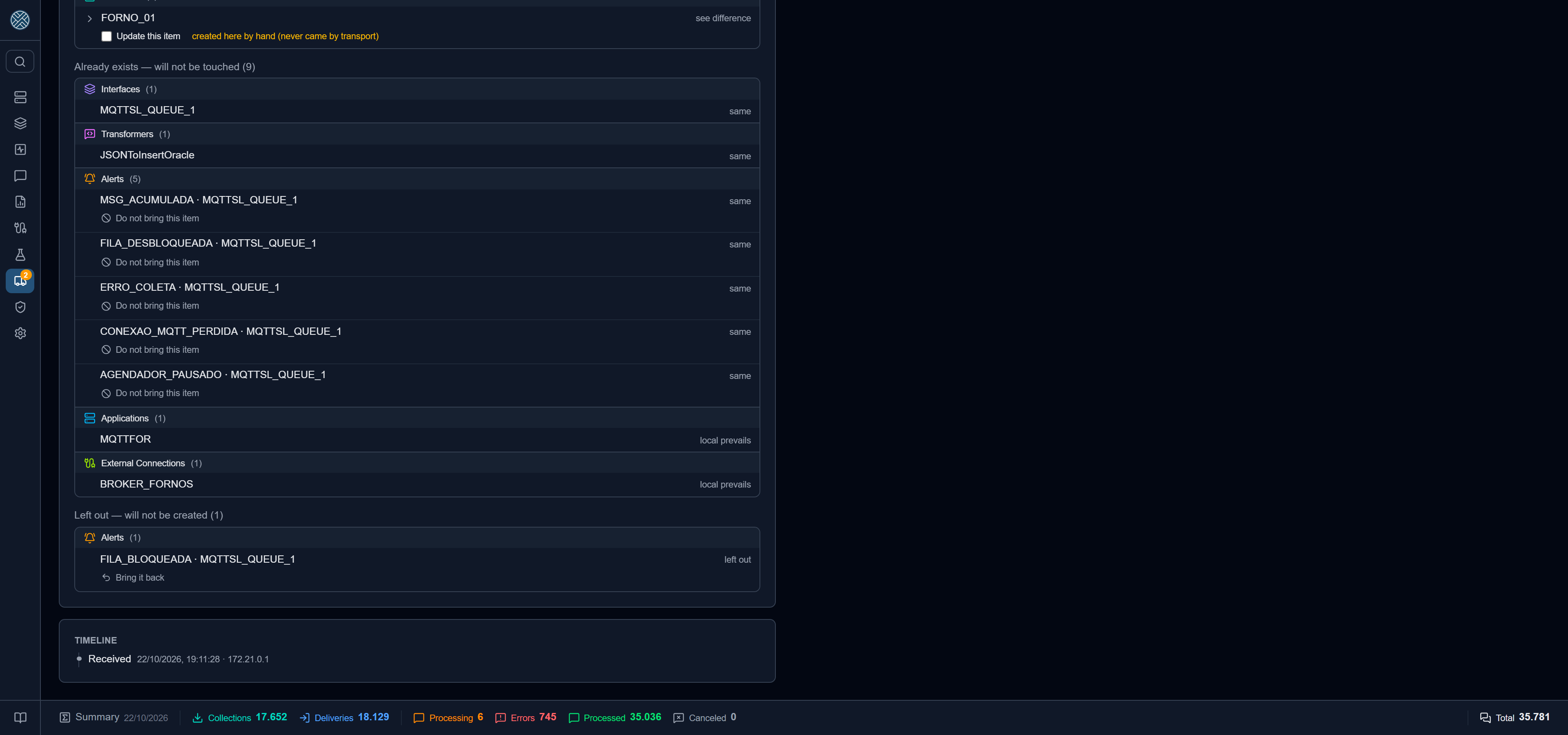
What is left out goes into the preview hash and into the approval. The timeline and the PDF report record the event Items left out on approval, with each item. Interface, Delivery, Collection, Transformer and the other items cannot be left out, because other items depend on them.
Change codes
When the Interface, Delivery or Collector has a different code in this environment (MES_QAS
in test, MES_PRD here), open Change codes (optional) in the mapping and enter the local code.
The change applies to the item and to every reference to it: forwards, conditions, Business
Errors, Triggers, Alerts, Encryption Rules, Transformer scope, the Router graph and the receiving
URL, which is recomputed. Scripts and templates are not changed. If a script mentions the code,
adjust it by hand.
The new code can be one that already exists here; then the item is compared with the local one instead of created. The preview shows each change as a warning. Two codes that become the same are a blocking issue, because the package would merge two items into one. The change is remembered for later packages from the same origin.
Approval
Approve and create inactive writes everything in one transaction. Before the commit, the CMS re-reads every written item and compares it with what the preview showed. If anything differs, nothing is written and the transport is marked Failed. If the destination’s configuration changed between preview and approval, the approval is refused and a new preview is needed.
When the package creates Interfaces, the approval asks how their scheduling starts:
- Off, turn on in “Activate transport” — turned on together with the Deliveries and Collectors;
- Off, I will turn it on later — stays off until someone turns it on in Schedulers;
- On right away — runs from approval on, processing nothing while Deliveries and Collectors are inactive.
Reject asks for a reason, which goes to the timeline, the audit log and the status the origin sees.
By default the approver cannot be whoever built the package at the origin (Approver different from the sender, in Parameters › Settings). In Production this rule always applies.
Activation
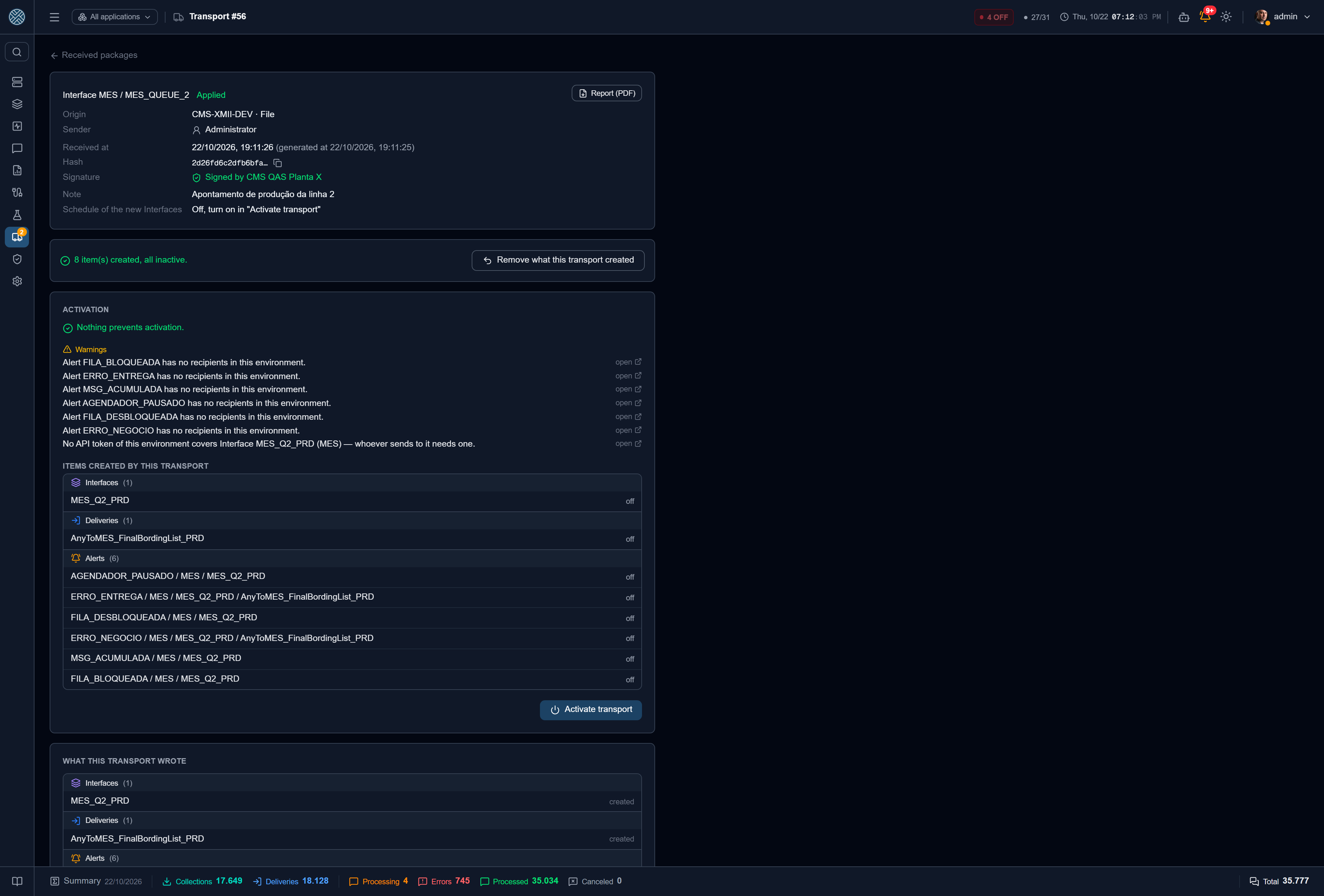
Once approved, the package shows the checklist of what is missing before turning it on:
- a Credential or Connection waiting for its secret, with a link to the record;
- an Application without URL or without a Keep Alive Connection;
- a variable created empty;
- an inbound Interface without an API Key that covers it, with a shortcut to create one;
- a Router whose access has to be granted;
- a new Alert without recipients (warning only).
Activate transport is enabled when no blocking item remains. It turns on only what this transport created and is still as created: Connections, Transformers, Deliveries, Collectors, Business Errors, Alerts, Routers and, last, Triggers. Whatever someone already turned on by hand is left alone. Encryption Rules ask for a password and are turned on on their own screen.
The What this transport wrote section lists each item created or replaced. For replaced items the original configuration is kept, and you can view and download it.
Undo
| Situation | Button | What it does |
|---|---|---|
| Approved, not activated yet | Remove what this transport created | Deletes what was created and nobody changed; replaced items go back to the original |
| Already activated | Undo transport (rollback) | First switches off what the transport created (Triggers, Routers, Alerts, Interface scheduling, Collectors, Deliveries); then removes what nobody touched and no message went through, and restores replaced items to the original |
Whatever cannot go (changed afterwards, already has messages, or is used by another record, like a Business Error someone linked by hand) stays switched off and is listed in the result. The always-on connectors of restored items reconnect with the original configuration. Undo respects order: when a transport was applied after this one, undo the most recent first, because it may point to what this one created.
Expiry
A package nobody approves or rejects expires after Pending packages expire in (days), in Parameters › Settings (default 30 days, from 1 to 365, changed by the administrator only). The daily cleanup sets its status to Expired, and the event goes to the timeline. Nothing is deleted: the package only leaves the approval queue. If it is still needed, build and send it again.
Updating what already exists
By default transport only creates. An item that already exists with different content is a conflict and blocks the package. To ship a fix to something already in production, three things must hold at the same time:
- Allow update by transport is on in Parameters › Settings. Only the administrator turns it on, and doing so asks for confirmation;
- the approver has the update permission (
/transports/update), which no default profile gets; - in the preview, the approver checks Update this item, item by item. An unchecked conflict still blocks.
These can be updated: Interface, Delivery, Collector (with forwards and conditions), Transformer, Alert, Trigger and Router.
An updated item keeps its state: if it was on, it stays on, and the change takes effect the moment it is approved. The preview warns in red: “ON — takes effect immediately”.
If the item was changed in this CMS after the last transport, or was created here by hand, the preview shows a three-column diff (last transport, this CMS, package) and asks for a second check: Overwrite what was changed here.
Some things are never updated by transport, even with the switch on: Application, Credential, External Connection, a variable’s value, Encryption Key, Encryption Rule and Business Error. Transport also never removes what exists only at the destination.
Always-on connectors
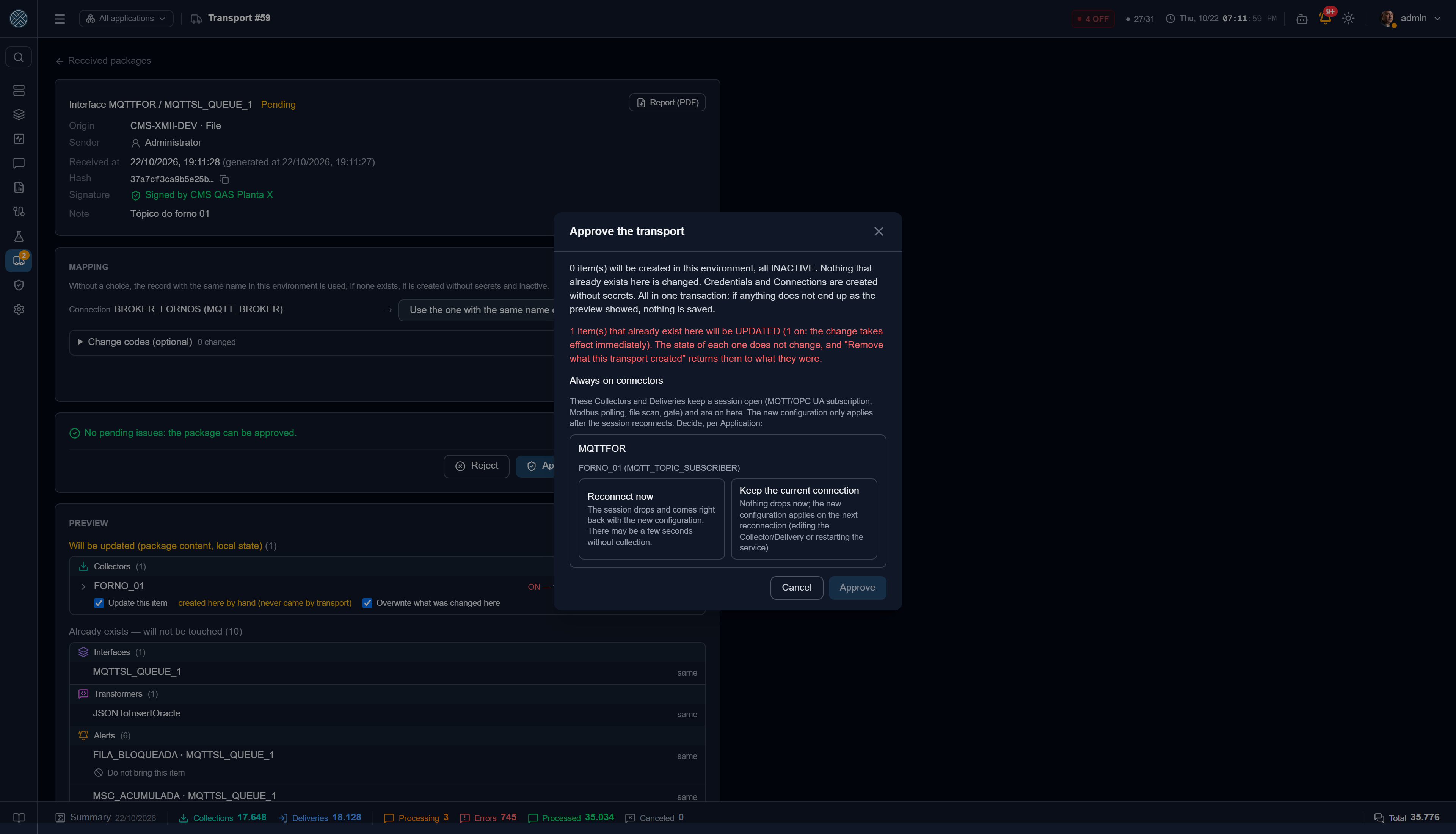
Some Collectors and Deliveries keep a session open: MQTT and Sparkplug subscription, OPC UA trigger, Modbus polling, file scan, IDoc listener and the Delivery’s OPC UA/Modbus write gate. When the package updates one of them while it is on, the new configuration only applies after the session reconnects. The approval lists those connectors grouped by Application and asks for a decision:
- Reconnect now — the session drops and comes right back with the new configuration. There may be a few seconds without collection;
- Keep the current connection — nothing drops now; the new configuration applies on the next reconnection (editing the Collector or Delivery on screen, or restarting the service).
The decision goes to the transport timeline.
Package signature
Each CMS has its own key pair, created the first time it signs a package. Every package leaves signed. The destination checks the signature on arrival: a package changed after it was built is refused right away, by file or direct sending.
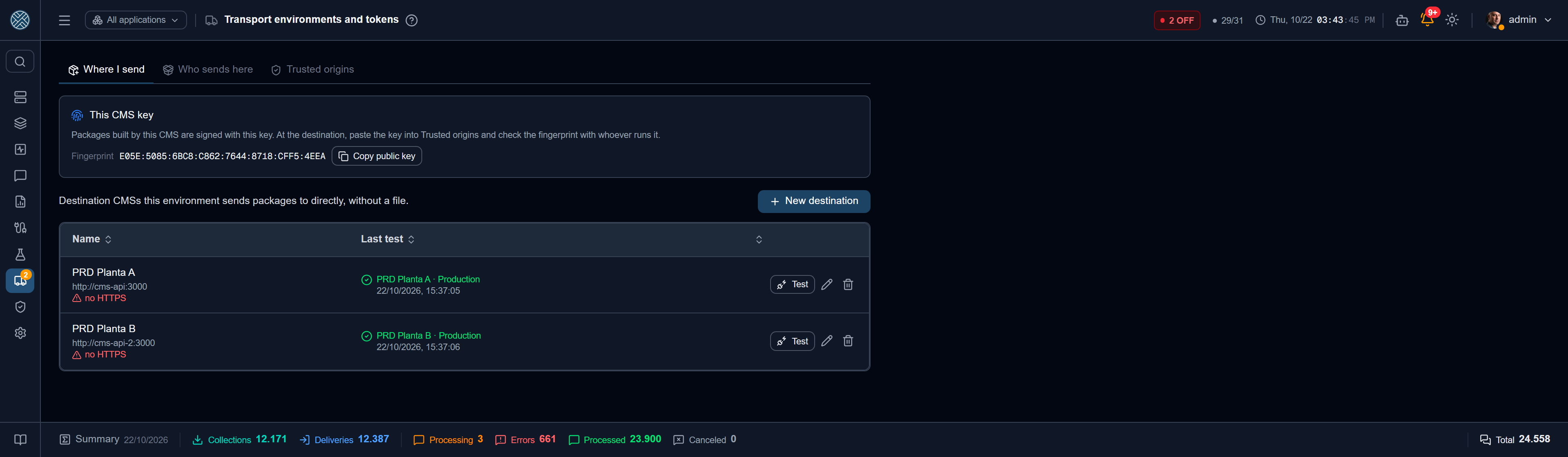
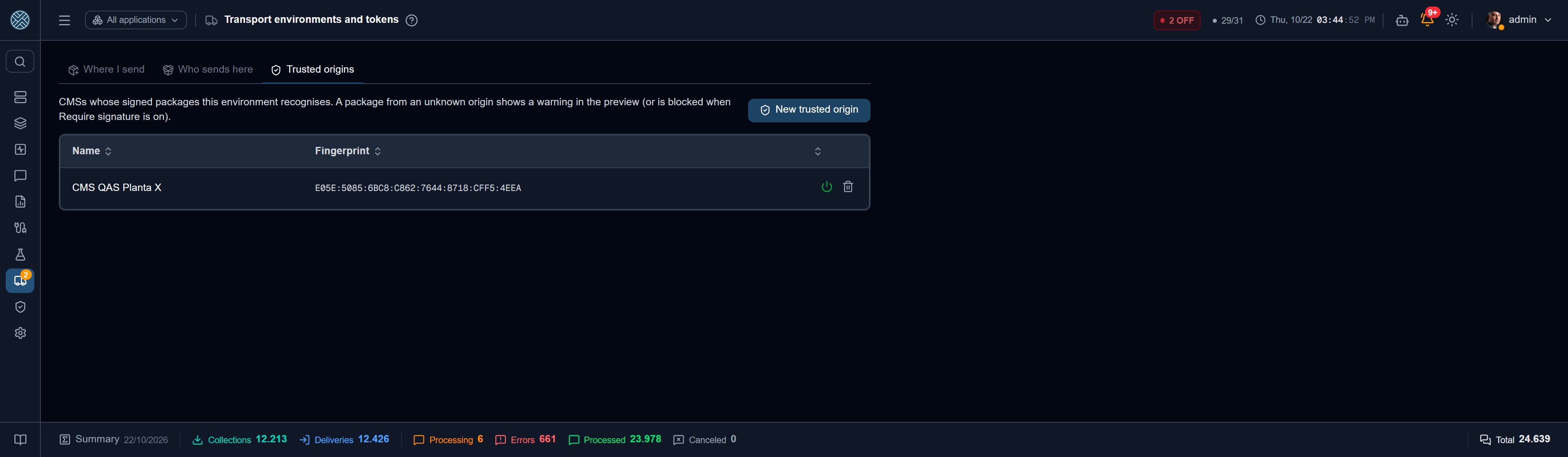
The public key shows under Environments and tokens › Where I send › This CMS key, with the fingerprint (eight groups of four characters) and a button to copy it. At the destination, whoever runs it pastes that key into Trusted origins and checks the fingerprint with someone at the origin, by phone or another channel.
The received package detail shows the signature:
- Signed by origin (green) — the key is among the Trusted origins, or it is the key bound to the token that deposited it;
- Signed by a CMS this environment does not know (amber), with the fingerprint. Whoever runs transport here can use Trust this origin, which fills in the key;
- Unsigned — a package from an earlier CMS version.
A package from an unknown origin or without a signature has a warning in the preview. With Require a signature from a trusted origin on (Parameters › Settings, administrator only), it becomes a blocking issue and cannot be approved.
In direct sending, the first signed package that arrives through a token binds the key to it. From then on the token refuses packages signed with another key and unsigned packages. The bound key’s fingerprint shows on the Who sends here tab.
Direct sending
Direct sending takes the package from one CMS to another’s inbox, with no file to download and import. On the other side it lands in Received packages as pending and follows the same path: preview, approval and activation.
It is set up in Transports › Environments and tokens (Tool /settings/transport, which the
default profiles give only to the administrator):
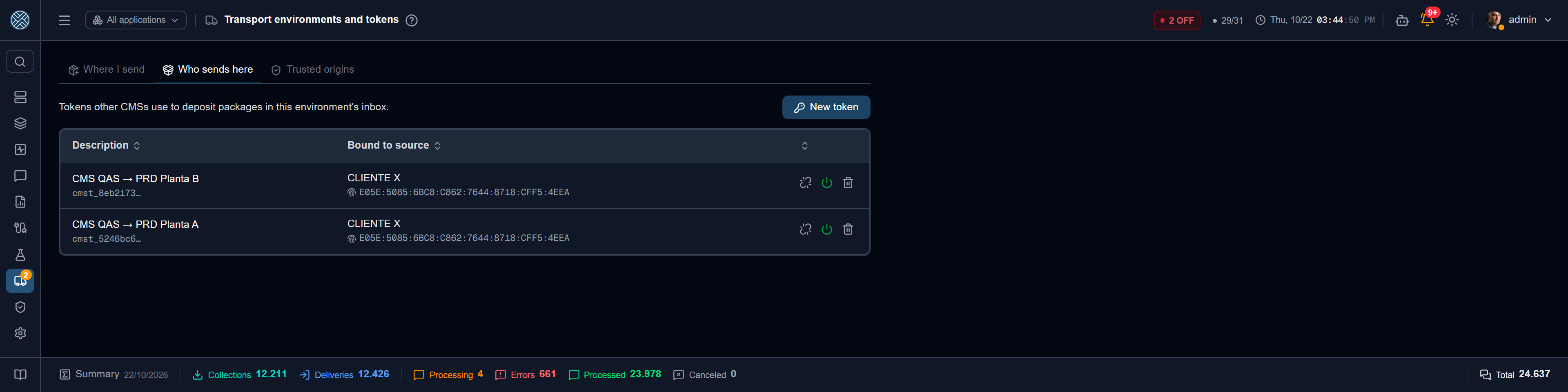
- At the destination (usually production), on the Who sends here tab, create a token
(
cmst_…). It is shown only once: copy it and hand it to whoever runs the origin. The token is bound to the first CMS that deposits with it, and to the key that signs its packages, and has a limit of pending packages. - At the origin (test), on the Where I send tab, register the destination with its address
(the same as in the browser, without
/api) and the token. If the destination uses a certificate from its own CA, add the certificate too. Use Test connection: it checks the token and shows the environment type the destination declares. Anhttp://address is accepted, but the screen warns in red: the token and the package travel unencrypted. - From then on, Build package offers the destination next to Download file.
The token is stored encrypted and never shown again. Deactivating or deleting the token at the destination cuts sending off at once. If sending fails, the package stays in Built packages, where the file can be downloaded and imported.
Several production plants
One development or test CMS can feed several production CMSs, one per plant. Each production creates its own token, and the origin registers each one under Where I send. In Build package, check every destination that should receive it: the package is built once, and the same content, with the same hash, goes to all of them. Built packages gets one row per destination, with each one’s outcome and status. If one plant is down, the others still receive it, and that plant’s package can be downloaded and imported later.
On the other side, each plant decides on its own: it has its own inbox, approvers, mapping and checklist. Passwords, URLs and variable values are filled in at each plant. If a plant uses other codes, the code change is remembered there. One production does not send to another: configuration always comes from test or development.
Came from a transport
In the lists of Interfaces, Deliveries, Collectors and Transformers, an item that came by transport shows a small package icon next to its code. Hovering shows which transport created or updated it, from which origin, when and who approved; clicking opens the transport. It only shows for users with access to Received packages, and only for transports still in force (not undone).
Permissions
| Tool | Grants |
|---|---|
/transports/send | Build package and Built packages (with the status at destination) |
/transports/received | Viewing the inbox, importing a file, the preview, the report and the “came from a transport” badge |
/transports/approval | Approving, rejecting and undoing (and receiving the new-package e-mail) |
/transports/activation | Activate transport |
/transports/update | Checking existing items for update |
/settings/transport | Environments and tokens, this CMS key and trusted origins |
Log
Each transport has a timeline on its detail page: received, preview, approved, each item created or updated, the connector decision, activated, undone, expired, with who did each thing. The cleanup never deletes it. User actions (build, send, approve, reject, activate, undo, trust an origin, and changes to the transport switches) also go to the Audit Log, like everything else.
→ Settings · Configuration · Connections and credentials · Security and encryption