UNS Manager
UNS Manager organizes integration data into a Unified Namespace (UNS): a single tree, following the ISA-95 hierarchy (enterprise, site, area, line, equipment), where every piece of plant data has a fixed address and a current value. SAP order, MES confirmation, furnace temperature, quality report: everything lands in the same namespace, in the same format, and whoever needs the data subscribes to the address instead of asking for a new integration.
What the module adds to a plain UNS is the trail. Every value that came from a transaction knows which message it was born from: starting from the variable, the Namespace Explorer leads to the message, the Delivery and the Transformer (with its version) that produced the value.
The CMS takes part in the UNS, it does not host the broker
UNS Manager is not an MQTT broker. The broker belongs to the customer (HiveMQ, Mosquitto, EMQX or another), and the CMS publishes the state of each variable to it, with retain. It does not replace SCADA or the BI tool either: it keeps the model, the current value and the history of each variable, and offers dashboards, a monitor, a standard API (i3X) and an MCP server for AI agents, for whoever wants to read.
License
UNS Manager is a paid module, enabled in the license as UNS. Without the module:
- the UNS Manager group, Plant Dashboards, the Namespace Explorer, UNS access and UNS test disappear from the menu;
- the UNS Manager connection type does not show up in the Application form;
- the module routes answer that the module is not included in the license.
With the module enabled, it still has to be installed on the machine (see Installation).
How the module runs
UNS Manager runs isolated from the integration engine. It has its own pieces, which only exist when the module is installed:
| Piece | What it is |
|---|---|
| cms-uns | The UNS process. Stores the values, publishes to the broker, subscribes to telemetry, writes the history and serves the live feed of the dashboards and the Explorer |
| cms-uns-db | The UNS database (Postgres with TimescaleDB): asset model, current value, history, dashboards and access roles |
| cms-uns-redis | The UNS Redis, for the live feed |
The integration engine only hands the values to the UNS: the Delivery writes a line to a queue in the main Redis and finishes. The one reading that queue is cms-uns. If cms-uns, the UNS database or the UNS Redis go down, integrations keep working normally; deliveries to the UNS wait in the queue until the process is back. The queue has a ceiling (50 thousand entries by default): above it, the oldest entries are dropped. The message stays processed in the integration engine and can be reprocessed.
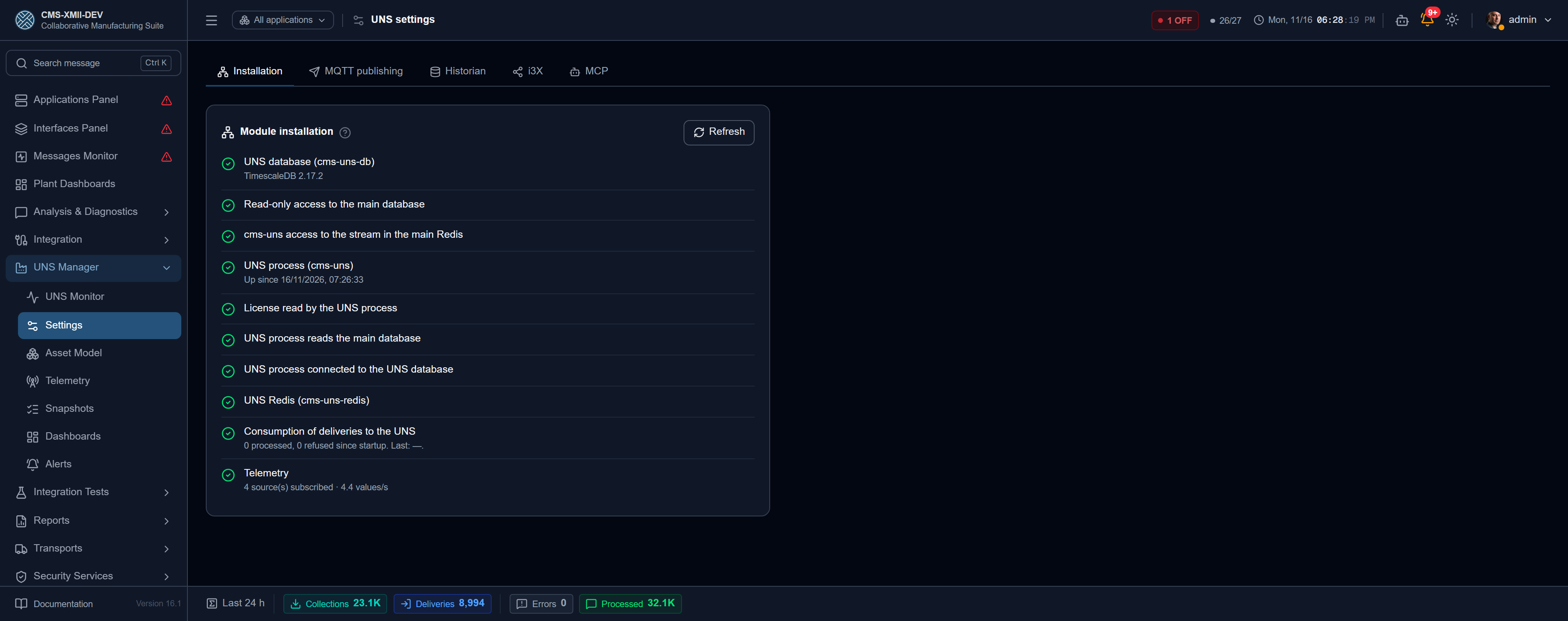
cms-uns reads the main database read-only (the trail of the message, the Delivery and the Transformer). The state of each piece shows up on the Installation tab of Settings.
Concepts
| Term | What it is |
|---|---|
| Node | A point in the ISA-95 tree. The levels are Enterprise, Site, Area, Work Center and Work Unit. Each node has a segment (its piece of the topic) and a name |
| Asset type | The template of a piece of equipment (e.g. “Filler”). Applied to a node, it gives the node the type’s attributes. A type can inherit the attributes of another |
| Attribute | A piece of data the asset type has: temperature, state, order in production. It defines the data type (number, integer, boolean, text or JSON), the unit, the limits, the schema and whether it is historized. The class tells the nature of the data: Telemetry, State, Event or Transaction |
| Variable | The instance of an attribute on a node: “temperature of furnace 1 on line 2”. This is what receives a value. The system creates the variables by itself when a type is applied to a node |
| Namespace | The kind of information, separate from the location: edge, mes, erp, quality, maintenance come by default. The same machine has its temperature in edge and its order in erp |
| Topic | The variable’s address, built from the template {enterprise}/{site}/{area}/{workcenter}/{workunit}/{namespace}/{atributo}. E.g. acme/sjc/envase/linha1/env01/edge/temperatura. It is the same topic that goes to the broker |
The model is built in the Asset Model.
The value: VQT
Each variable keeps its current value in the VQT format:
| Field | What it holds |
|---|---|
| value | The value, in the attribute’s data type |
| quality | GOOD, UNCERTAIN or BAD. A value outside the type, the limits or the schema is not discarded: it is stored with BAD and the reason. A telemetry source that is down leaves its variables UNCERTAIN |
| timestamp | When the value happened at the source, not when the CMS stored it |
The current value is only replaced by a value that is newer at the source. Reprocessing yesterday’s message sends the value to the history, but does not take the UNS back in time.
The origin trail
Along with the VQT, each value keeps where it came from. On the broker, this trail goes out in the
_cms field:
| Origin | What the trail carries |
|---|---|
| Transaction (Delivery) | The message, the Delivery code and the Transformer with its version |
| Telemetry | The tag address at the source |
See the full payload in What reaches the broker.
How data reaches the UNS
There are three ways to write to the UNS and one to read from it in an integration.
| Path | When to use | Creates a message? |
|---|---|---|
| Delivery to the UNS | Business data that already goes through the integration engine: order, confirmation, production report, quality report | Yes, with the full trail |
| Telemetry | Continuous measurement that the edge (Kepware, Ignition, Node-RED) already publishes to an MQTT or Sparkplug B broker | No: cms-uns subscribes to the broker and stores it directly |
| Writing through the i3X API | Another platform, script or AI agent writes the current value | No: the value comes in with origin i3X |
| UNS variable Collection | Taking the value of a variable to another system, like any other Collection | Yes, in the Collection’s Interface |
Writing to a variable, through any of these paths, requires write permission on its topic in access control.
Delivery to the UNS (UNS_PUBLISH)
The transactional path is a Delivery like any other: Interface, Transformer, Delivery. The difference is the destination, which is UNS variables instead of a URL or a topic.
- Register an Application with the UNS Manager connection type (in the Industrial Protocols group). It has no connection to configure: the destination is the UNS Manager of the installation itself.
- Create the Delivery in that Application. The only possible type is UNS (variables).
- Map the payload fields to the variables.
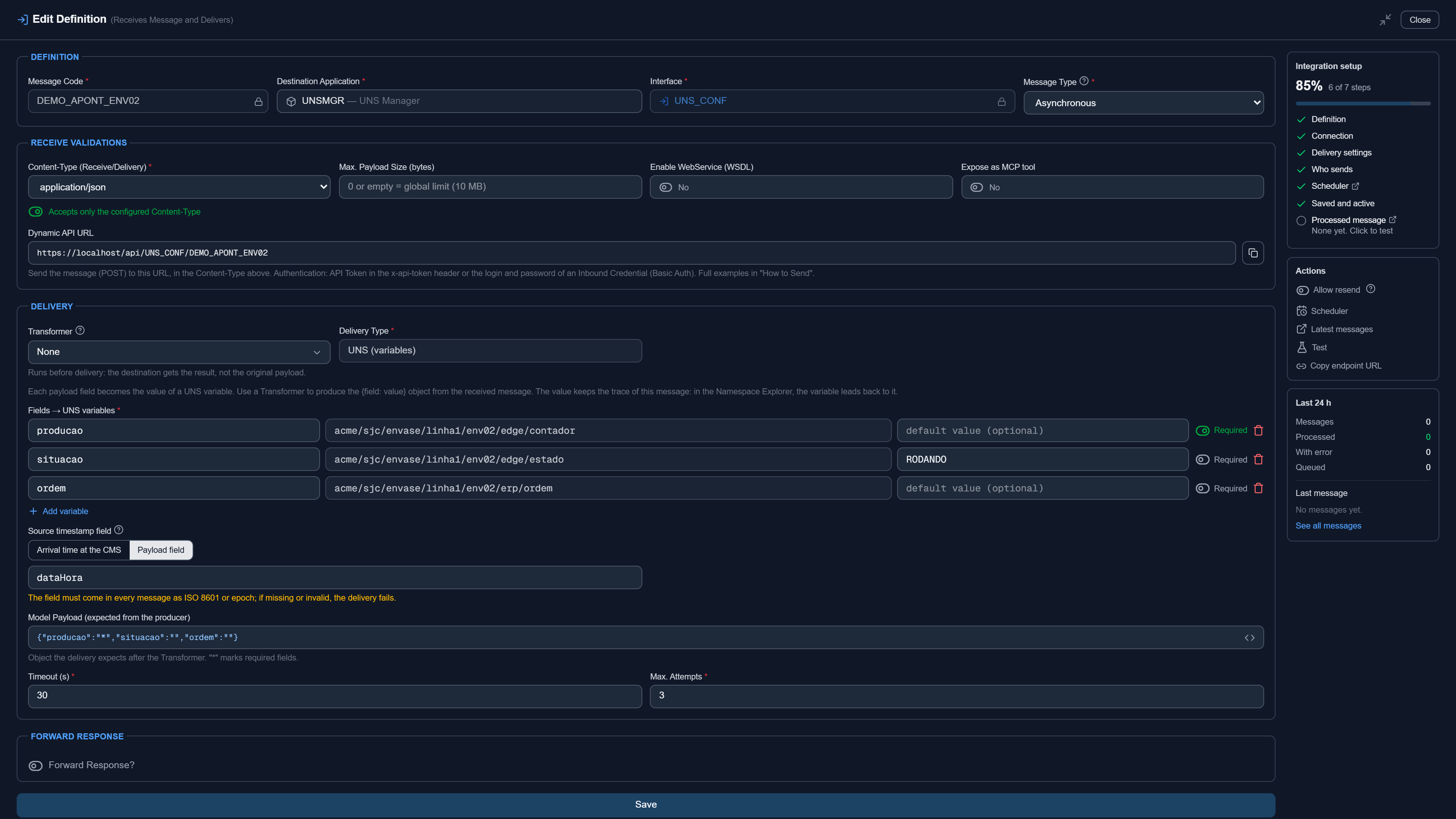
| Field | What it holds |
|---|---|
| Fields → UNS variables | One line per variable: the alias (the field name in the payload), the variable topic, the default value and the Required switch. Add variable opens the picker, which only lists variables you can write to. At least one line is required |
| Topic (read-only) | The variable topic when the Delivery was saved, for display only. The link is by variable: renaming a node in the Asset Model does not break the Delivery |
| Default value | Used when the payload does not carry the field, or carries null or empty. The text is stored as is |
| Required | If the field does not come (and there is no default value), the delivery fails and nothing is written to the UNS |
| Source timestamp field | Arrival time at the CMS (the default) uses the date the message arrived. Payload field uses a field with the instant the data was born, in ISO 8601 or epoch (seconds or milliseconds). The button next to it suggests fields from the Transformer output and from received messages, marking the ones that look like dates. Once named, the field joins the Payload Model as required ("*"). |
| Model Payload (expected from the producer) | The object the Delivery expects after the Transformer. * marks the required fields |
The payload reaching the Delivery must be a JSON object in the form {campo: valor}. The one
building this object from the received message is the Delivery’s Transformer.
Delivery contract. When delivering, the integration engine:
- reads each alias from the payload; a missing field with no default value is skipped (the variable stays as it is);
- fails the delivery if a required field is missing, if no mapped field comes in the payload or if the timestamp field does not carry a valid date;
- otherwise, writes the values to the UNS queue and marks the message as Processed. The Delivery does not talk to the UNS database.
What happens next, in cms-uns, shows up on the message timeline, and does not turn the Delivery back into an error:
| Event | Means |
|---|---|
| UNS: n value(s) applied | All values were stored |
| UNS: partly applied | Some of the values were not stored. Each item says why: older than the current value (goes to history only), the variable no longer exists in the Asset Model, or the quality and the reason (BAD due to type, limit or schema) |
| UNS: refused | No value was stored, because none of the variables exists anymore |
To fix it, adjust the model or the Transformer and reprocess the message the usual way.
When the Delivery is saved, the system checks that each variable exists and that you can write to all of them. If a variable is deleted later, the Delivery keeps delivering, and the item shows up as refused on the timeline. Messages from the Test Bench update the current value (marked as test) and do not go into the history.
UNS variable Collection (UNS_VARIAVEL)
This is the way back: a Collection that watches a UNS variable and creates a message when the rule fires. The message goes on to the Collection’s destinations like any other, with Transformer, forwarding and timeline. It is used to take a temperature alarm to the MES, send a series to another system or open a ticket.
The Collection is registered in an Application of type UNS Manager, with the Collection type
UNS_VARIAVEL. It has no schedule: the engine checks the value of the watched variables every
second.
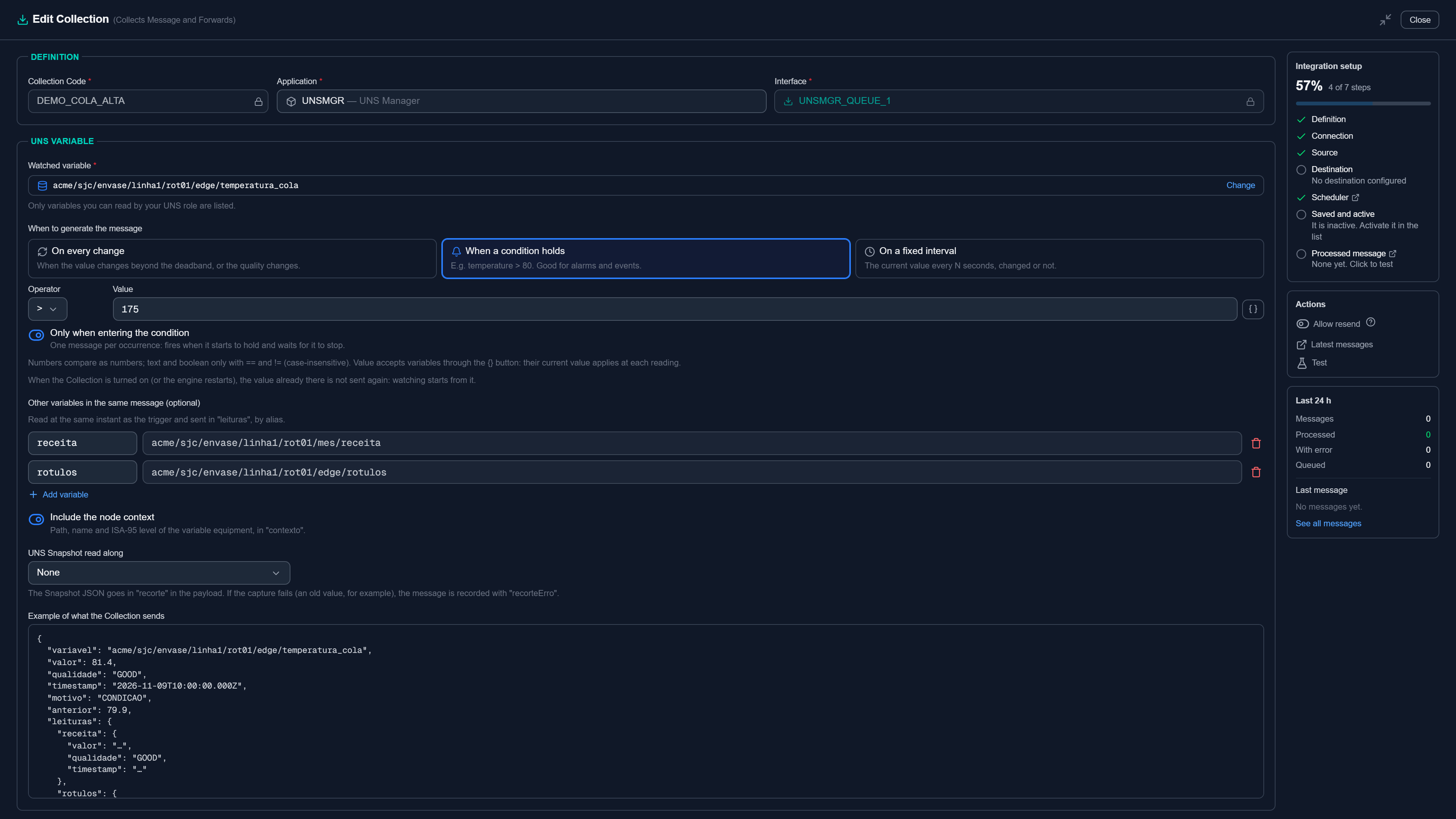
| Field | What it holds |
|---|---|
| Watched variable | The variable the Collection follows. Only variables you can read through your UNS role show up |
| When to generate the message | On every change, When a condition holds or On a fixed interval (details below) |
| Other variables in the same message (optional) | Up to 50 variables read at the same instant as the firing, sent in leituras, each under its Alias |
| Include the node context | Adds to contexto the path, the name and the ISA-95 level of the variable’s equipment |
| UNS Snapshot read along | A Snapshot: the JSON with the hierarchy and the values of the chosen nodes goes in recorte, read at the instant of the firing |
| Example of what the Collection sends | The payload the Collection will produce, with what is already chosen |
The firing modes:
| Mode | Fires when | Fields |
|---|---|---|
| On every change | The value changes beyond the deadband compared to the last one sent, or the quality changes | Deadband: minimum variation. Empty = any change. Text and boolean compare for equality |
| When a condition holds | The condition becomes true (e.g. temperature > 80) | Operator (>, >=, <, <=, ==, !=) and Value. Numbers compare as numbers; text and boolean only with == and !=, case-insensitive. Only when entering the condition on creates one message per occurrence; off, one for every new value while the condition holds. Value accepts variables through the {} button: their current value applies at each reading. |
| On a fixed interval | Every N seconds, whether it changed or not | Interval: between 1 second and 1 day |
When the Collection is turned on, or when the engine restarts, the value already in the variable is not sent again: the Collection starts watching from it.
The payload the Collection stores:
{
  "variavel": "acme/sjc/envase/linha1/env01/edge/temperatura",
  "valor": 81.4,
  "qualidade": "GOOD",
  "timestamp": "2026-11-09T10:00:00.000Z",
  "unidade": "°C",
  "motivo": "CONDICAO",
  "anterior": 79.9,
  "leituras": { "velocidade": { "valor": 120, "qualidade": "GOOD", "timestamp": "..." } },
  "contexto": { "caminho": "acme/sjc/envase/linha1/env01", "nome": "...", "nivel": "..." }
}
unidade only comes when the attribute has a unit; anterior does not come in interval mode;
leituras, contexto and recorte only come when configured. If the Snapshot capture fails, the
message is stored with recorte: null and the reason in recorteErro. The condition editor of the
forwardings already knows these fields before the first message exists.
On save, the system checks the license, whether the variables exist and whether you can read each one. Someone who only changes a destination of the Collection does not need permission on the variables chosen by someone else.
The module screens
| Screen | Where it is in the menu | What it is for |
|---|---|---|
Plant Dashboards — /uns/view | At the top of the menu | The published dashboards, for people who only view |
UNS Monitor — /uns/monitor | UNS Manager | UNS health: sources, refused deliveries, stale variables, alerts |
Settings — /uns | UNS Manager | Installation, MQTT publishing, Historian, i3X and the UNS MCP server |
Asset Model — /uns/asset-model | UNS Manager | The ISA-95 tree, asset types and attributes |
Namespace Explorer — /uns/explorer | Analysis & Diagnostics | Browse the namespace, see the current value, the trail and the trend |
Telemetry — /uns/telemetry | UNS Manager | Subscribe to the edge brokers and link each tag to a variable |
Snapshots — /uns/snapshots | UNS Manager | Pick nodes and generate a JSON with the values, for a Trigger or a Collection |
Dashboards — /uns/dashboards | UNS Manager | Build live dashboards on the variables, also on TV |
Alerts — /uns/alerts | UNS Manager | The UNS alert rules |
Access control — /uns/access | Security Services › UNS access | Roles with read and write topic filters |
UNS test — /uns/live-test | Integration Tests | Diagnosis of the live channel, step by step |
Who gets into each screen is still defined by the Profile, through the Tool of each route (see Access level per Tool). What each person sees inside the screens is scoped by their role in access control.
A sensible order to get started: install and check Settings, build the Asset Model, hand out the access roles, feed the variables through Telemetry or a Delivery to the UNS and, finally, set up publishing to the broker and the Dashboards.